 Rusti.Red
 Rusti.Red, screen by screen
Two real jobs and the owner’s setup, tap by tap, one person at a time: the homeowner, the office, the tech, and the owner.
Elena and Dana never log in. They see your booking page and the quote and invoice links, on their phones.
A service call, from the first tap to paid
Elena Marsh’s furnace runs but no air comes out of the vents. She has never called this shop. Karen is in the office, Jordan is the tech with a free window, and it is all done by mid-afternoon.
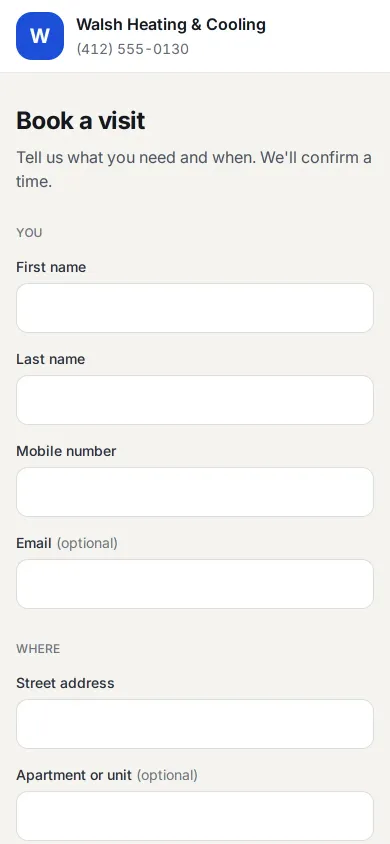
The shop’s booking page
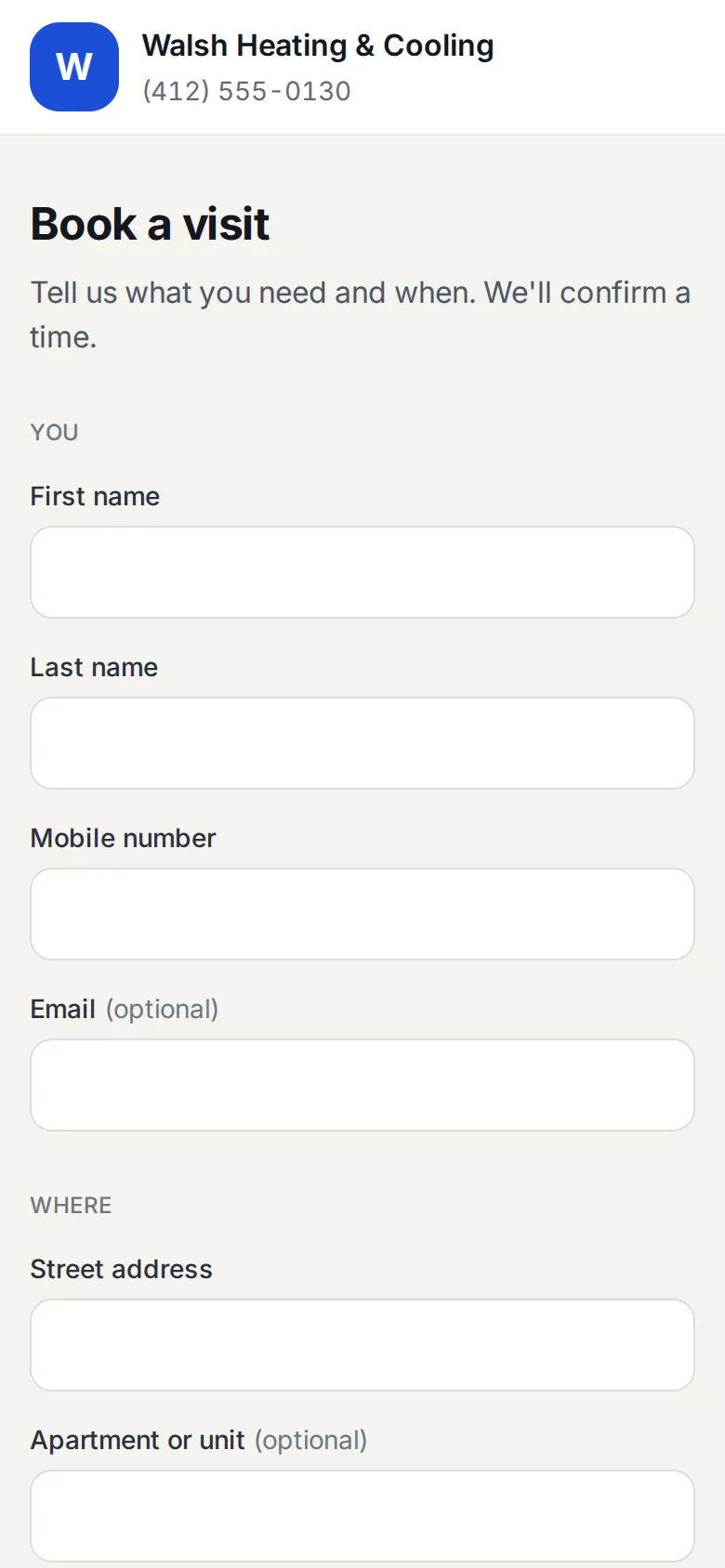
Every shop gets one page at its own address on rusti.red, with its logo, name, and phone. No account and no app. Elena gets here from your website, your Google listing, or a link the office texted her.
Open your shop’s booking page
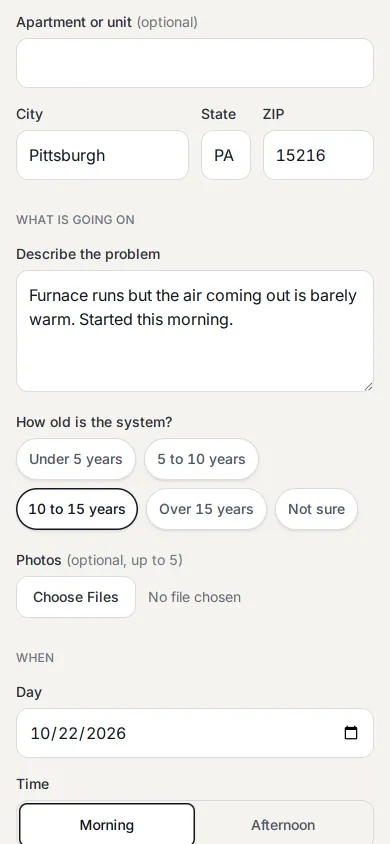
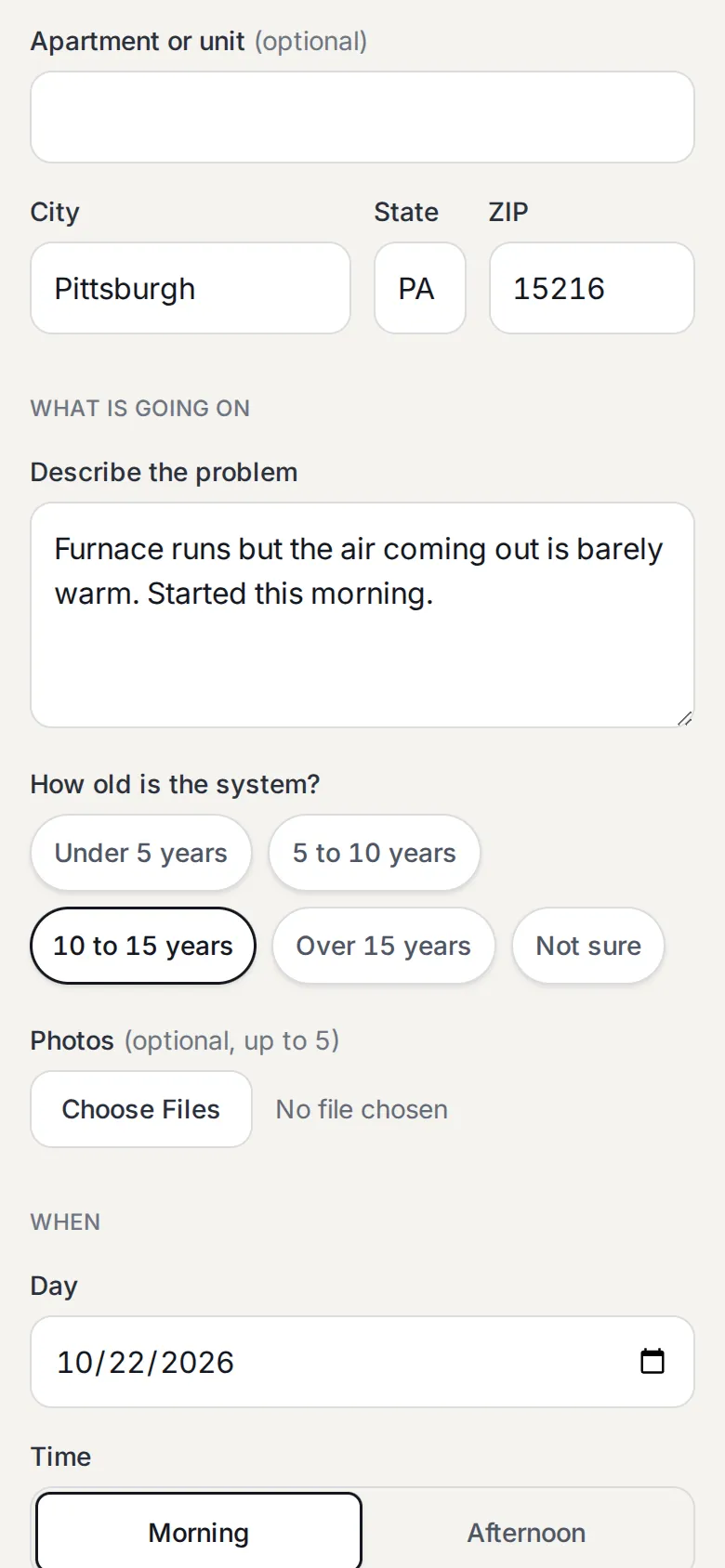
The problem, in her words
She says what is wrong and taps how old the system is. Photos are optional. This is what the tech reads before he knocks.
Describe the problem then tap the system’s age, here 10 to 15 years
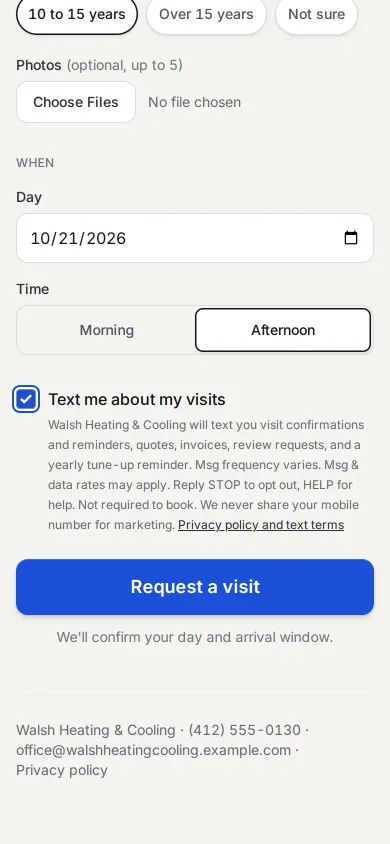
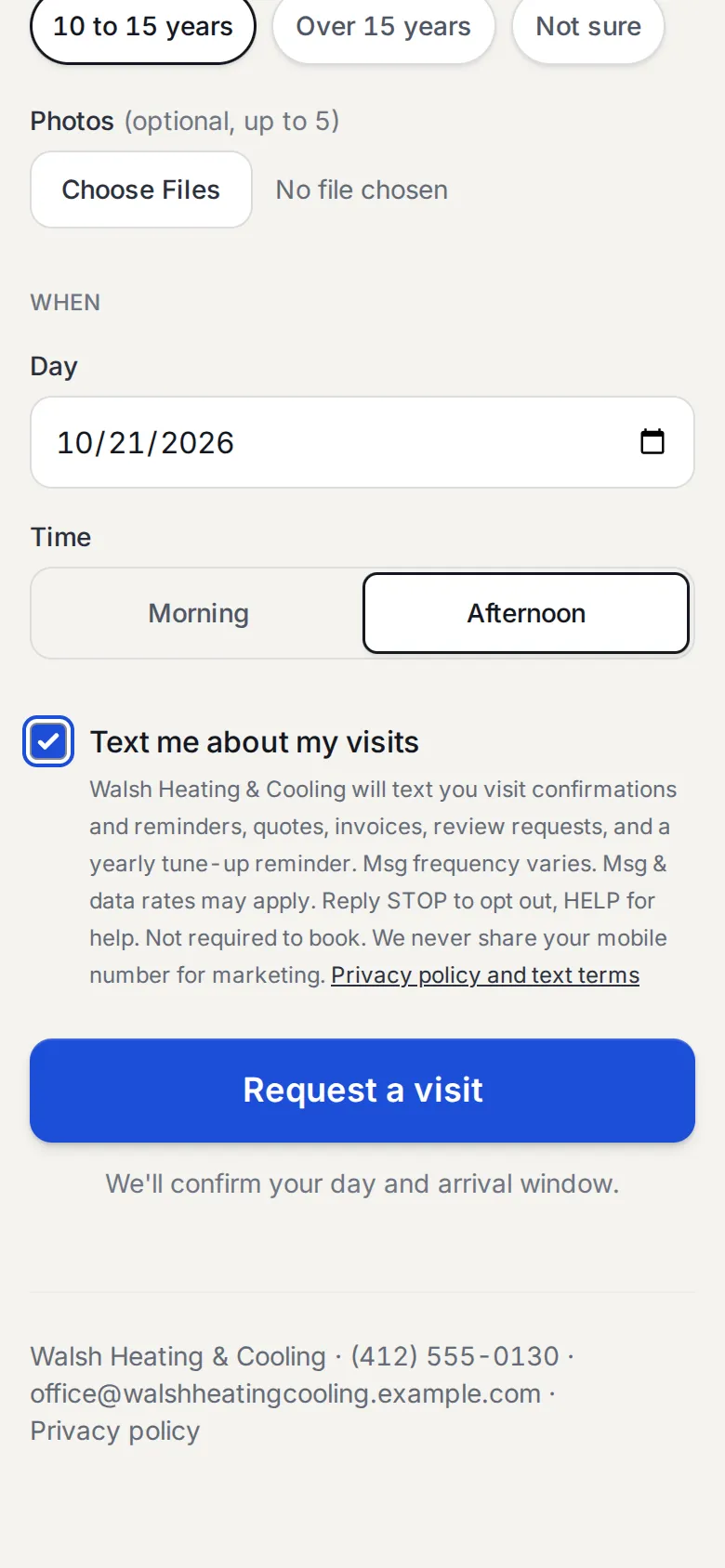
A day, and a yes to texts
She asks for a day and morning or afternoon, not an exact time. The box starts unticked: ticking it is her written permission for the shop to text her, in the shop’s own name.
Pick a day and a time of day then tick Text me about my visits then Request a visit
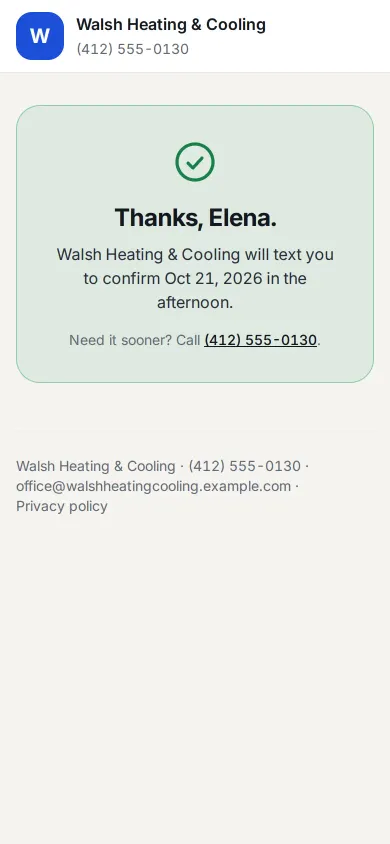
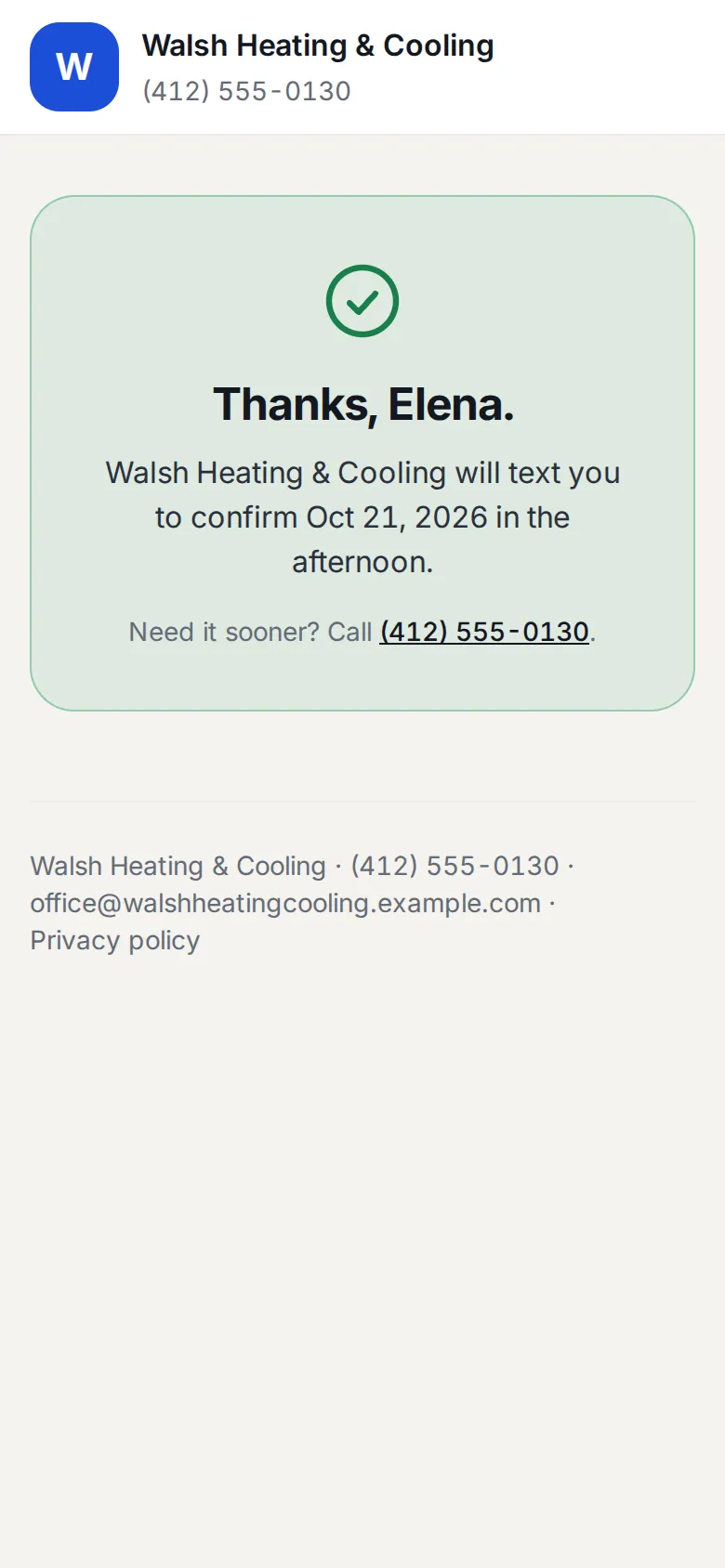
Request sent
The page tells her what happens next and gives the phone number in case it cannot wait.
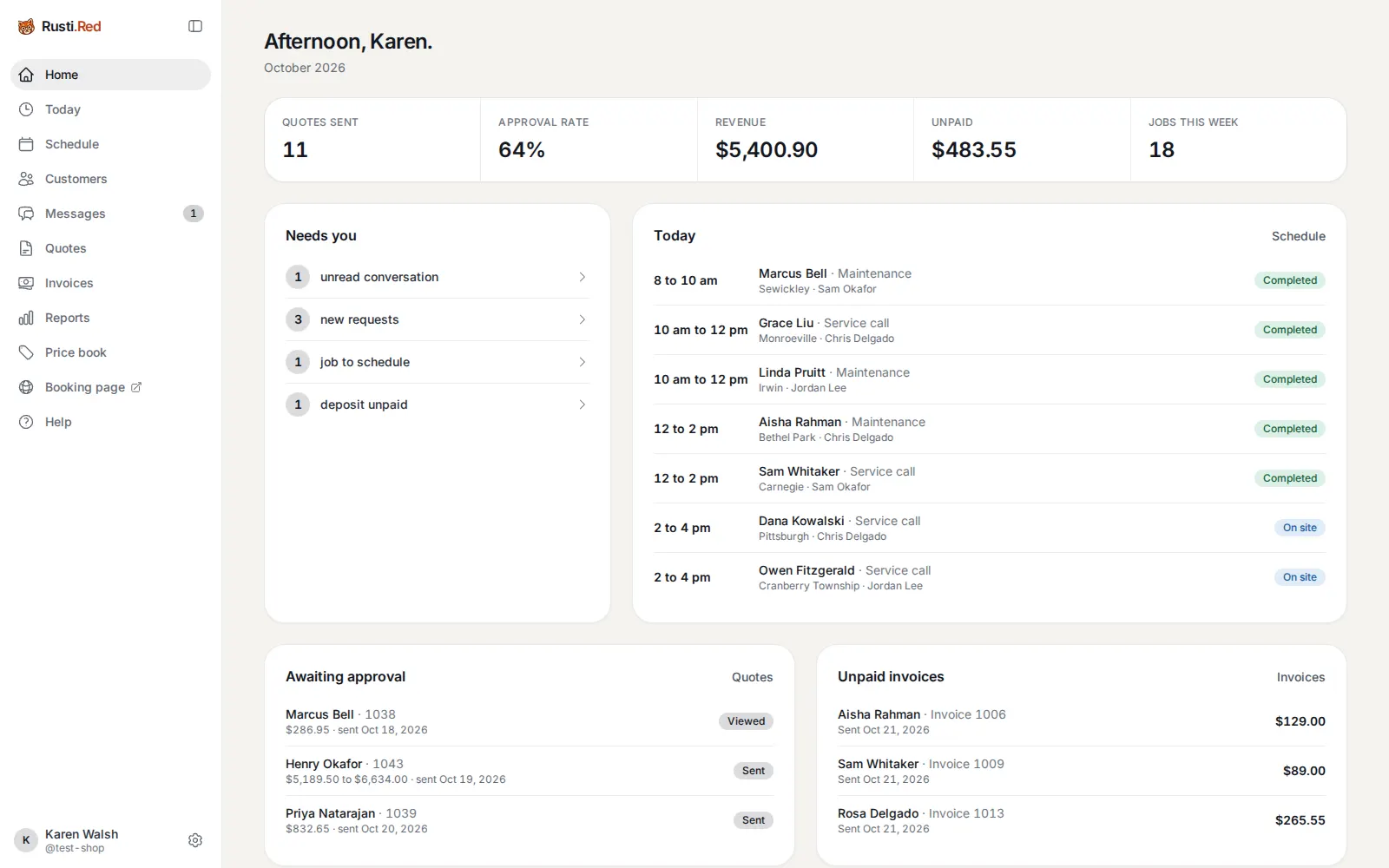
The office sees it
Karen’s home screen. “Needs you” now counts 3 new requests. Above it are the month’s five numbers; beside it, today’s visits with each tech’s name. Every line under Needs you is a link.
new requests, under Needs you
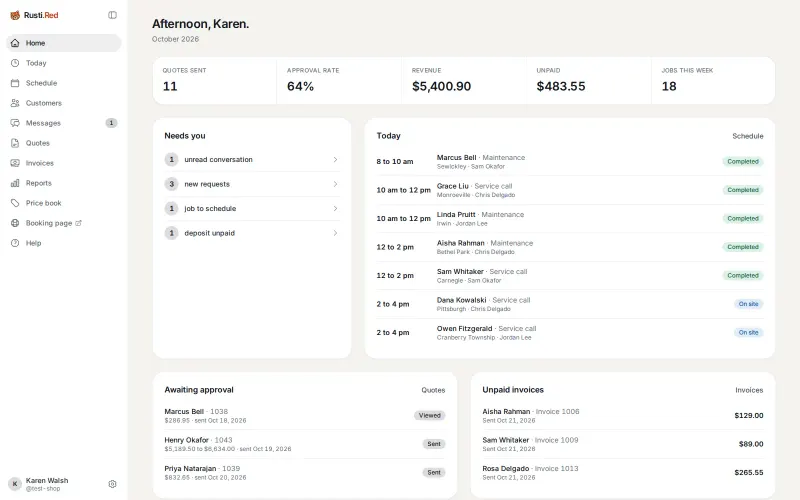
Requests wait beside the week
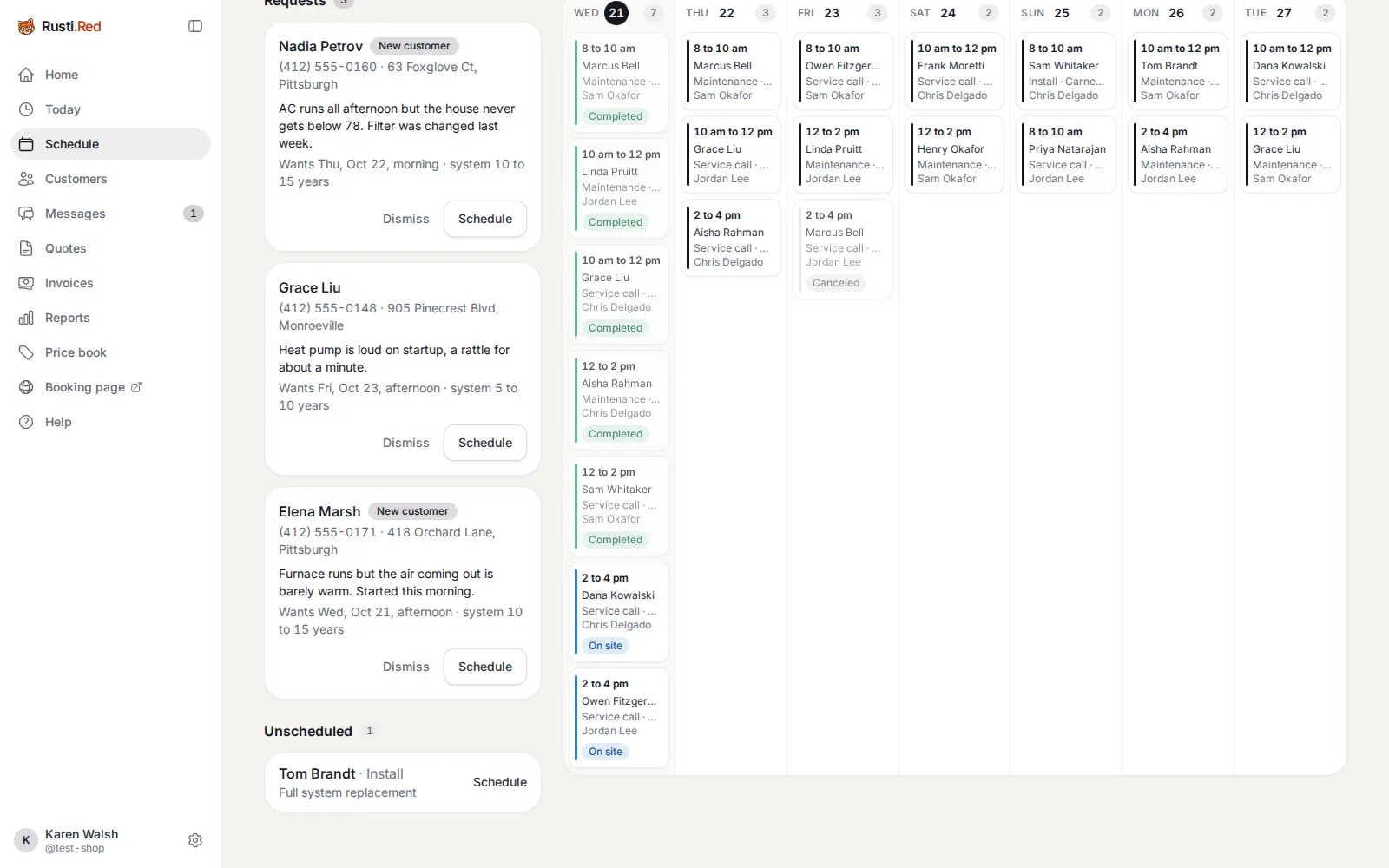
On Schedule, requests sit in a column next to the week board. Elena’s card shows her problem, the day she asked for, the system’s age, and that she is a new customer.
Schedule, on Elena’s request
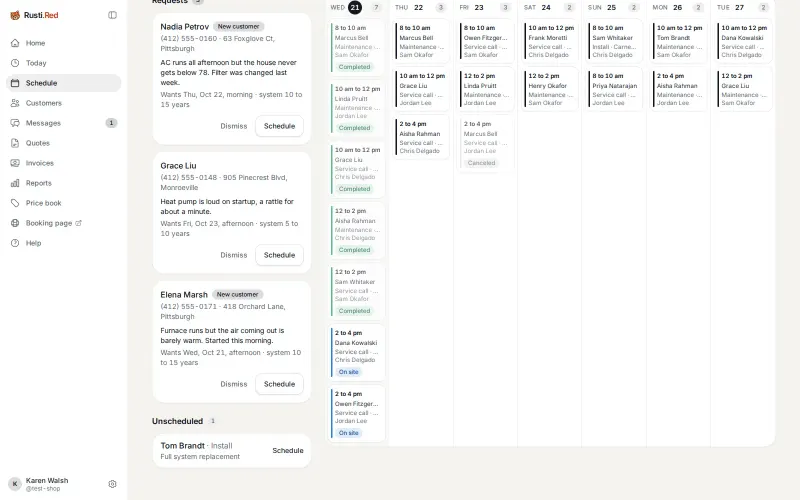
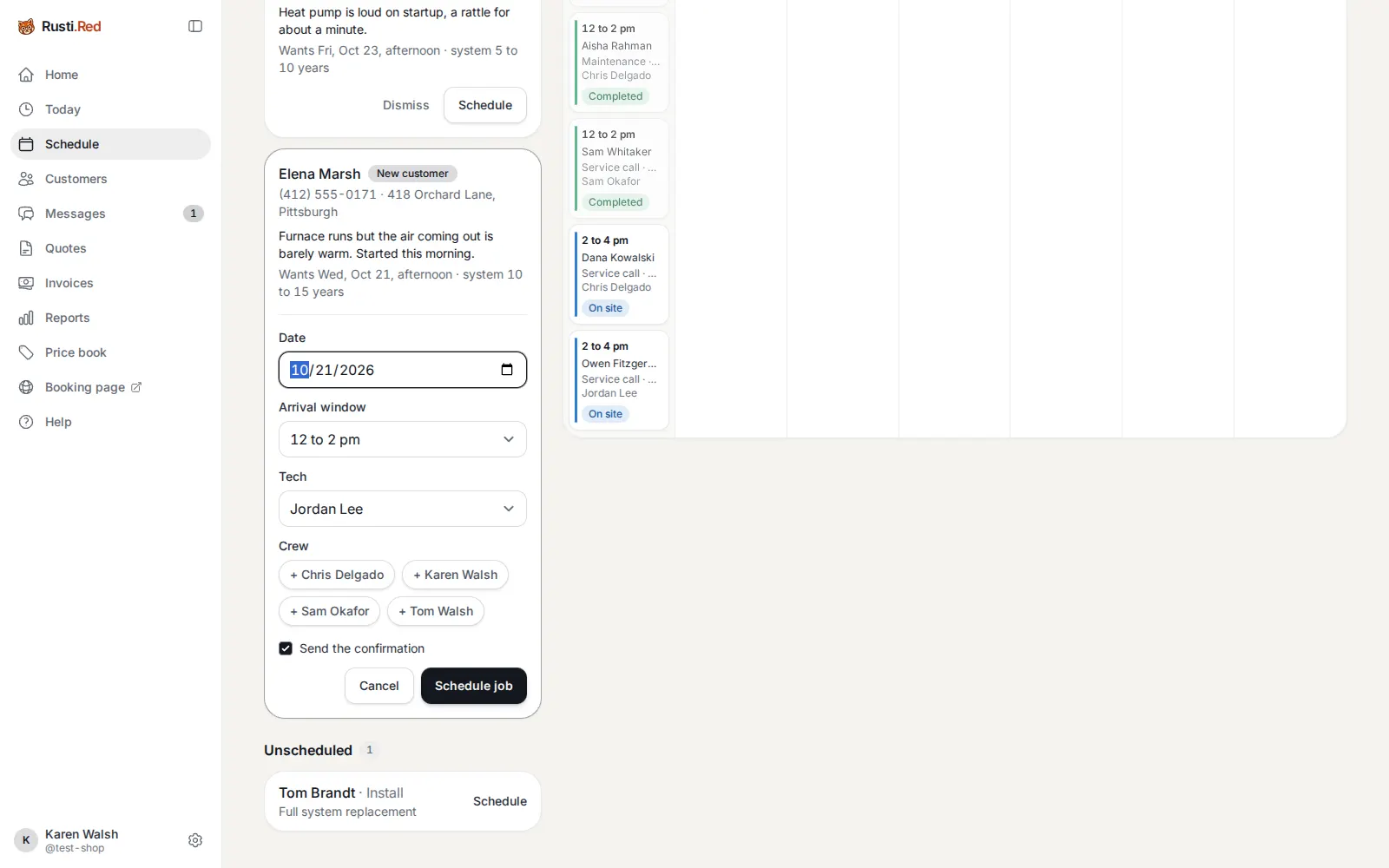
Schedule: date, window, tech
Three choices on the card: the date (hers is filled in), an arrival window, and the tech. Schedule job turns her request into a service call. Nothing is typed twice.
Pick the window and the tech then Schedule job
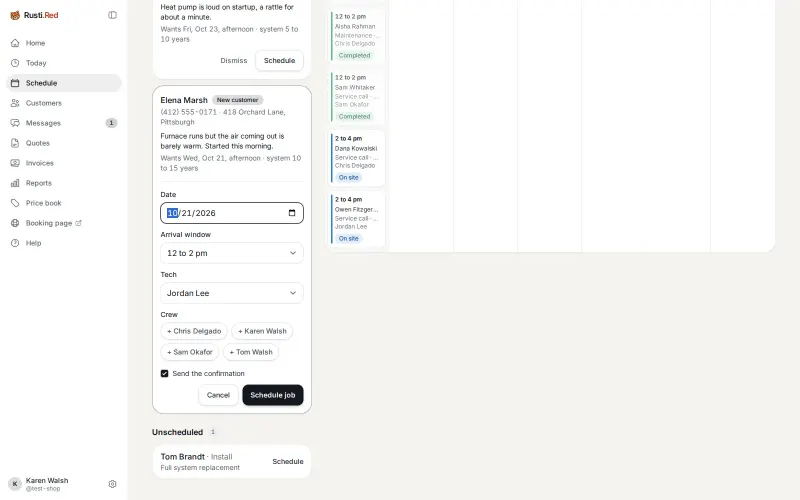
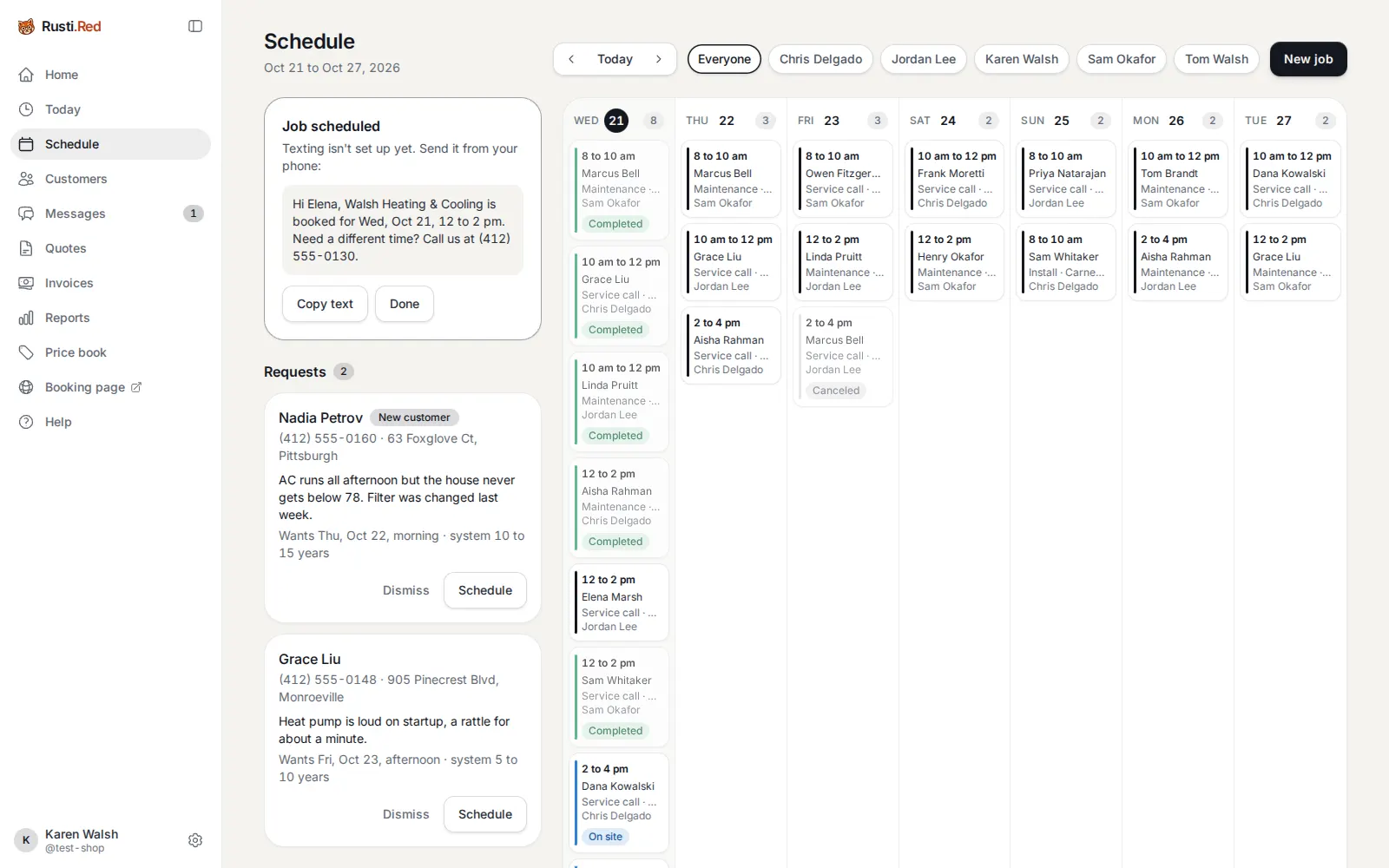
Booked, with the confirmation written
The visit is on Thursday’s column, its confirmation written. Until your texting is approved, Karen copies the text or sends it from her phone. After that, it says “Texted” and Karen does nothing.
Copy text, to send it from a phone then Done
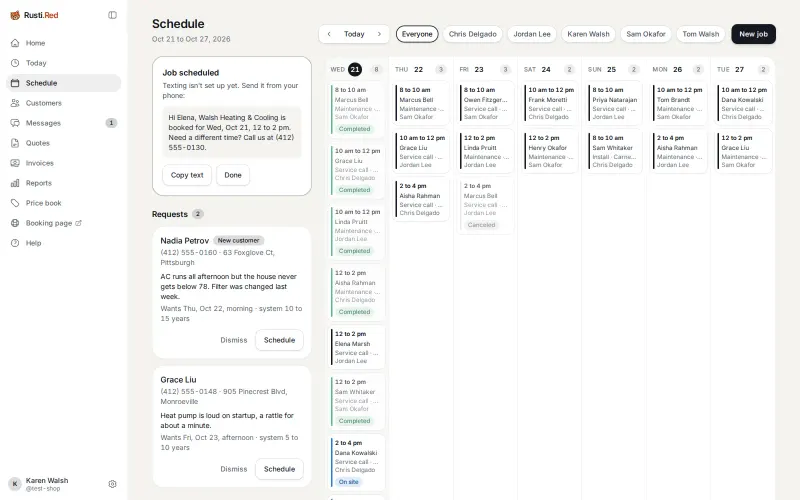
Jordan’s day
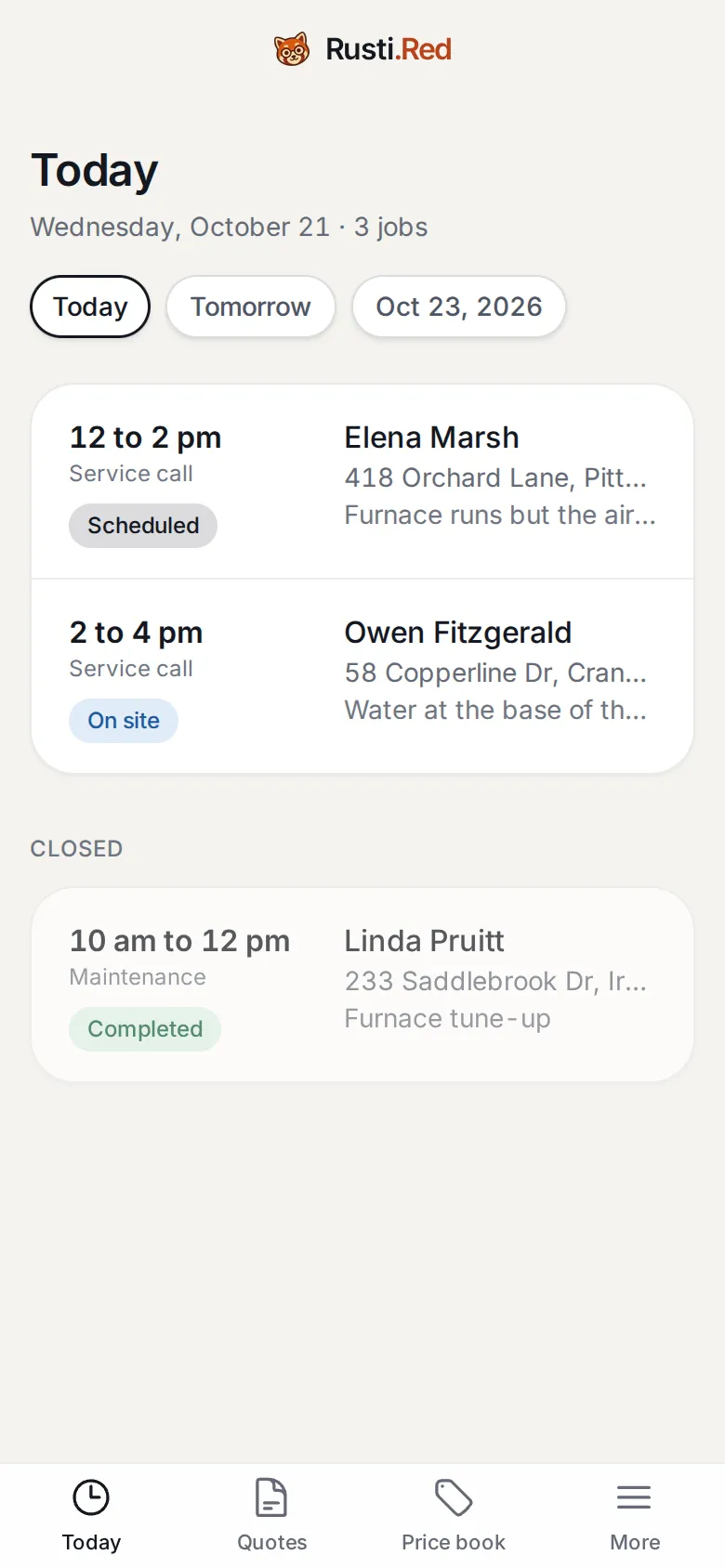
A tech’s home screen is Today: his own visits in order, each with its window, the address, and the first words of the problem. Elena’s call is at the top.
Elena’s visit, at the top of Today
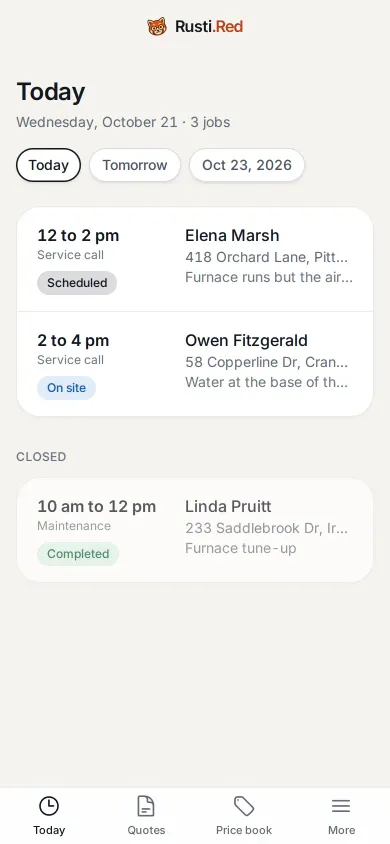
The job screen
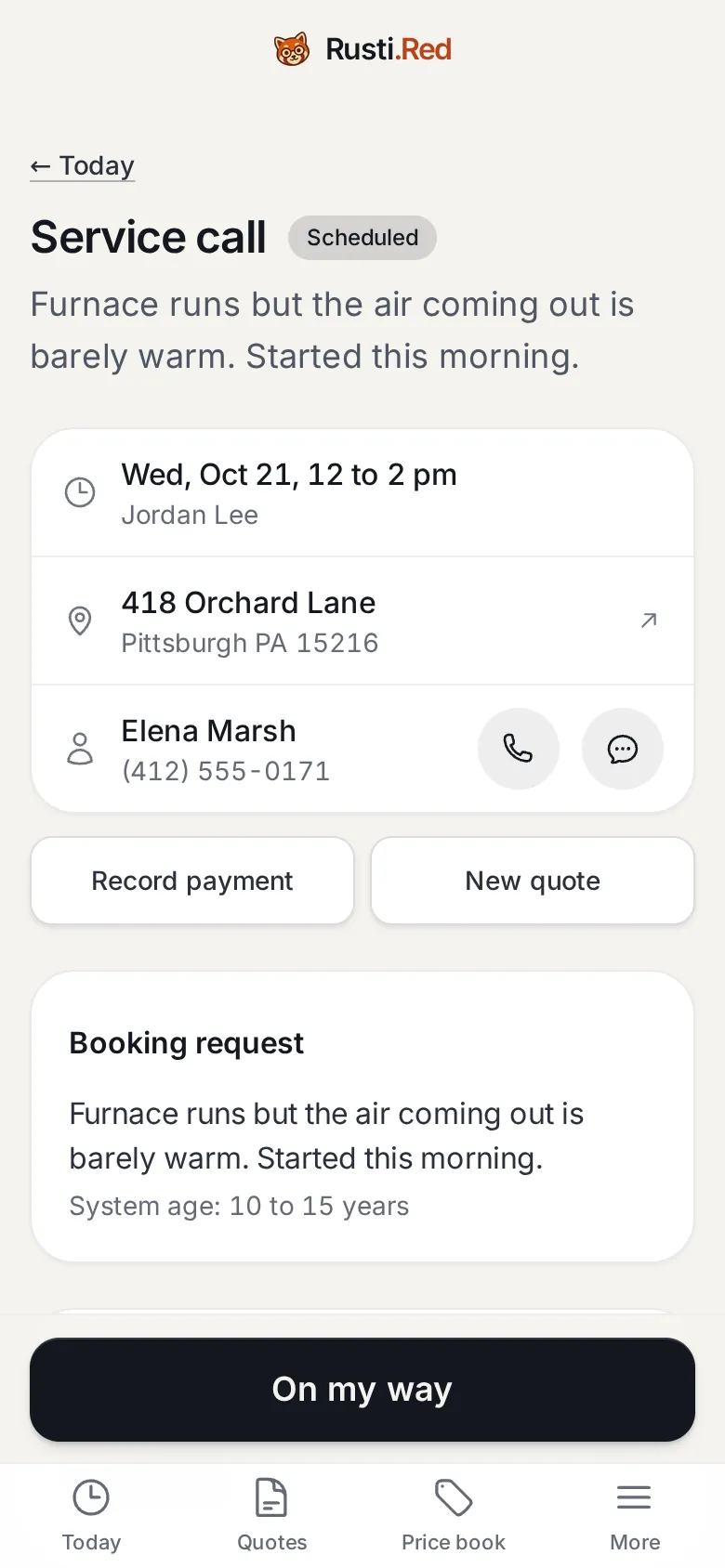
Everything for this stop: the window, the address (it opens maps), call and text buttons, and what Elena wrote. The one big button at the bottom is always the next step. Now it says On my way.
On my way
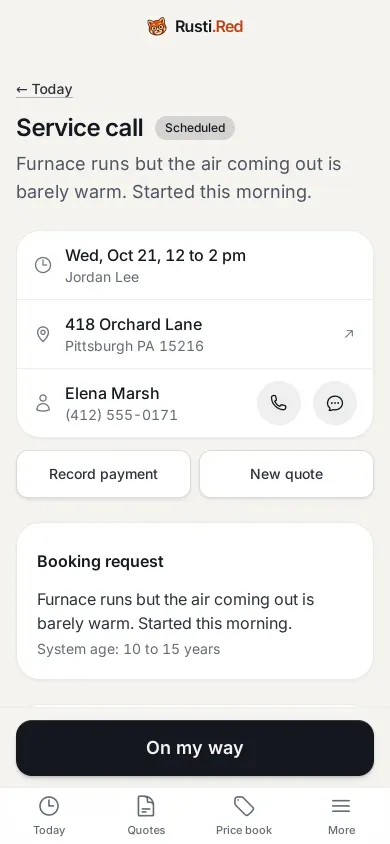
On my way
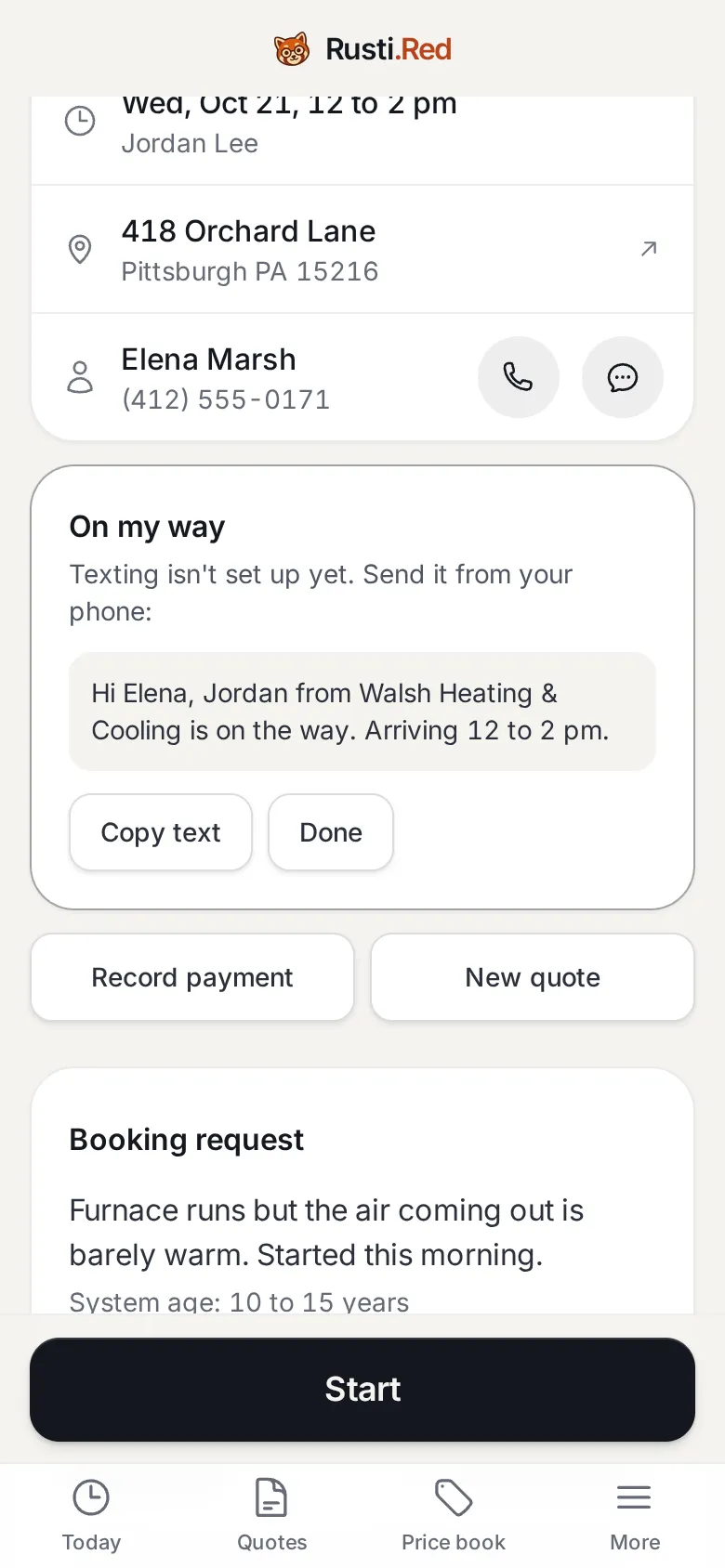
One tap marks him on the way and writes the on-my-way text with his name and the window. The button now says Start.
Copy text, to send it from your phone then Start, once you are there
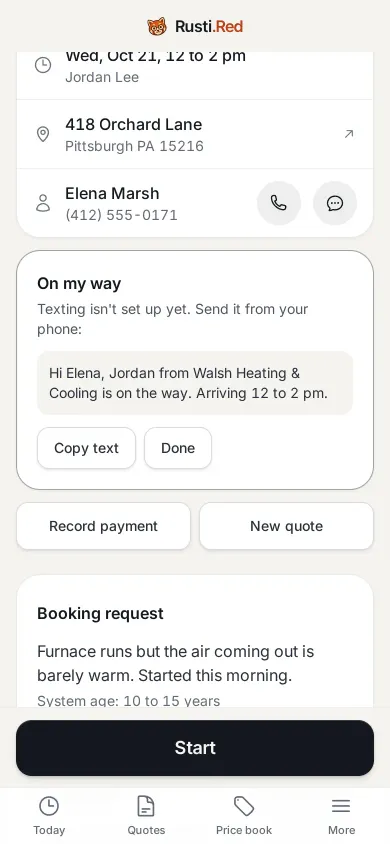
On site: record the equipment
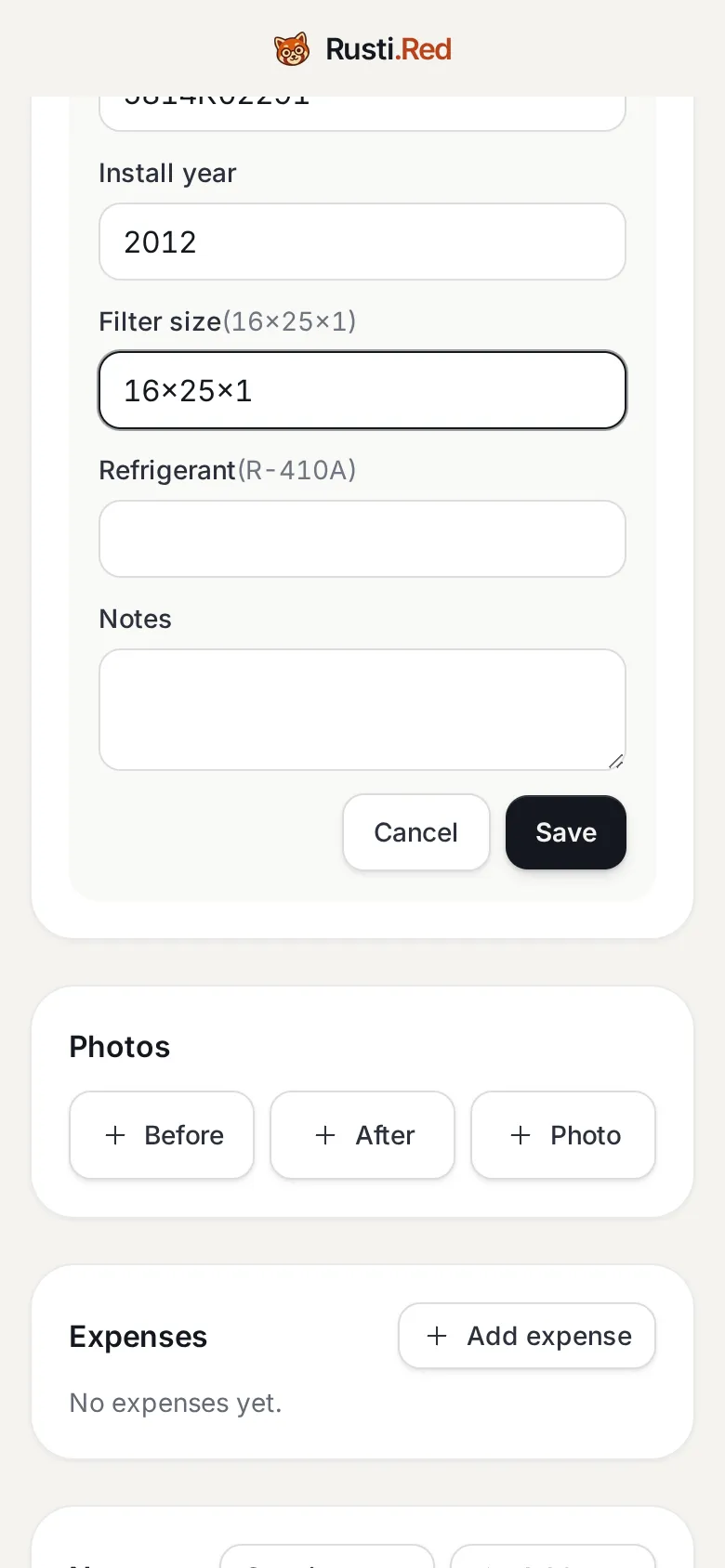
After Start he adds the furnace: type, brand, model, serial, year, filter size. It stays with the house, so the next tech knows what is there before loading the truck.
Add equipment, under Equipment then fill it in then Save
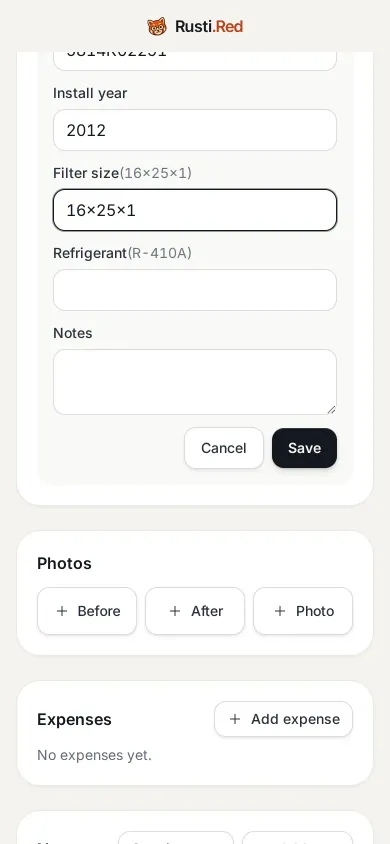
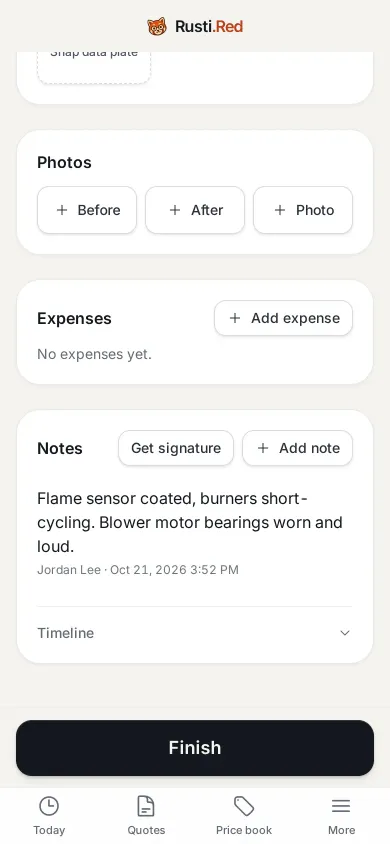
A note for the record
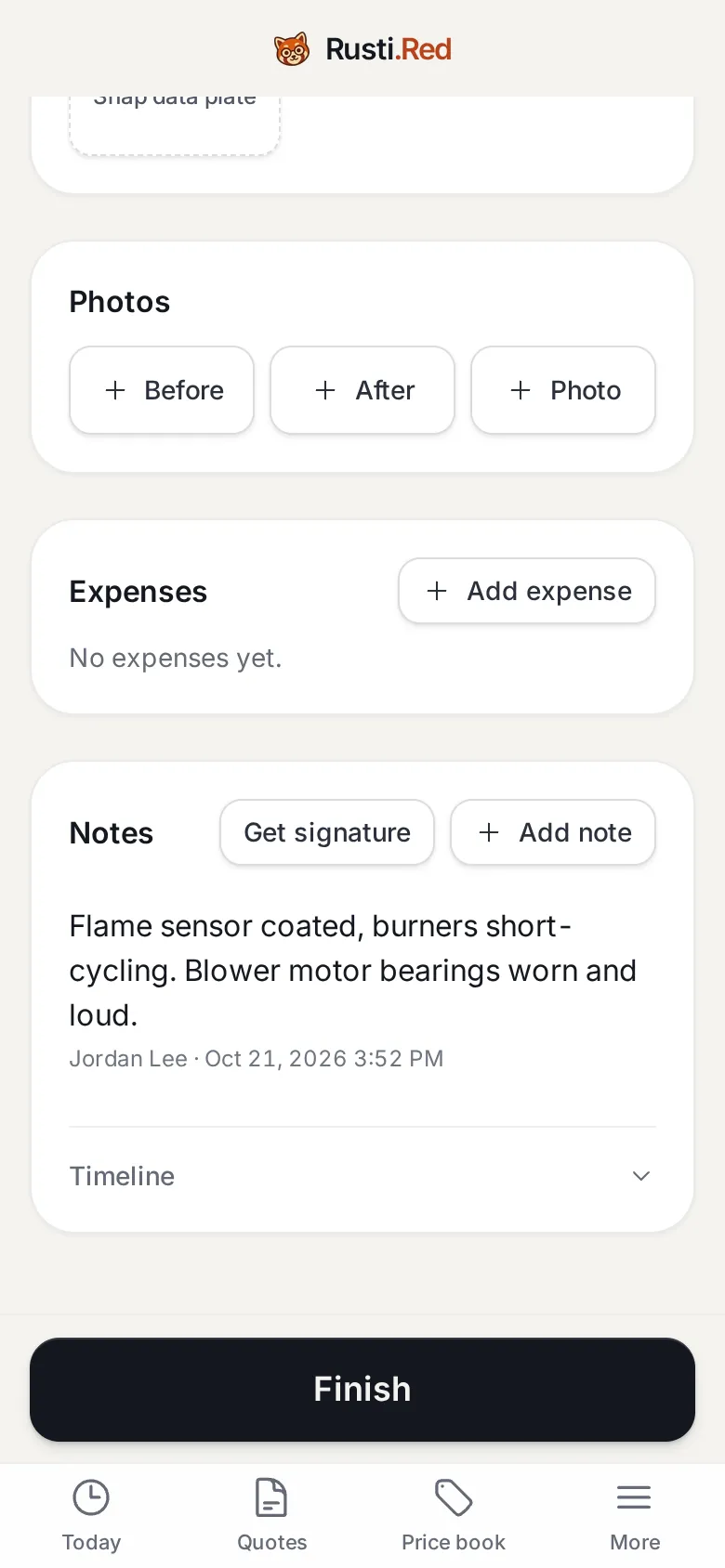
The unit is on file, and his finding is saved with his name and the time. Service calls here need a note before Finish, a rule set in Settings, Jobs and arrival windows.
Add note then write what you found then Save note
A quote from the price book
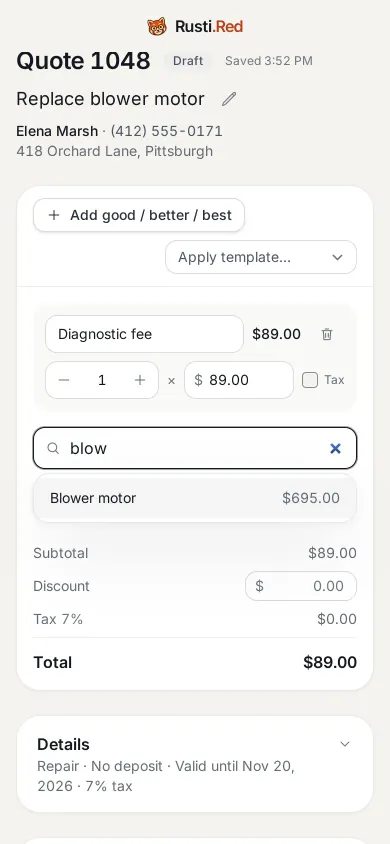
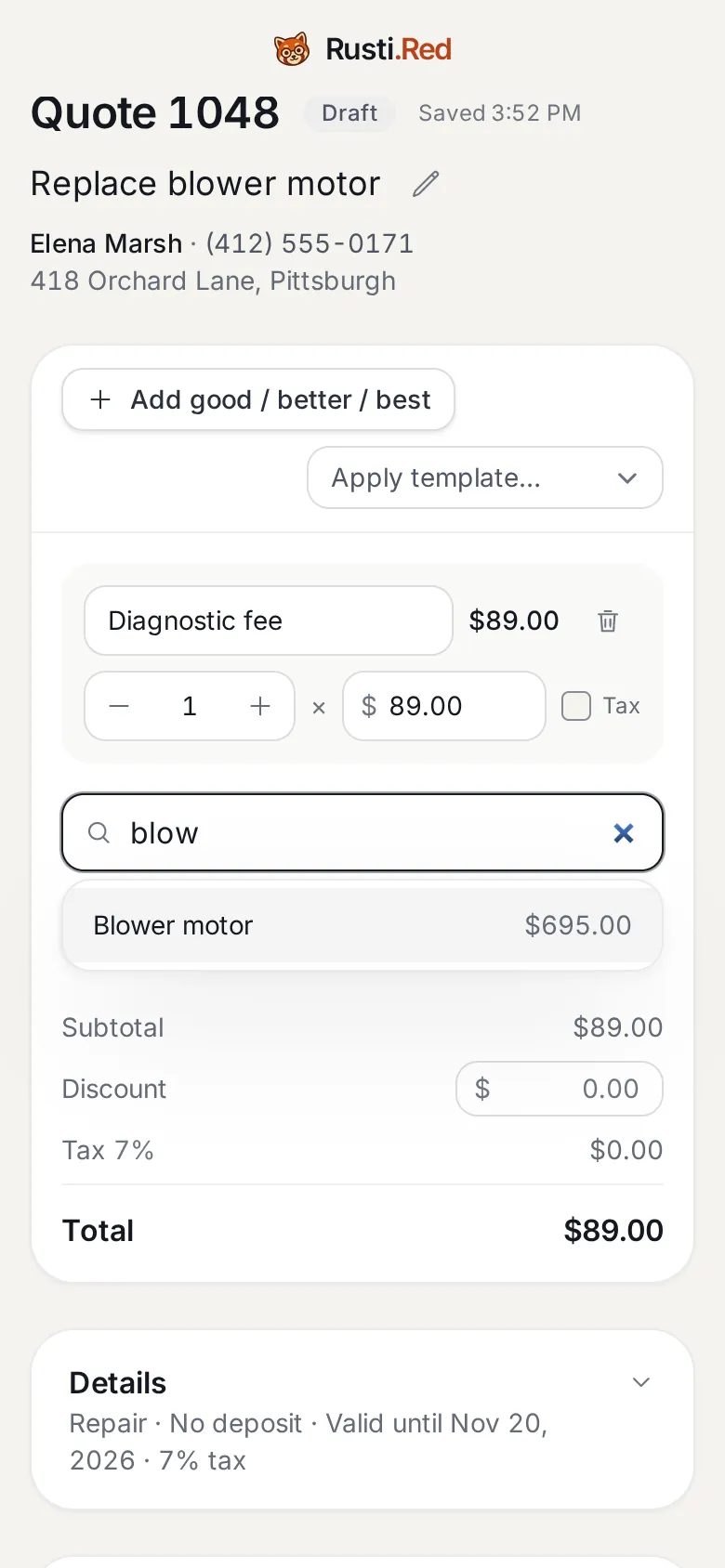
New quote opens on the job. He types a few letters, taps the item, and the line lands with the shop’s price. A saved template does the same in one tap.
New quote, on the job then type a few letters then Blower motor
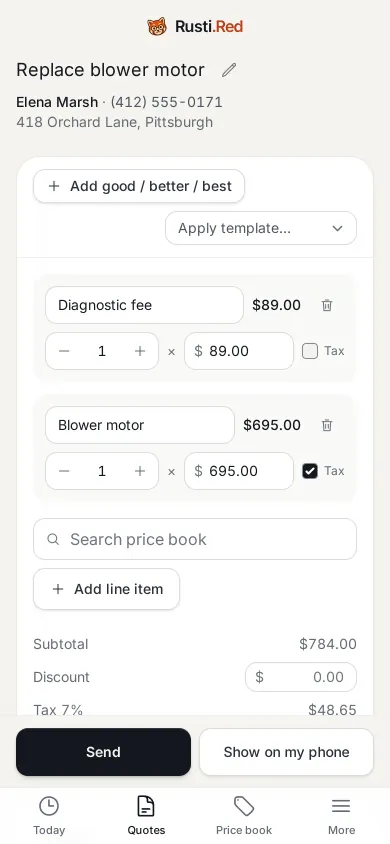
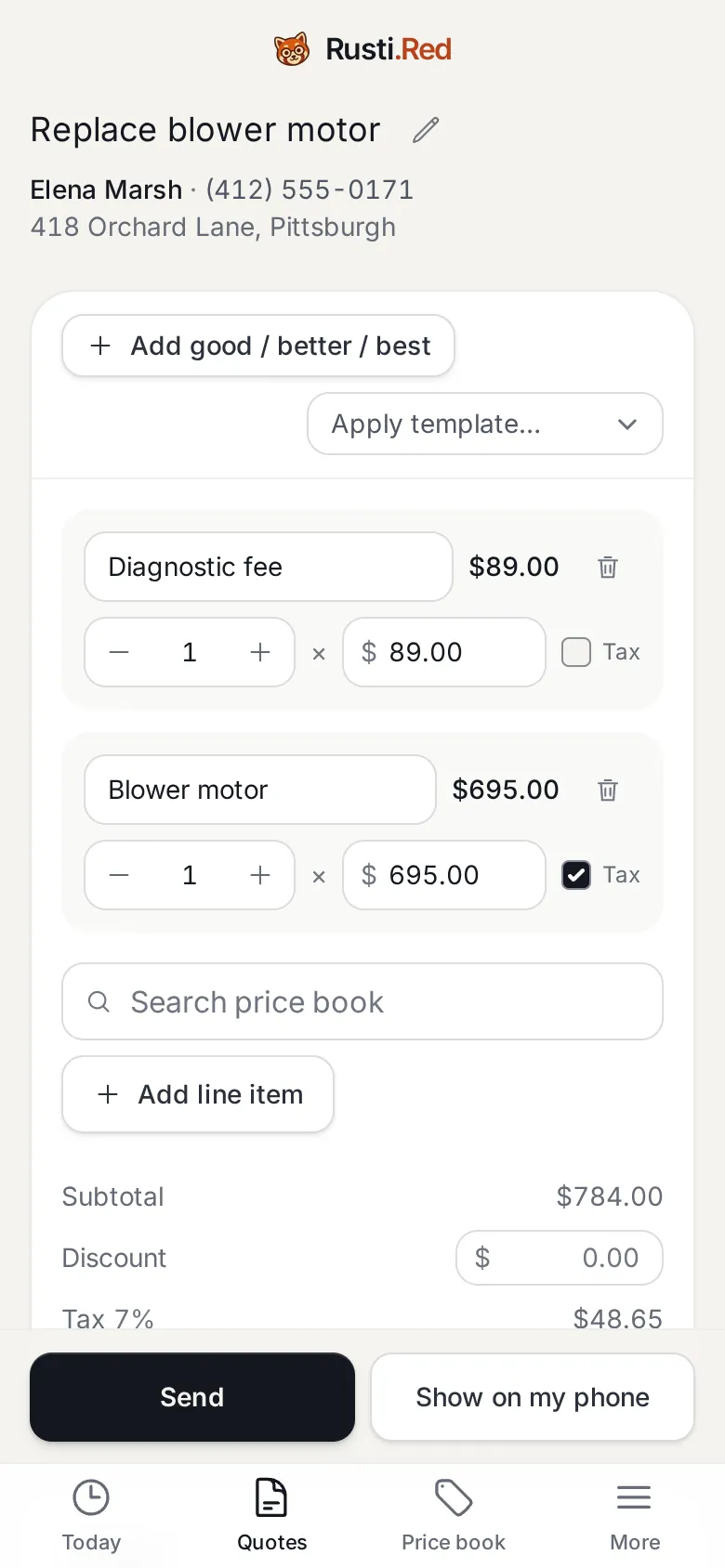
The quote, built
Two lines, tax worked out, total at the bottom. It saves itself. Two ways forward: Send it by text or email, or Show on my phone.
Show on my phone
The homeowner’s view, on his phone
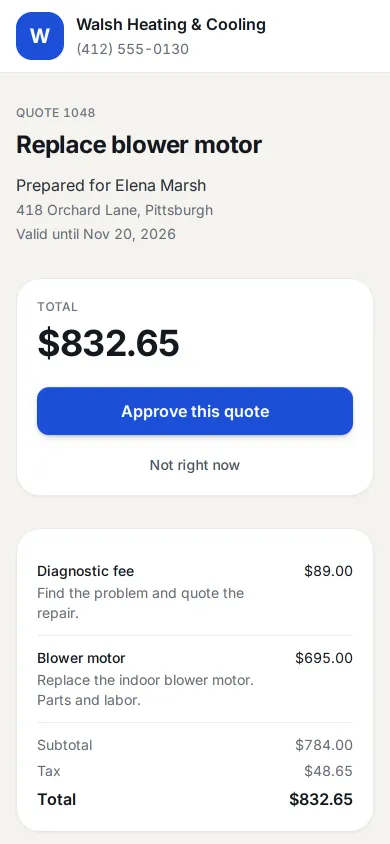
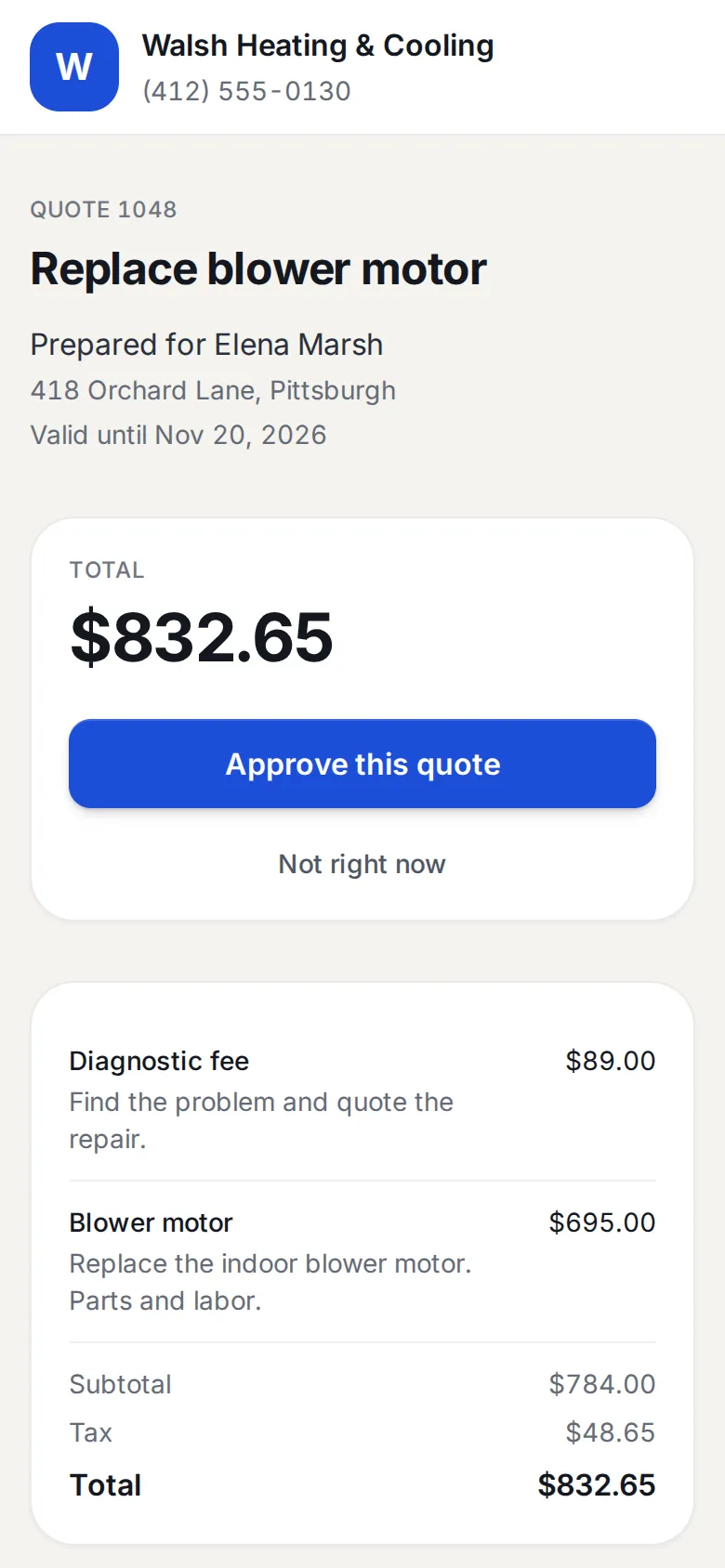
Show on my phone turns the screen into what Elena would get by link: the shop’s name, the lines, the total, and one button. Jordan hands her the phone.
Approve this quote
She signs with a finger
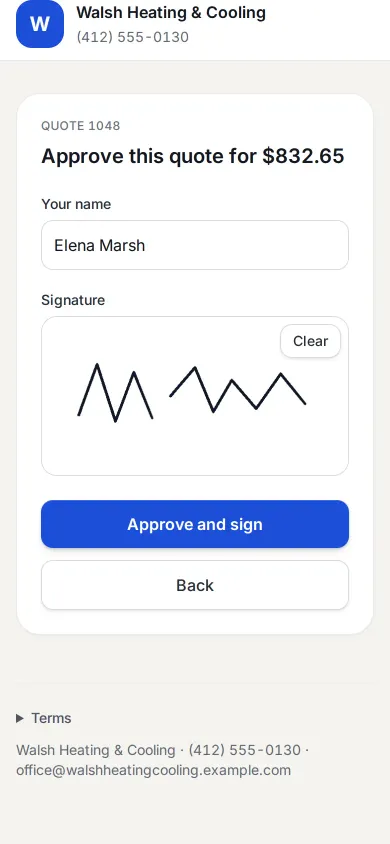
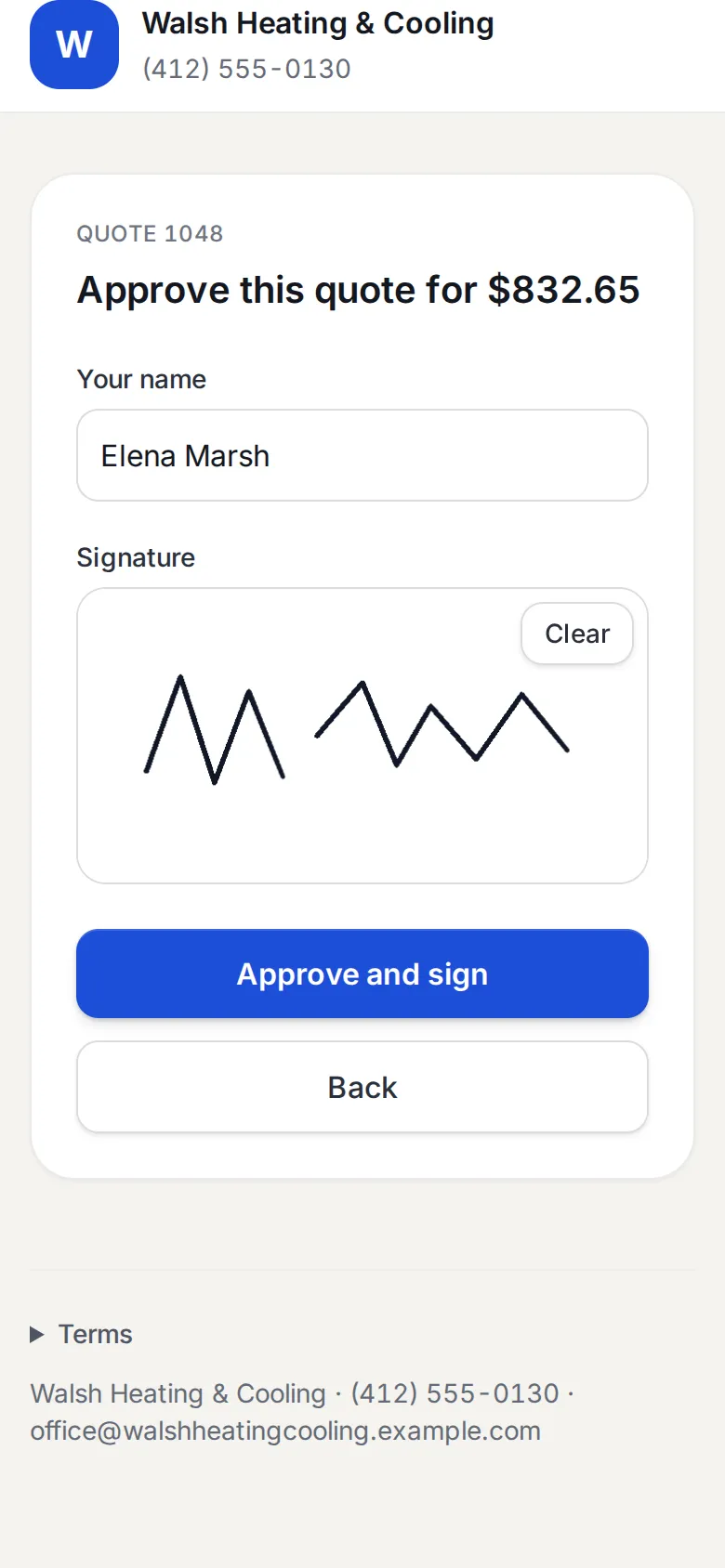
Her name and a signature. Approve and sign records who approved, when, and the signature itself.
Sign with a finger then Approve and sign
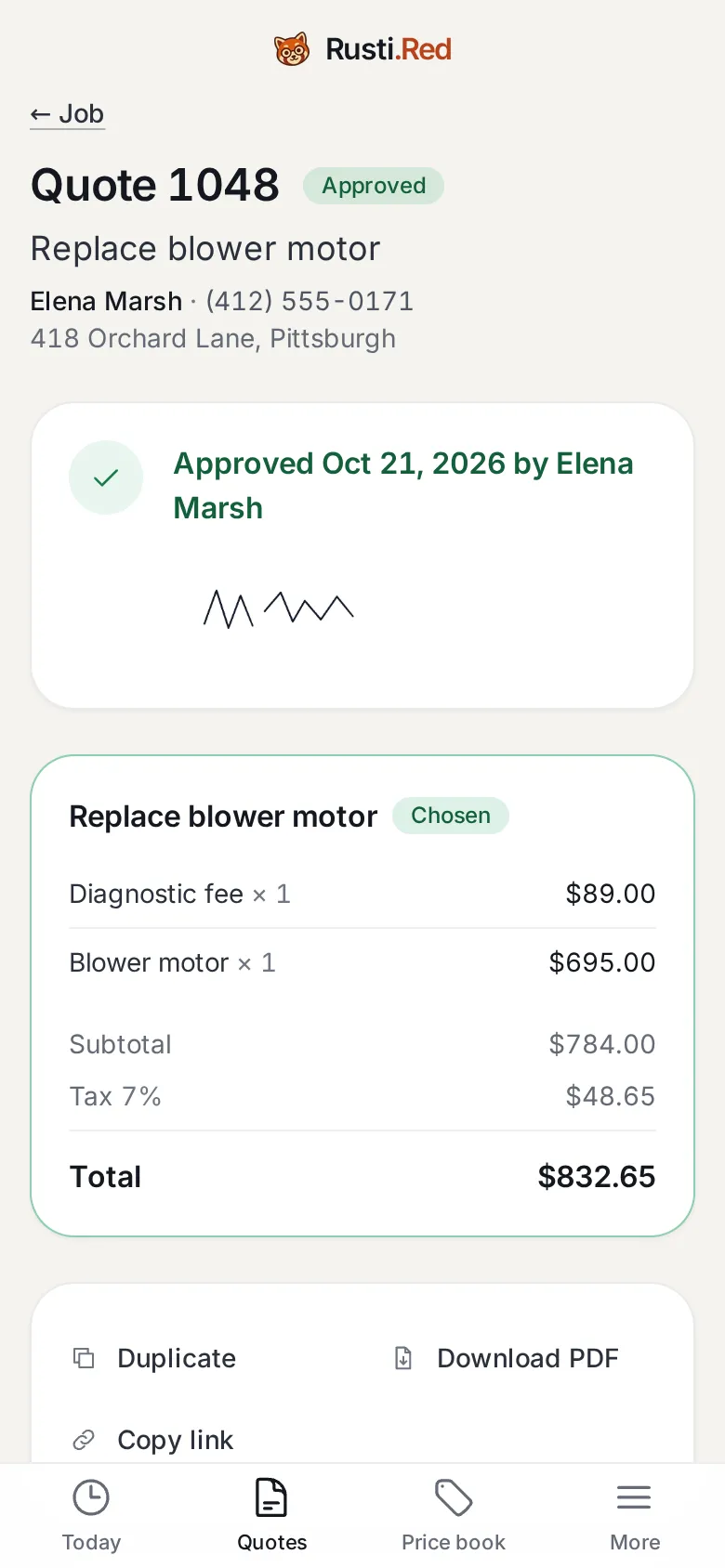
Approved
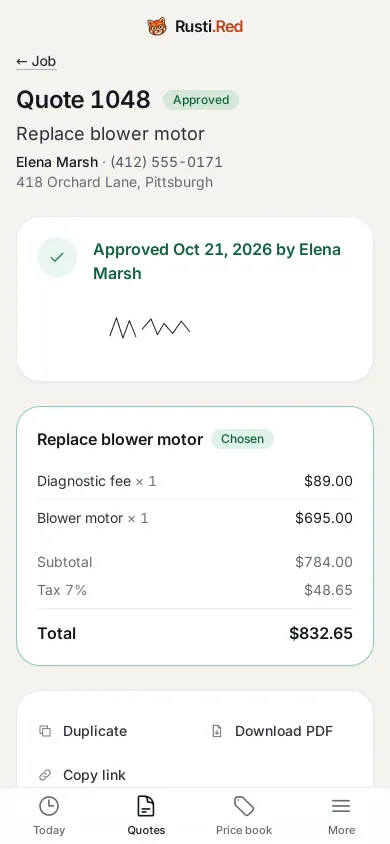
Back in the app the quote is marked approved with her signature on file, and the repair is attached to this visit.
Job, at the top, to go back
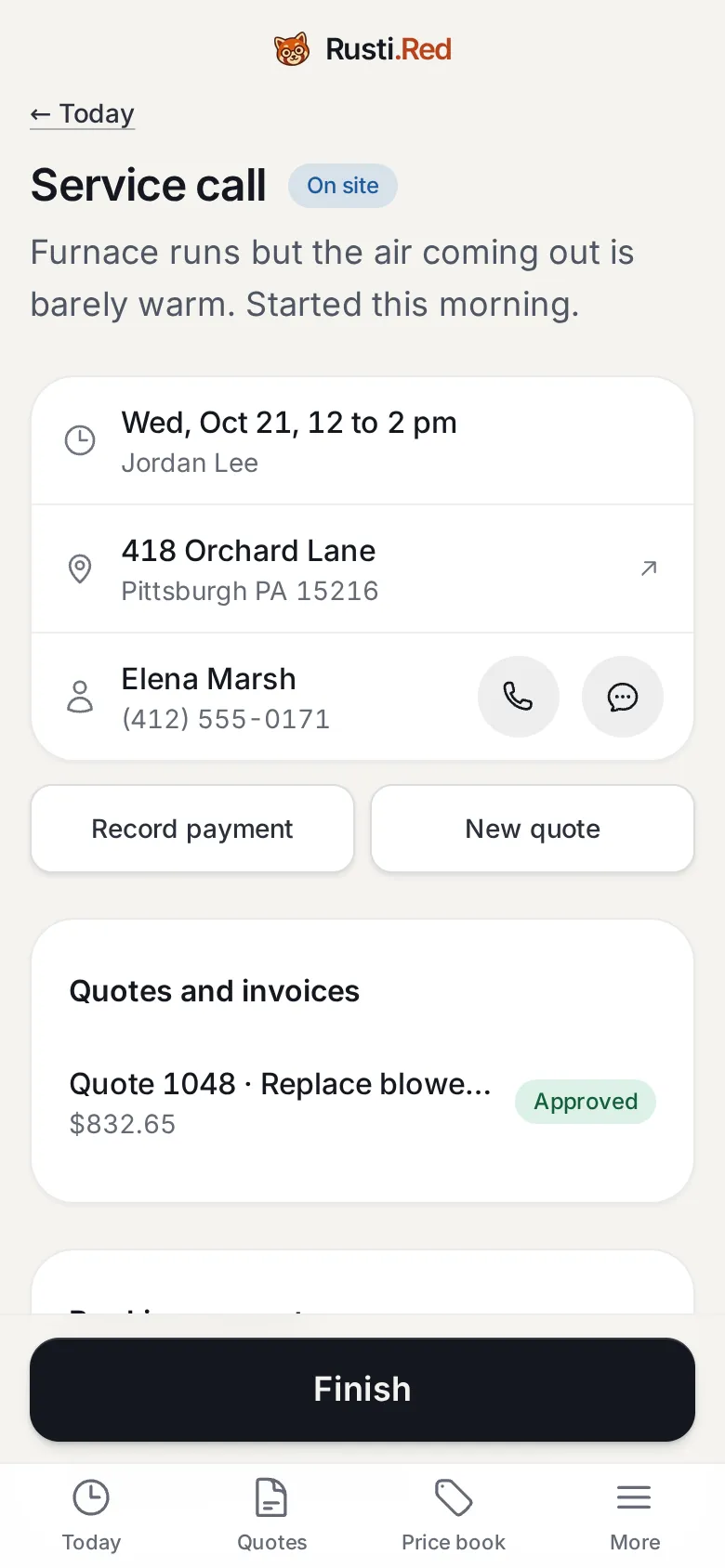
Do the work, then Finish
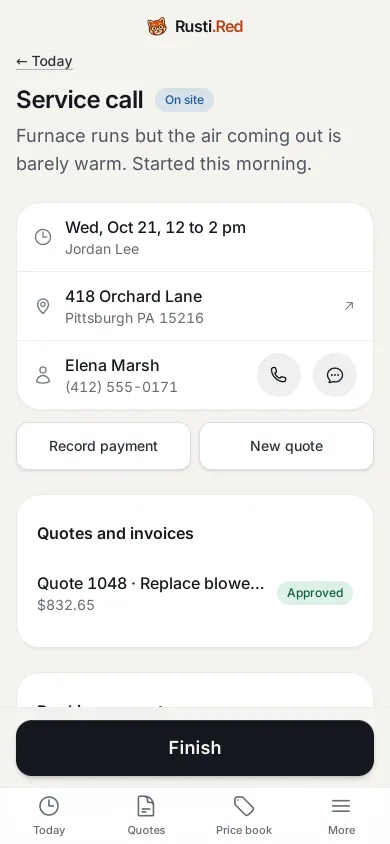
The job now carries the approved quote. With the motor in and the note written, the button says Finish.
Finish
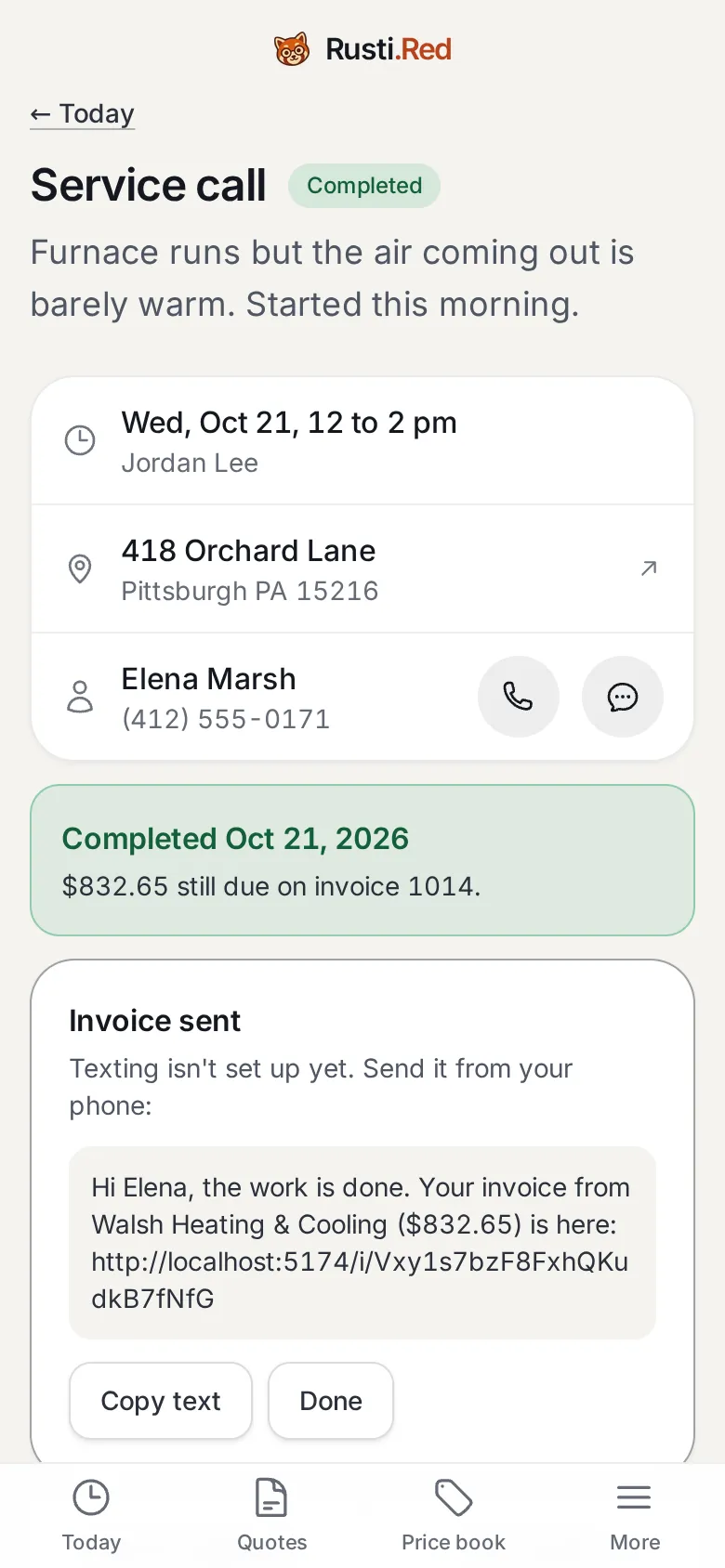
Finish builds the invoice
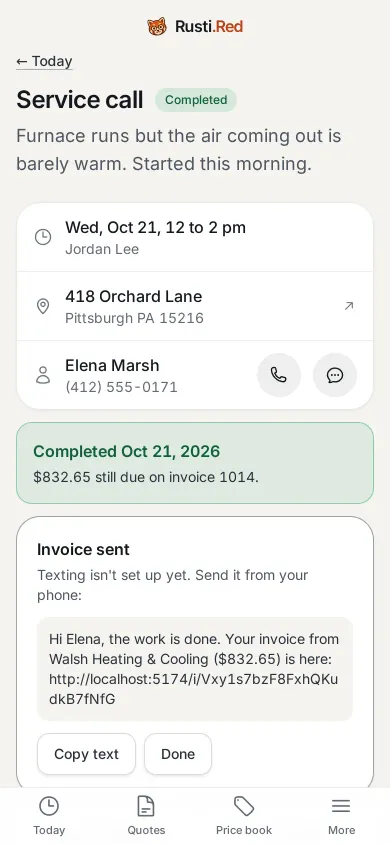
One tap finishes the visit, builds the invoice from the approved quote, and writes the text with the payment link. Nobody types an invoice.
Scroll down to Quotes and invoices then Invoice 1015
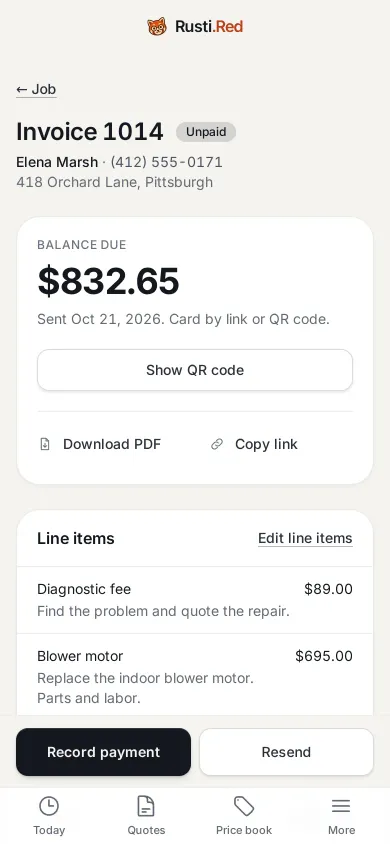
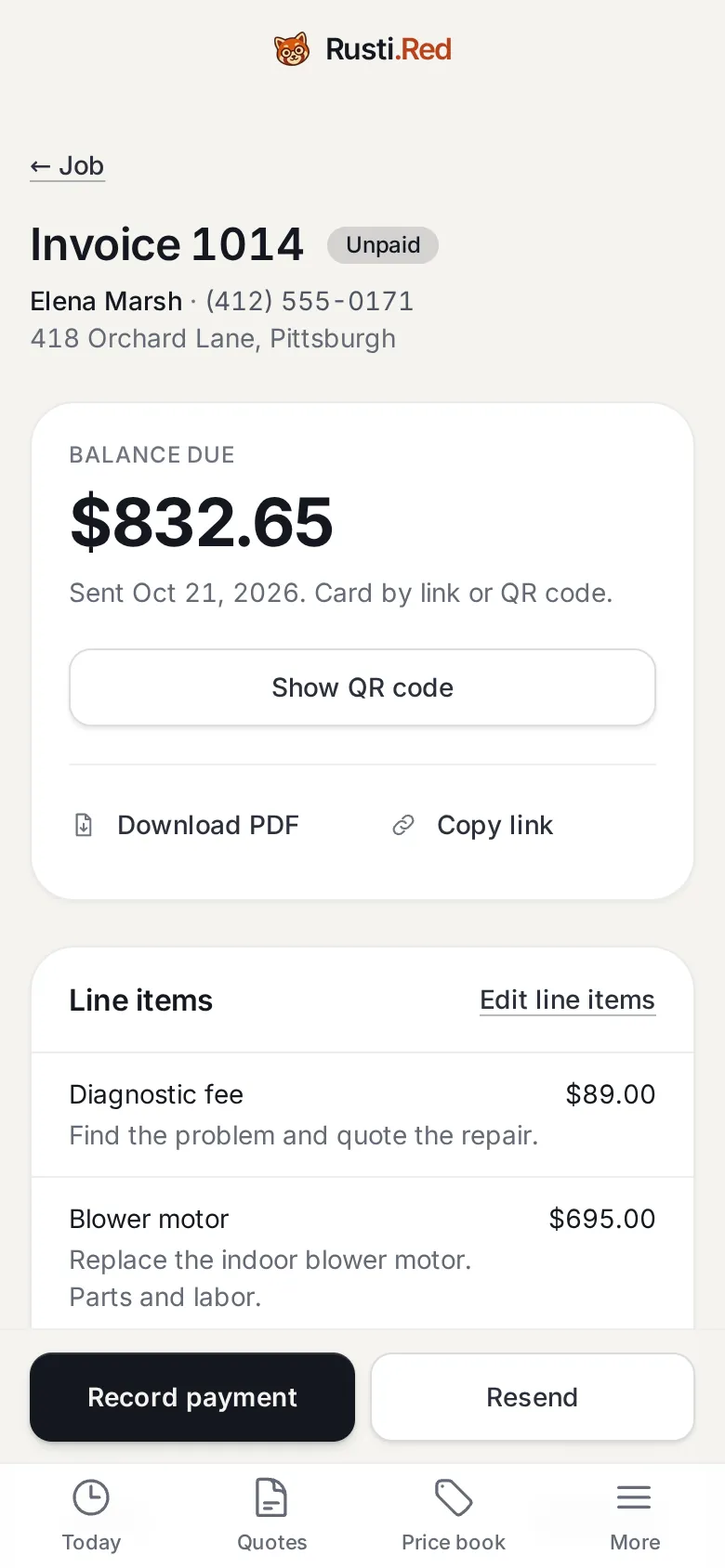
The invoice
The balance and the lines. Reminders are booked for days 3, 7, and 14 if it stays unpaid. Record payment sits under the thumb.
Show QR code
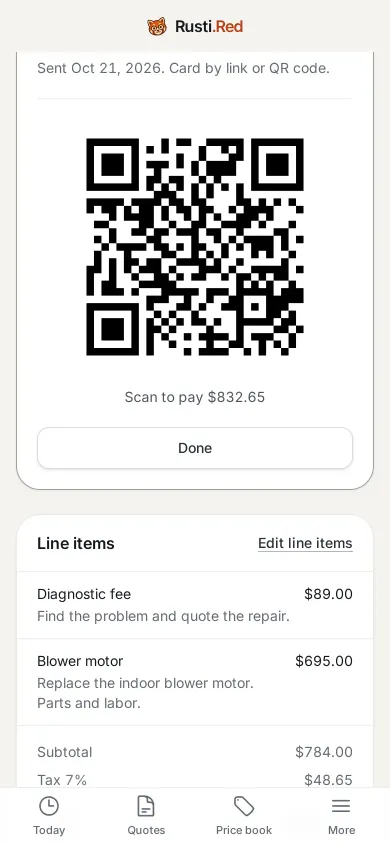
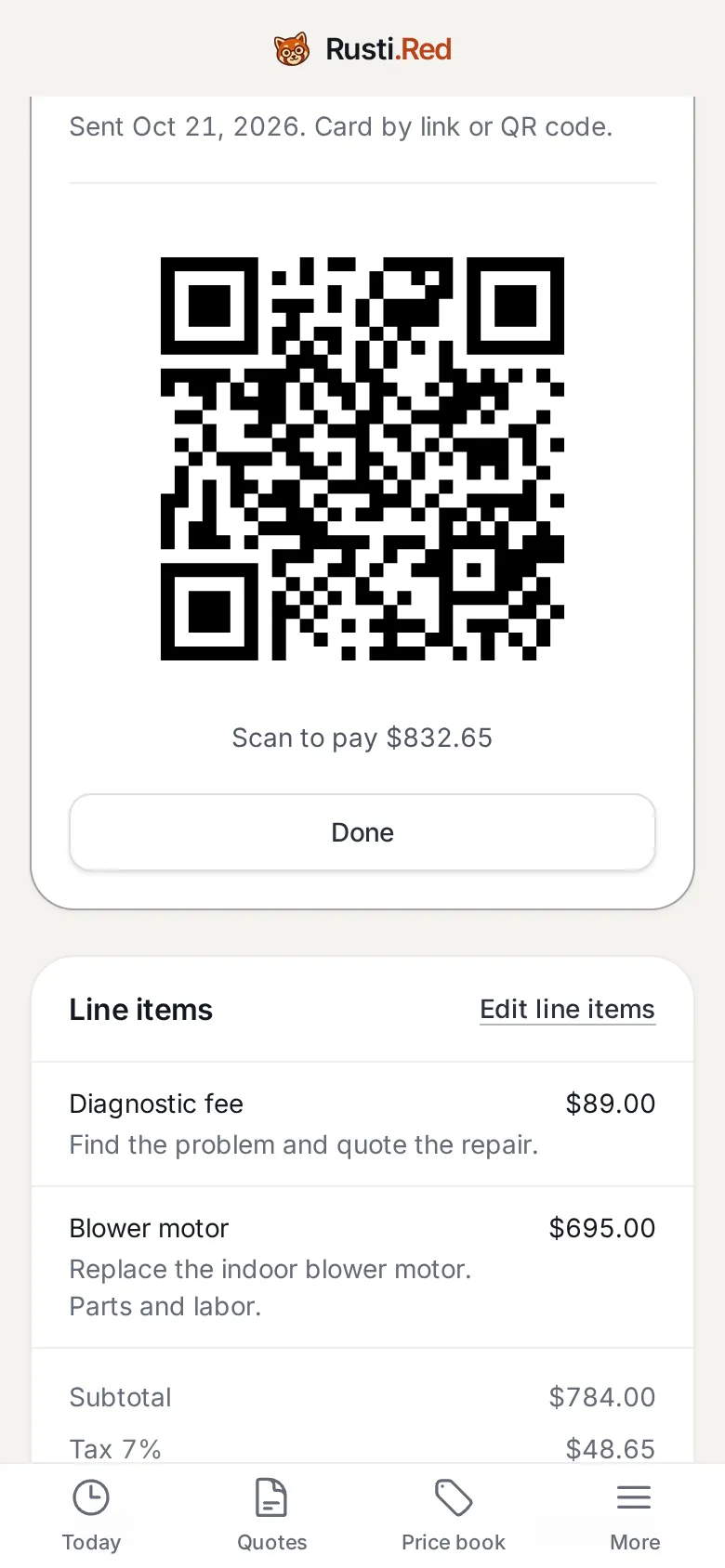
Paid at the door: the QR code
Show QR code puts the payment link on Jordan’s screen. Elena points her camera at it.
Done, once she has scanned it
The invoice on her phone
The link or the code opens this: what she owes, the lines, a card button, and the PDF. Card payments land in the shop’s own Stripe account.
Open the link in the invoice text
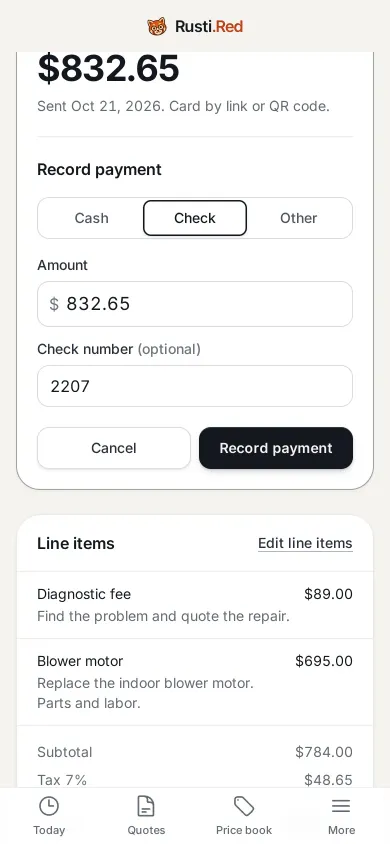
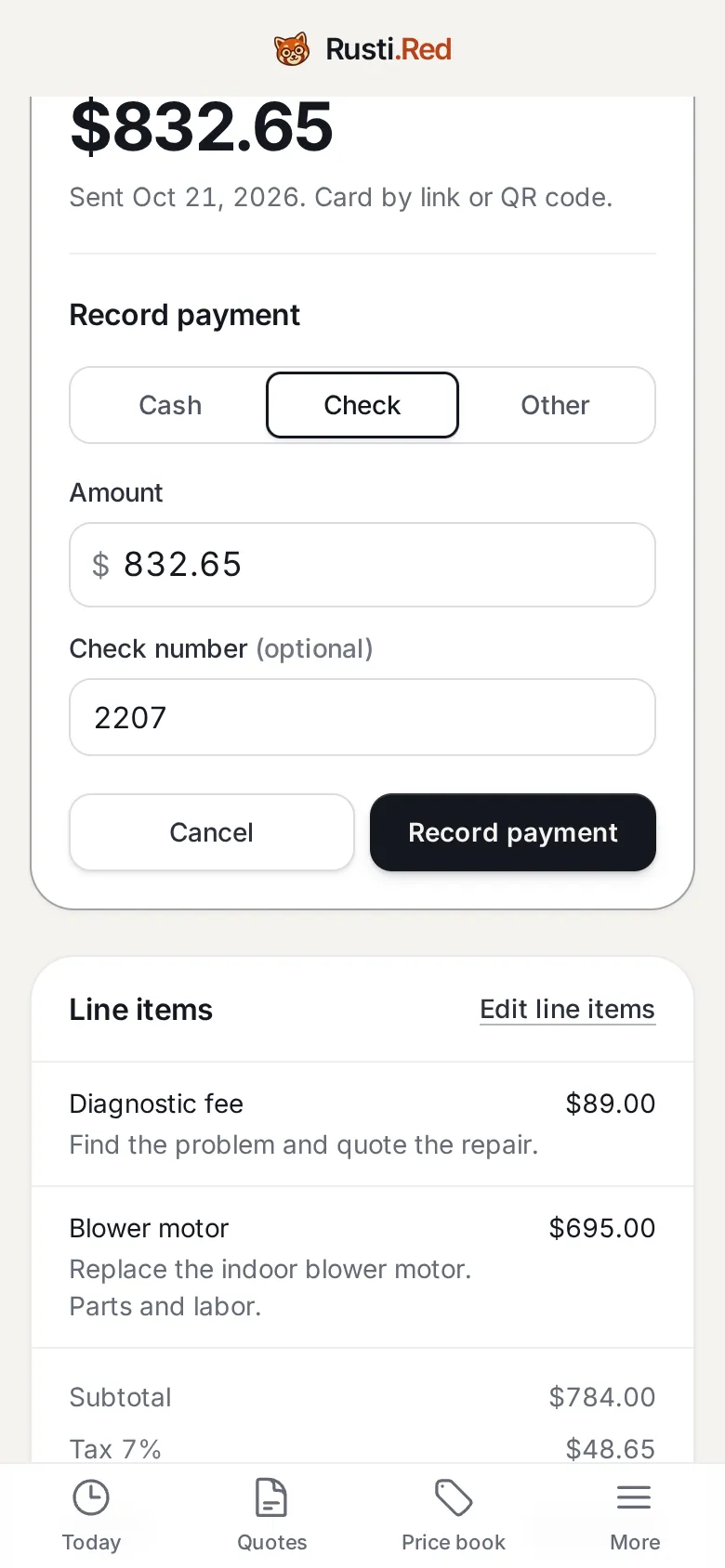
Or a check
Cash, check, or other. The amount is filled in. Enter less for a partial payment.
Record payment, at the bottom of the invoice then Check then Record payment
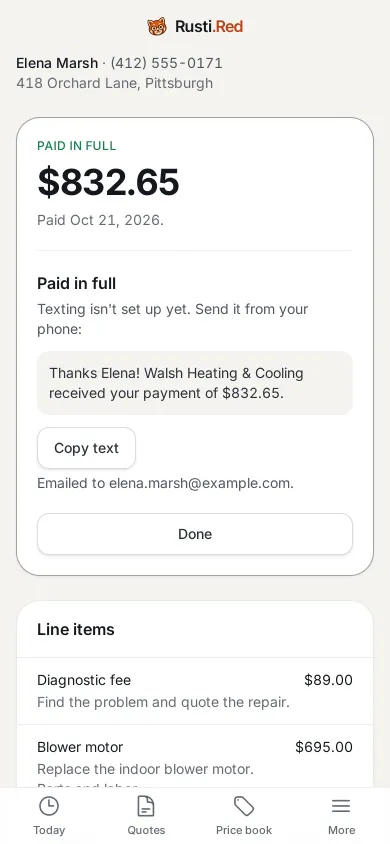
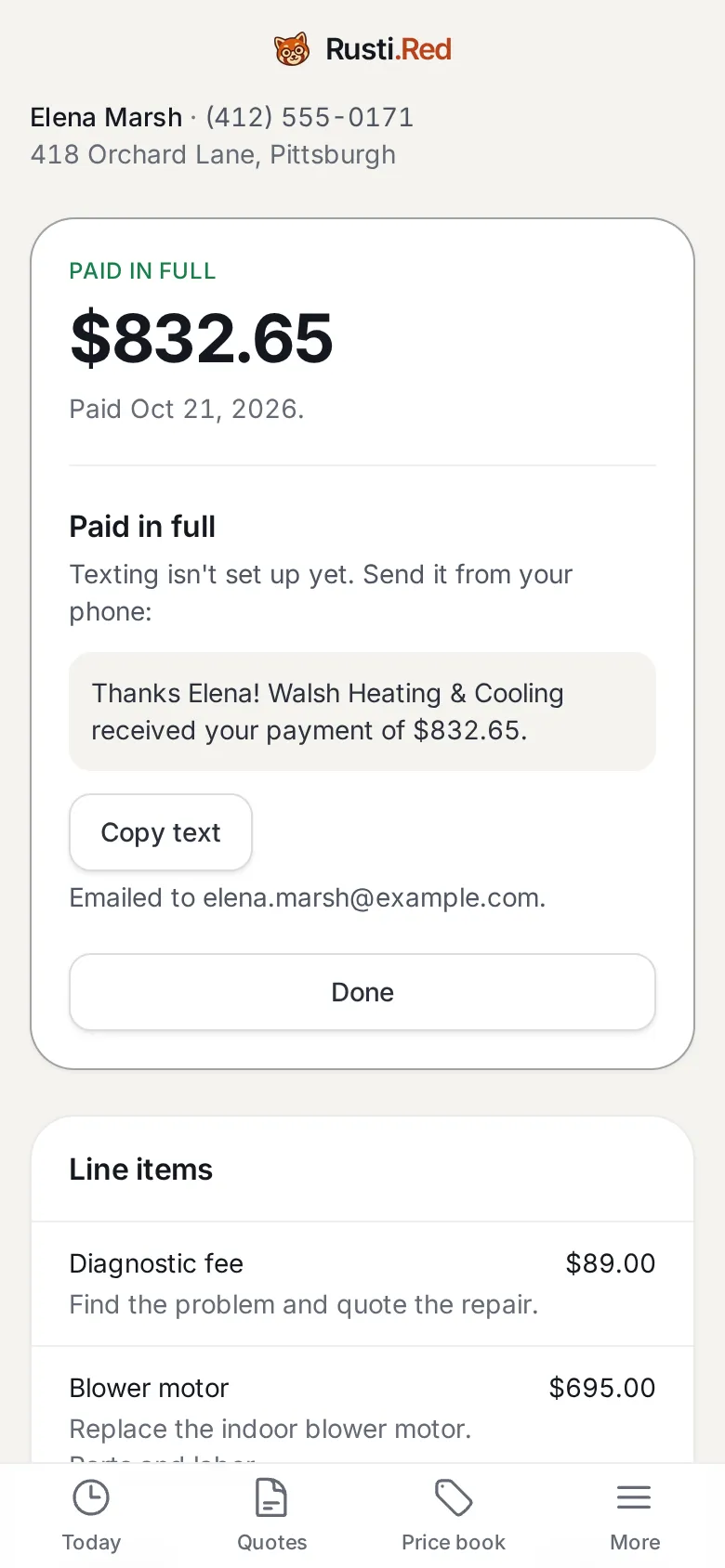
Paid in full
Paid. Reminders stop. The thank-you goes out by text and email.
Copy text, to send it from your phone then Done
The customer’s record
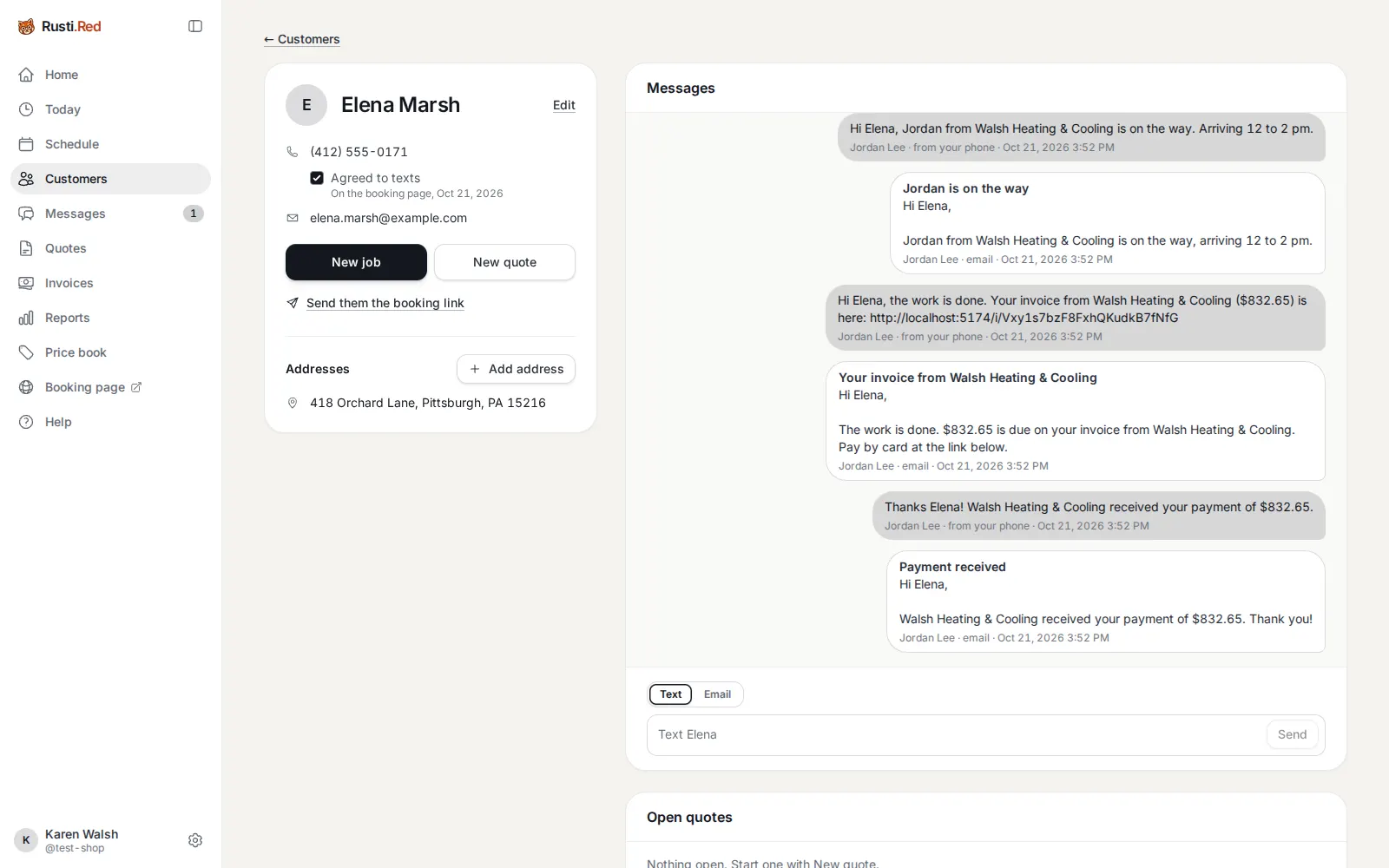
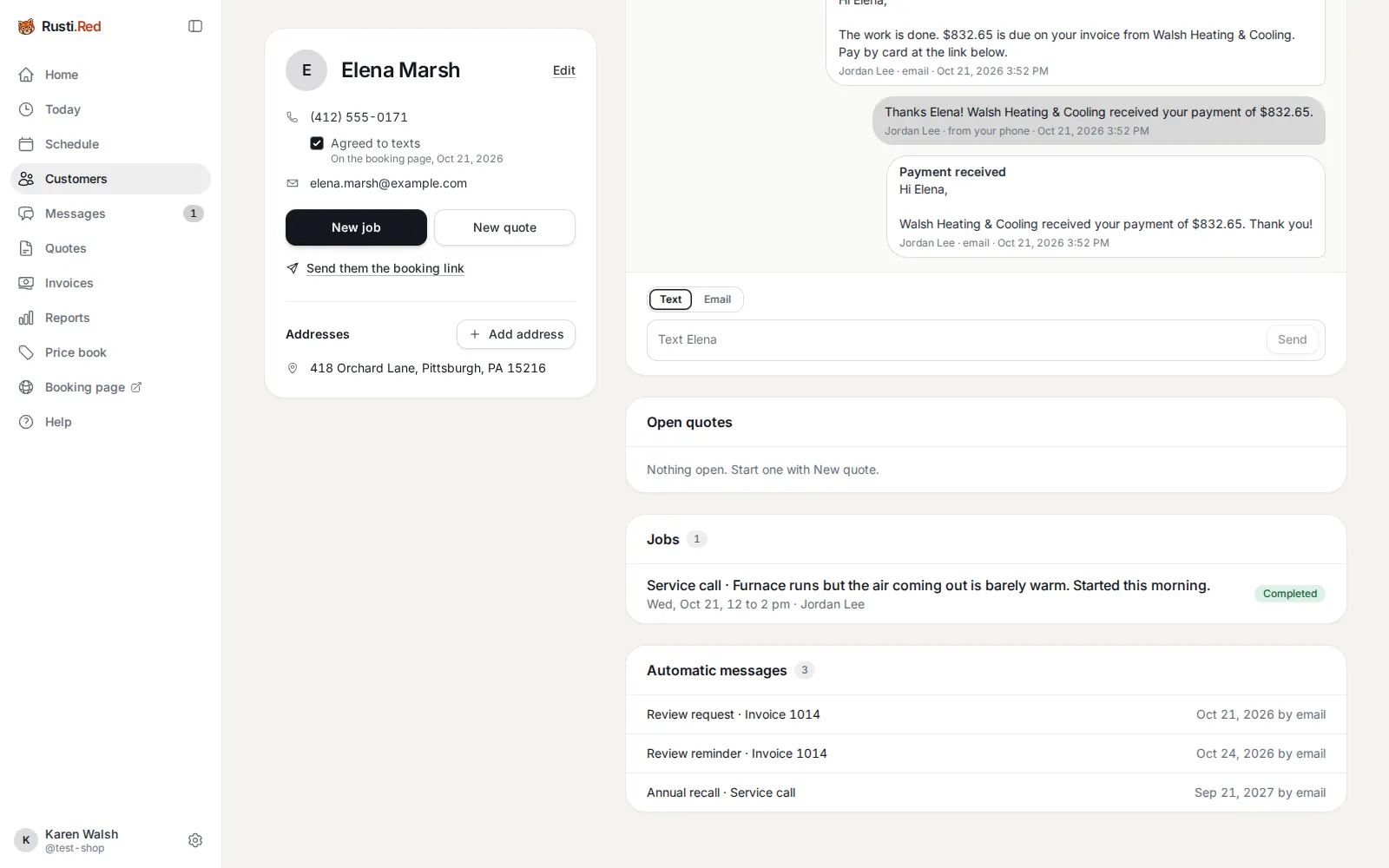
Karen opens Elena under Customers. Every message of the visit is on one thread, in order: request received, visit booked, on the way, invoice, payment received. She can reply from the box at the bottom.
Customers then Elena Marsh
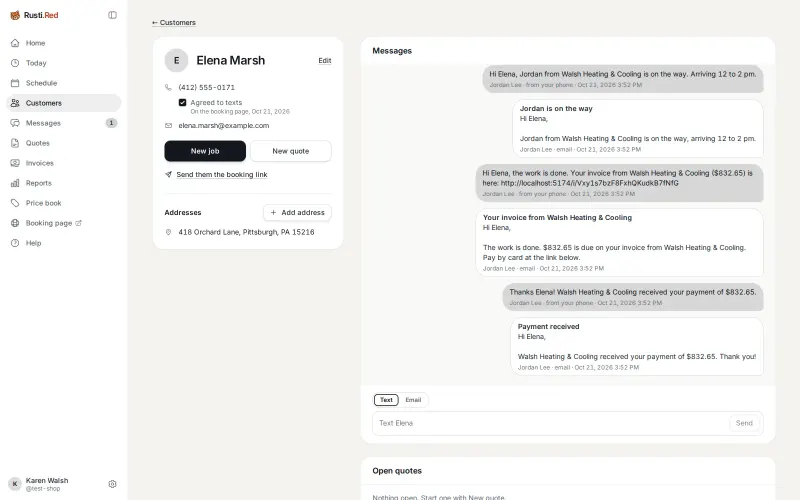
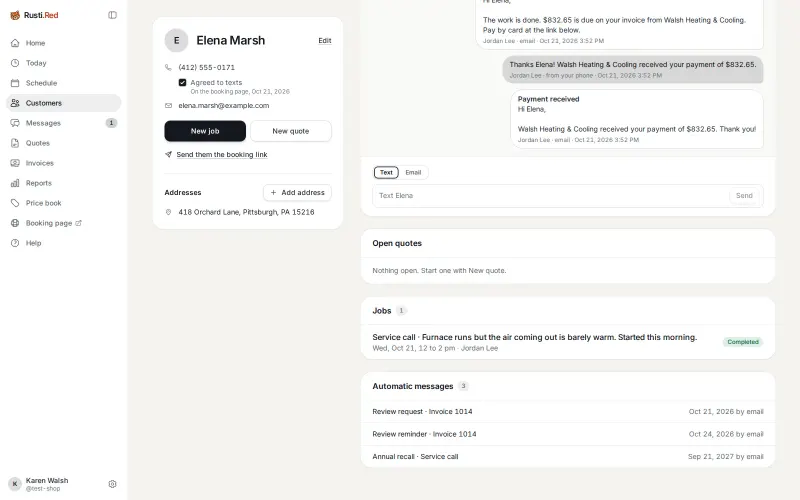
What is already scheduled
Lower on the same screen: the visit, and three messages nobody has to remember. The review request, one reminder three days later, and the tune-up reminder eleven months out.
Scroll down the same screen
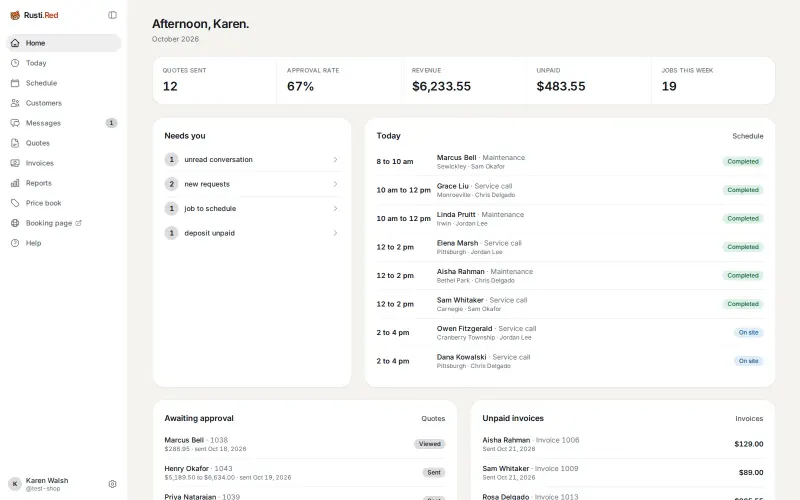
The numbers moved
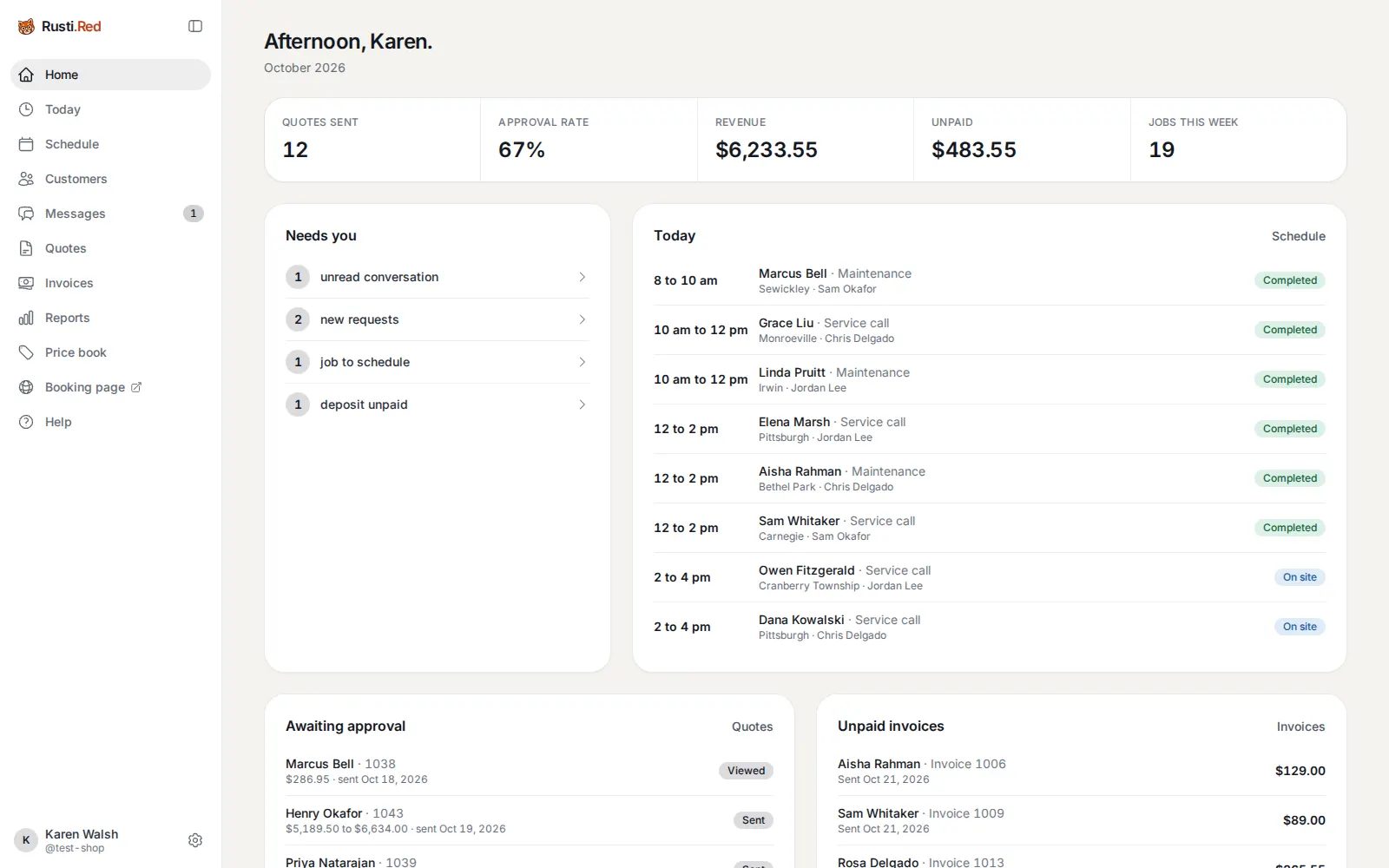
Home again. Since the first look: quotes sent 11 to 12, approval rate 64% to 67%, revenue up by Elena’s $832.65, and her visit shows Completed.
Home
A replacement: three options, a signature, a deposit, an install
Across town, Chris is at Dana Kowalski’s. The condenser fan motor is seized on a 2011 system and the compressor is pulling high amps. A repair is not worth it.
Chris, on site at Dana’s
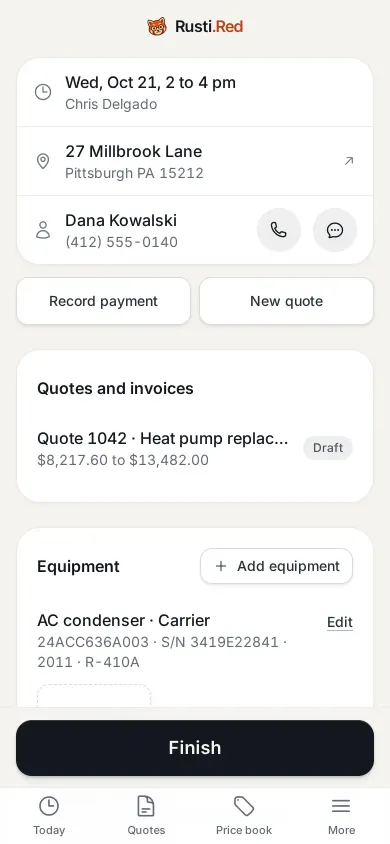
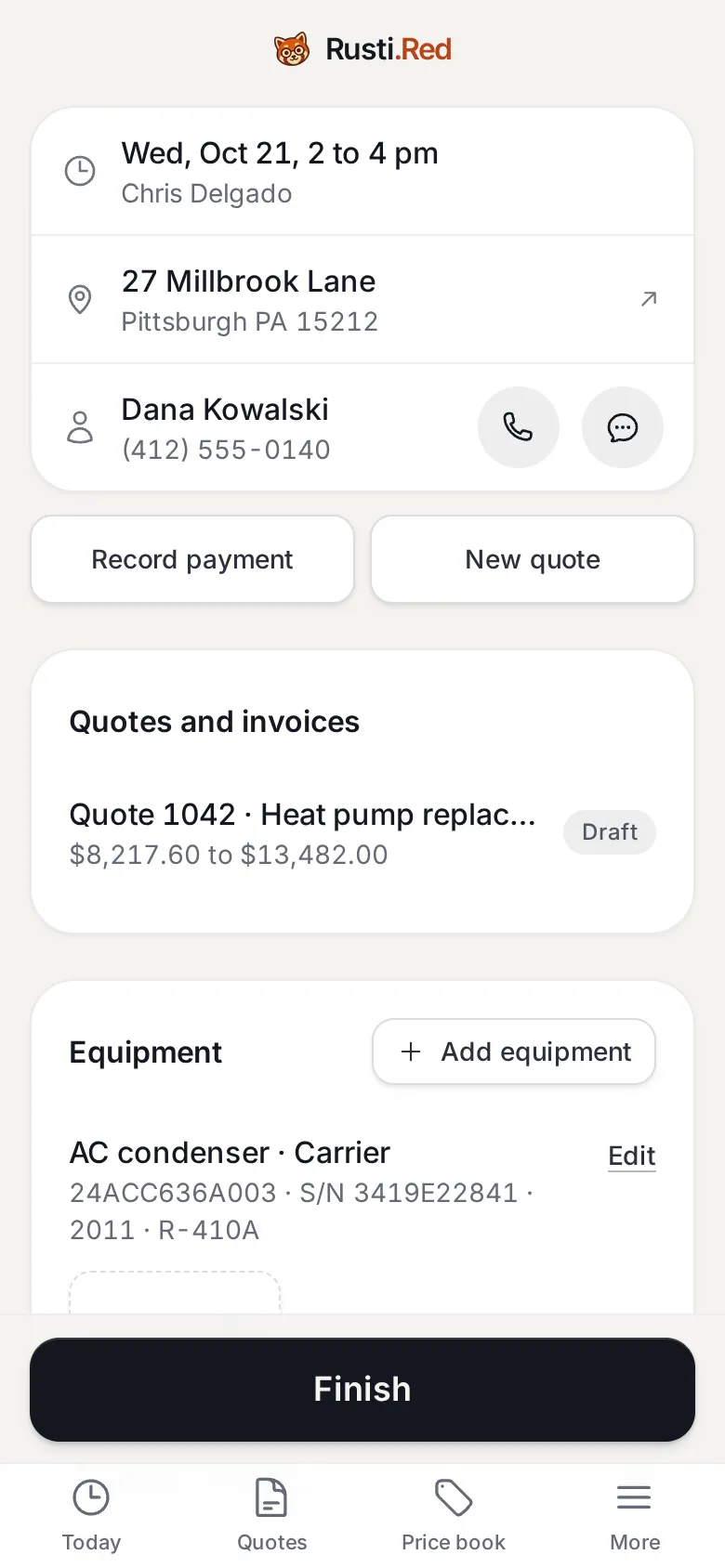
The same job screen, another tech. His note says why a repair is not worth it. A replacement quote is already started on this job.
Dana’s visit, on Today then Quote 1042, under Quotes and invoices
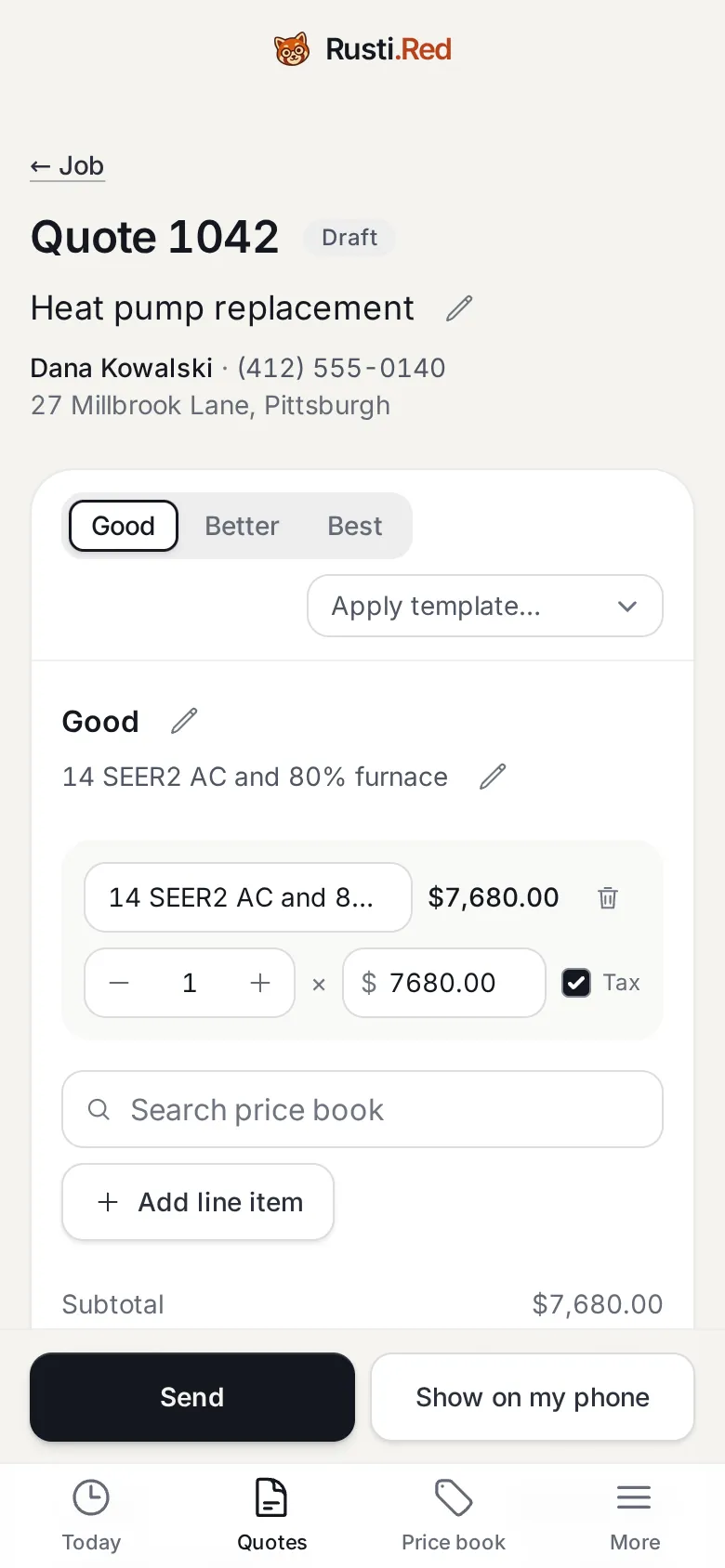
Good, better, best
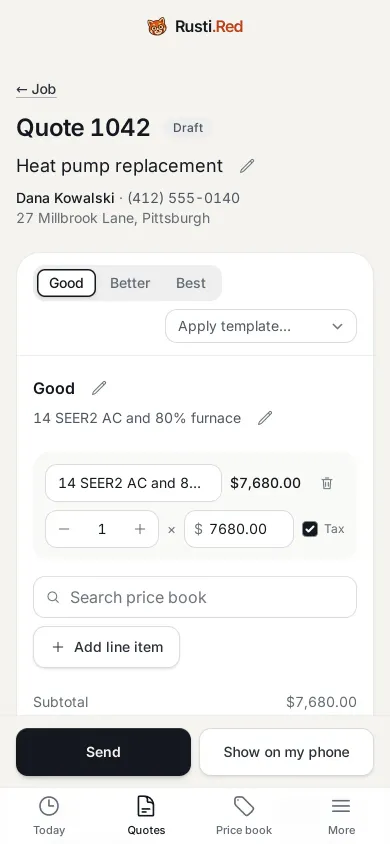
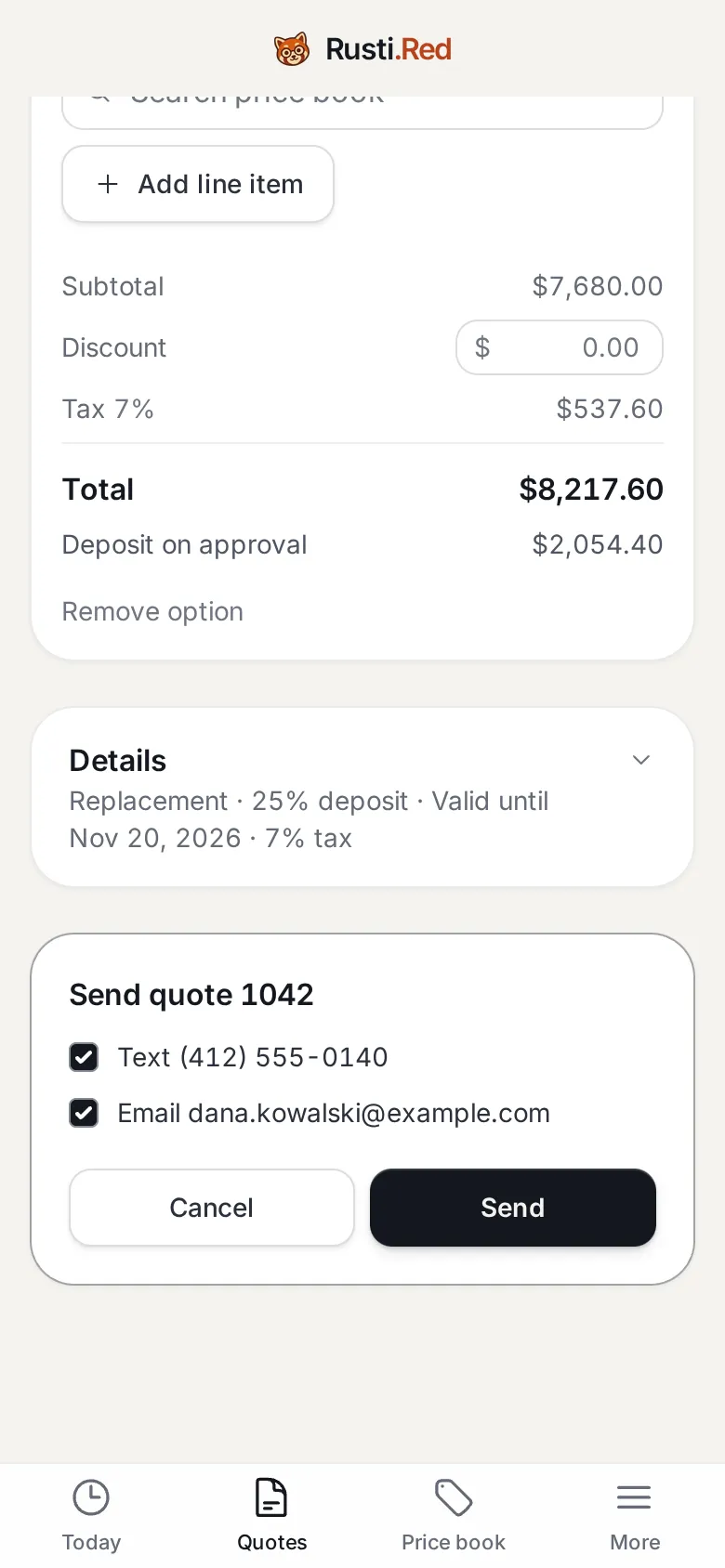
A replacement quote holds up to three options, each with its own lines. The app works out tax, the total, and the deposit due on approval. This shop asks 25%.
Good, Better, or Best, to see each one then Send
Send it
Send offers her mobile number and her email, both ticked.
Send
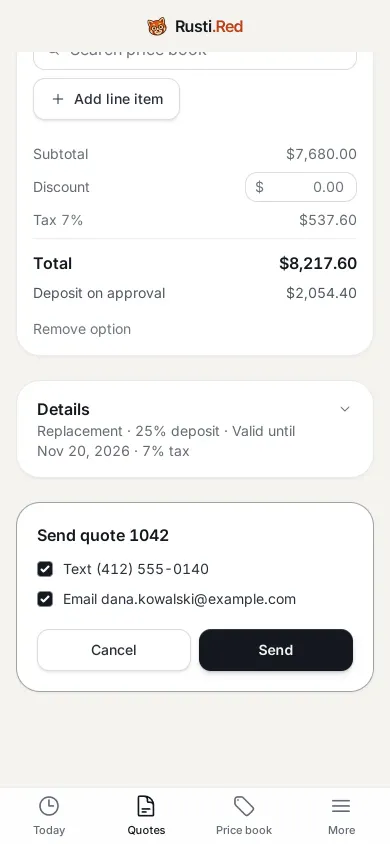
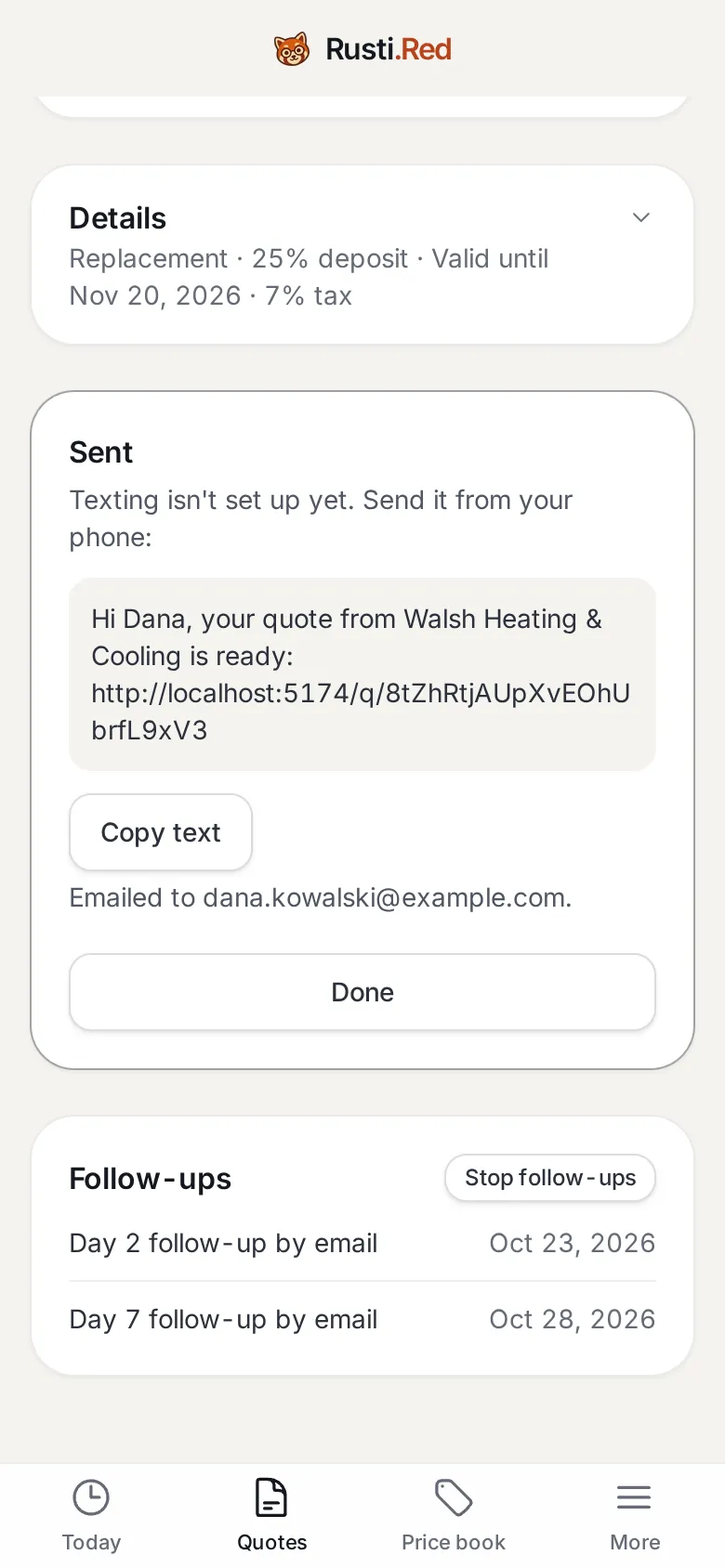
Sent, with follow-ups booked
The text links to the quote. Follow-ups go on day 2 and day 7 and stop when she answers. Stop follow-ups ends them early.
Copy text, to send it from your phone then Done
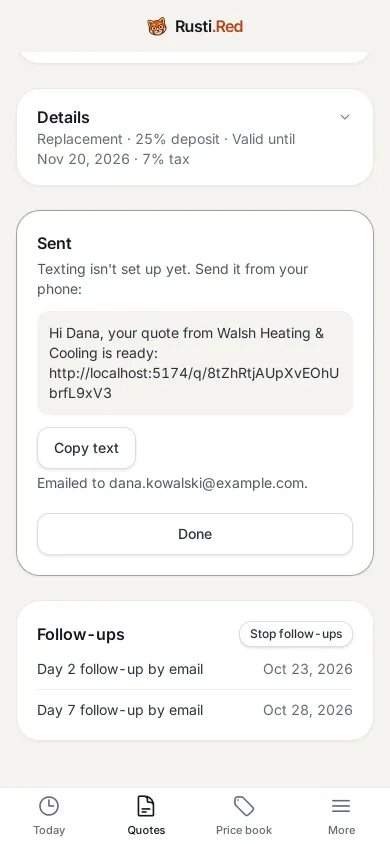
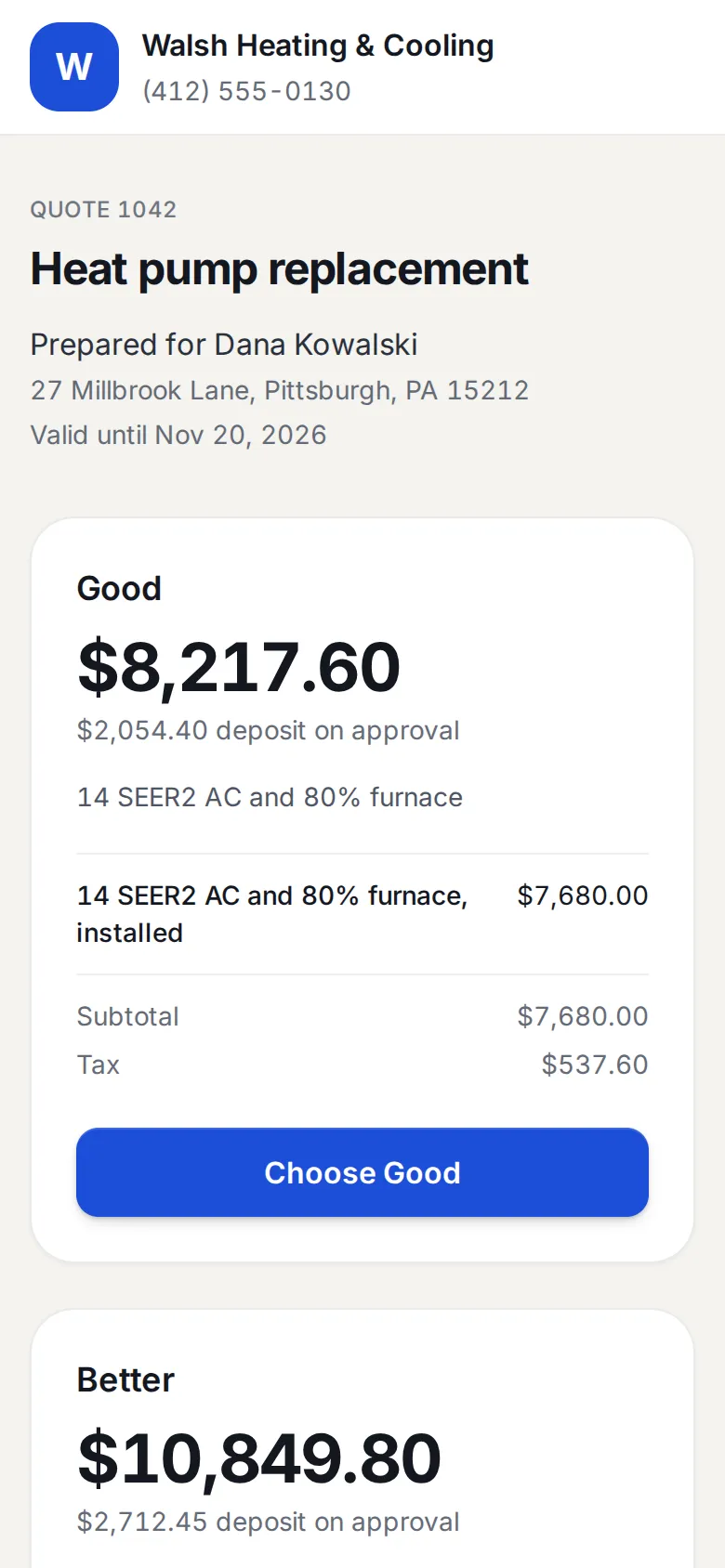
Dana opens the link
No login. The shop’s name, what the quote is for, how long it is good, then each option with its price and its deposit.
Open the link in the quote text
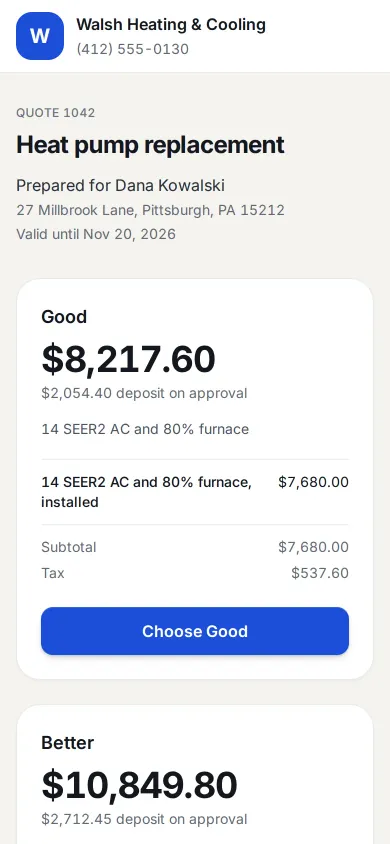
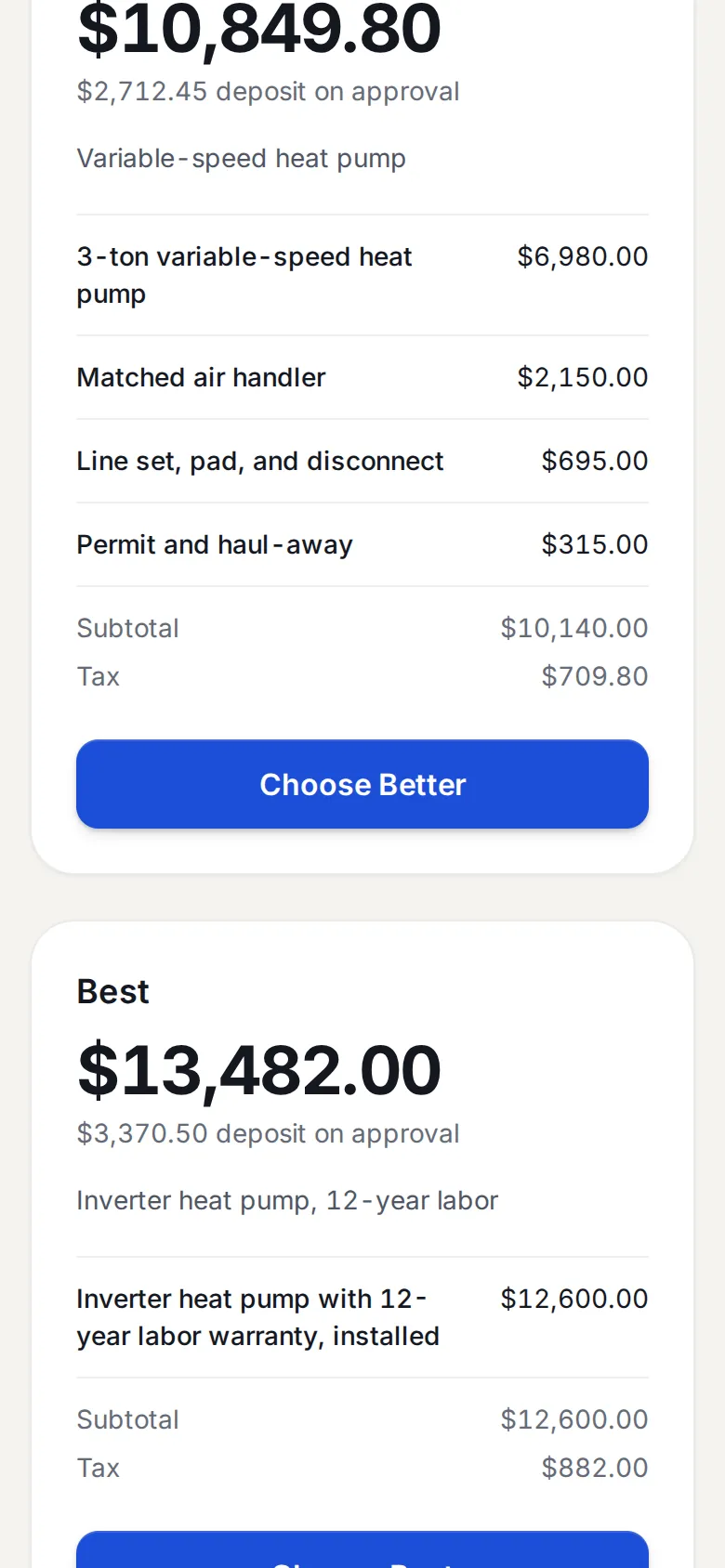
She compares
Each option lists what is in it and has its own button. Choosing is one tap.
Scroll to compare then Choose Better
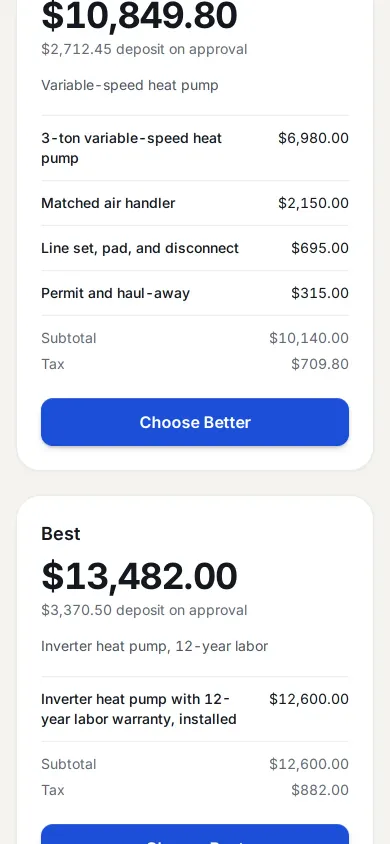
Choose and sign
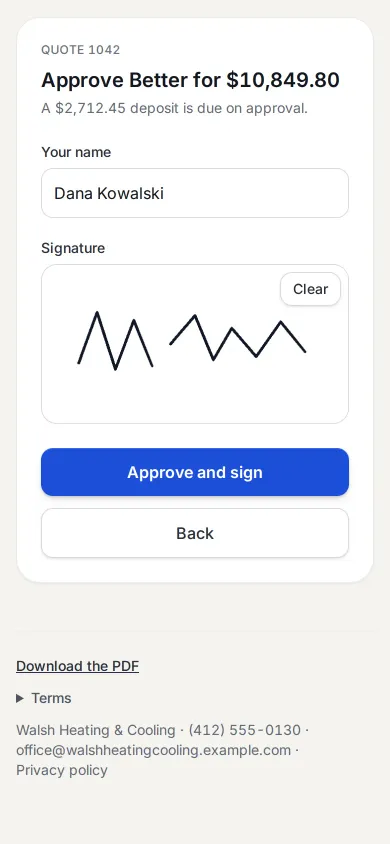
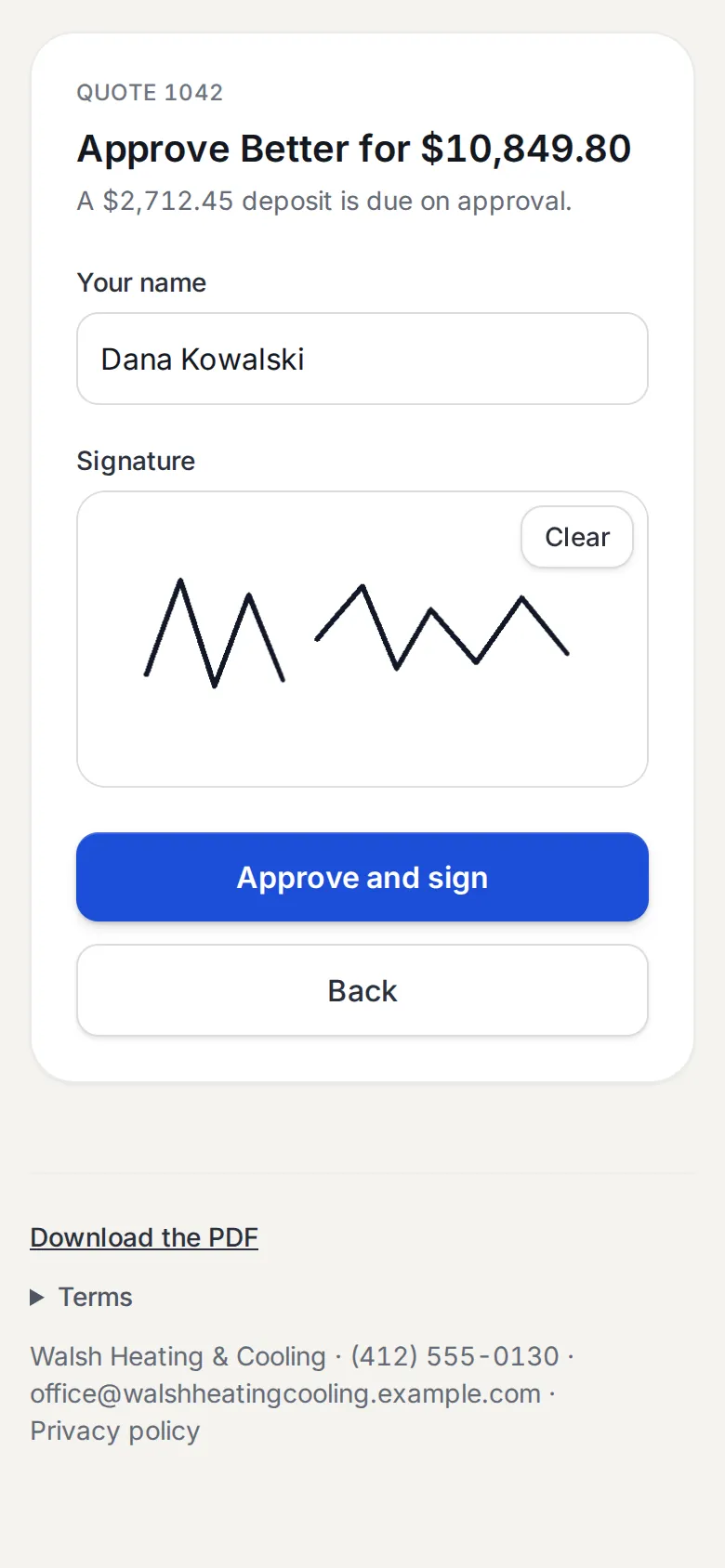
She picked Better. The page says what she is approving and the deposit that comes due, then takes her name and signature.
Sign with a finger then Approve and sign
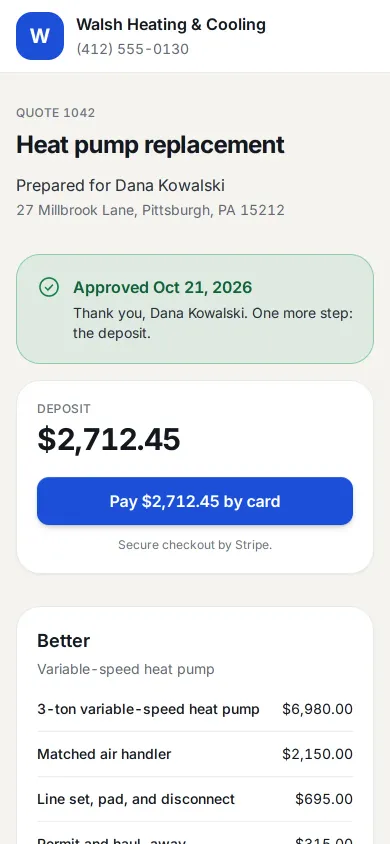
The deposit, right after signing
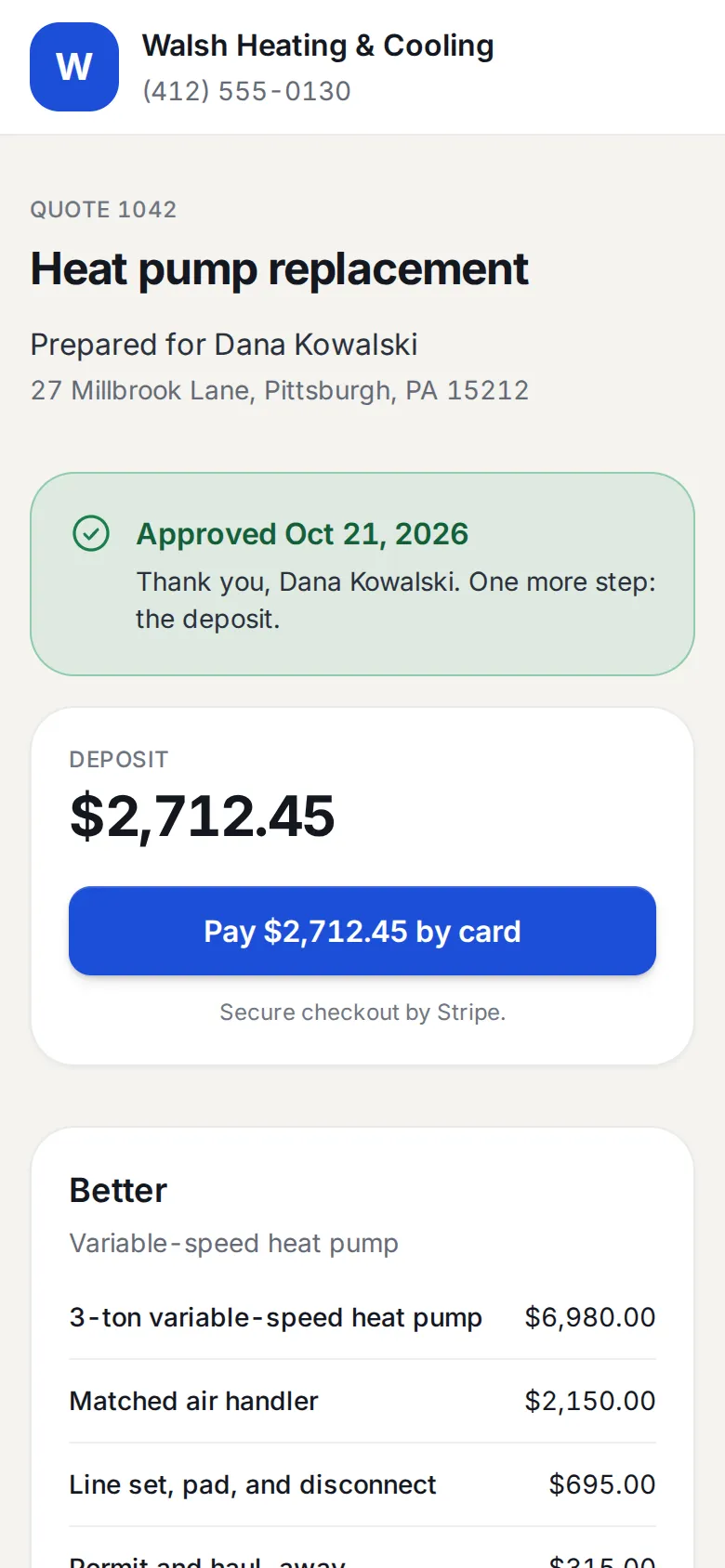
Approving raises the deposit invoice on the spot, and the page goes straight to paying it. With Stripe connected she pays by card here. A check works too, as the office’s steps show.
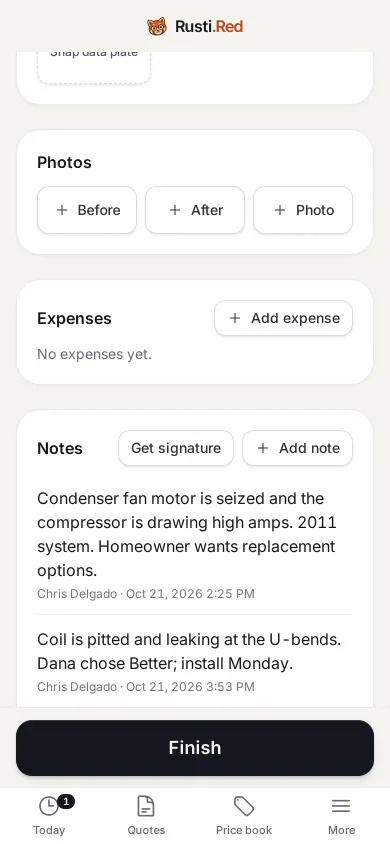
No signal in the basement
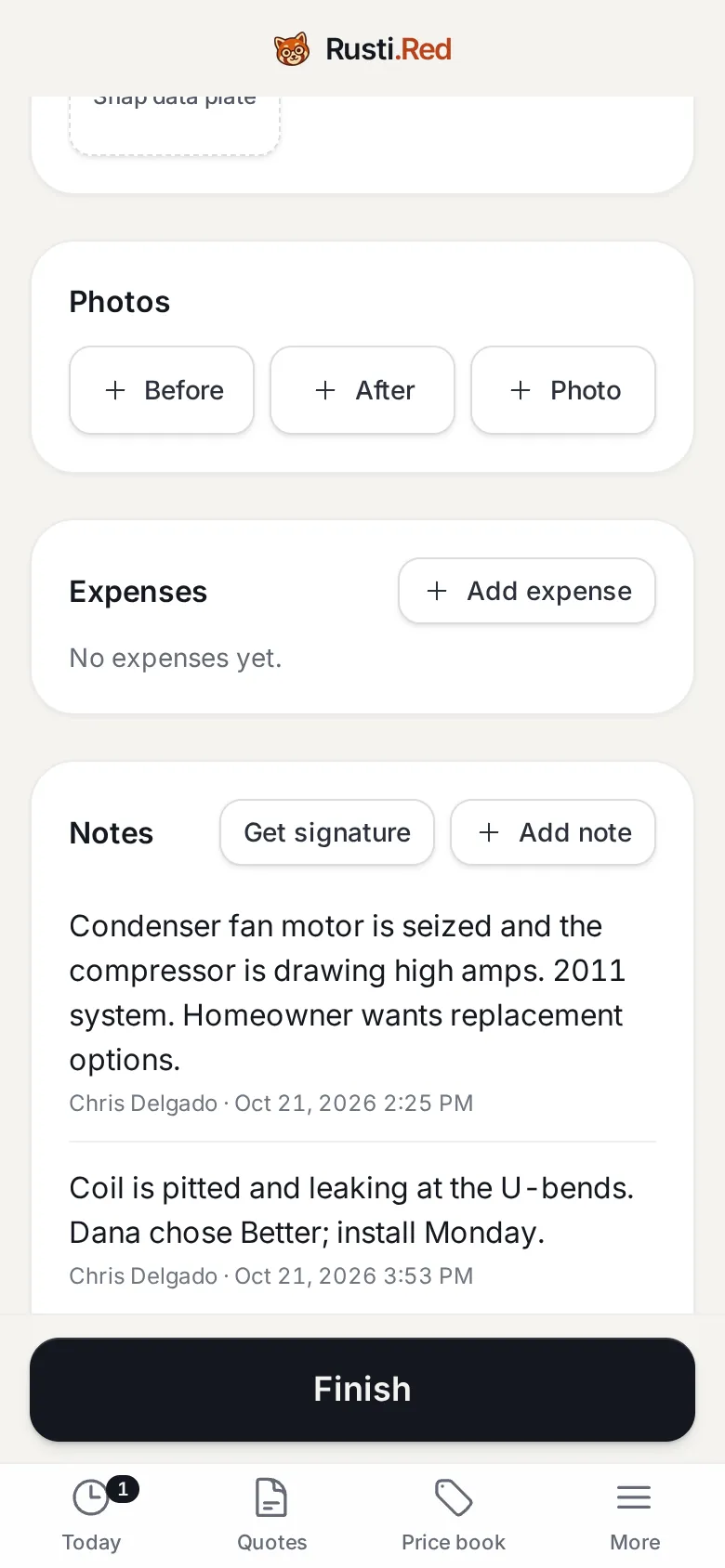
Chris writes a note with no signal. It saves on the phone, and the small 1 on Today counts what is waiting to send.
With the signal off, Add note then write it then Save note
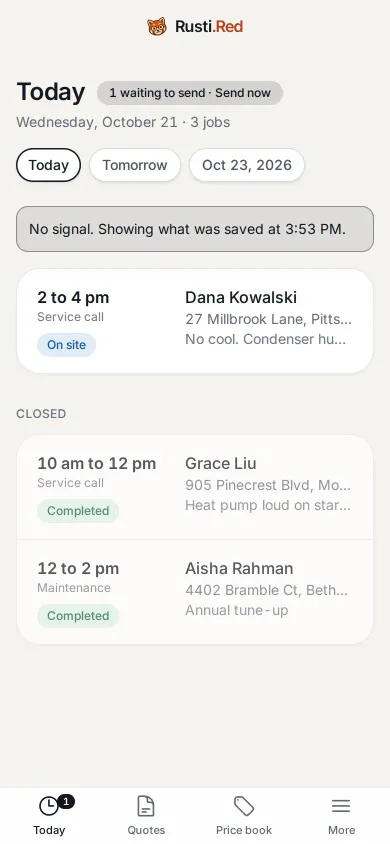
Today, offline
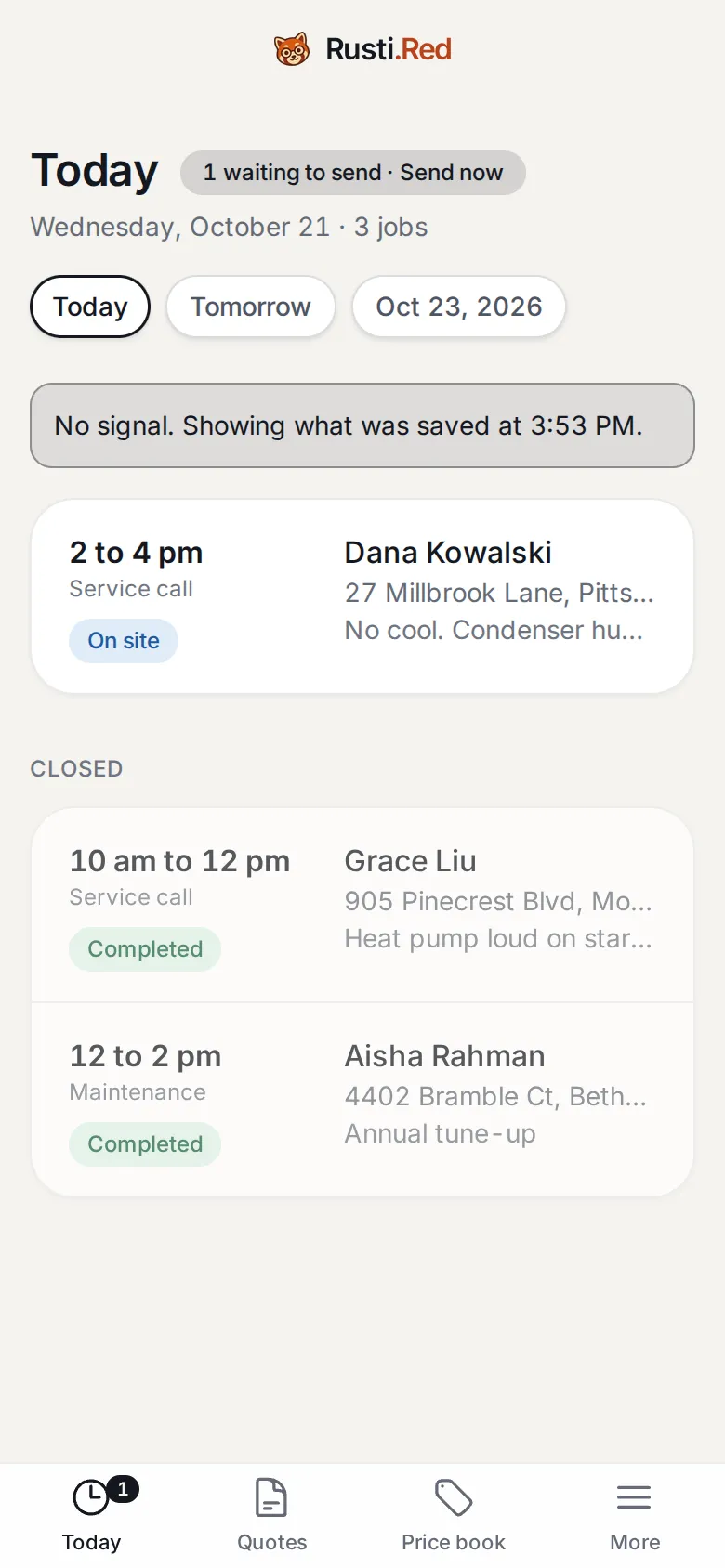
Today shows the day as last saved, and says so. Taps, notes, photos, and payments send when you’re back in signal.
Today, in the bottom bar
The office sees the yes
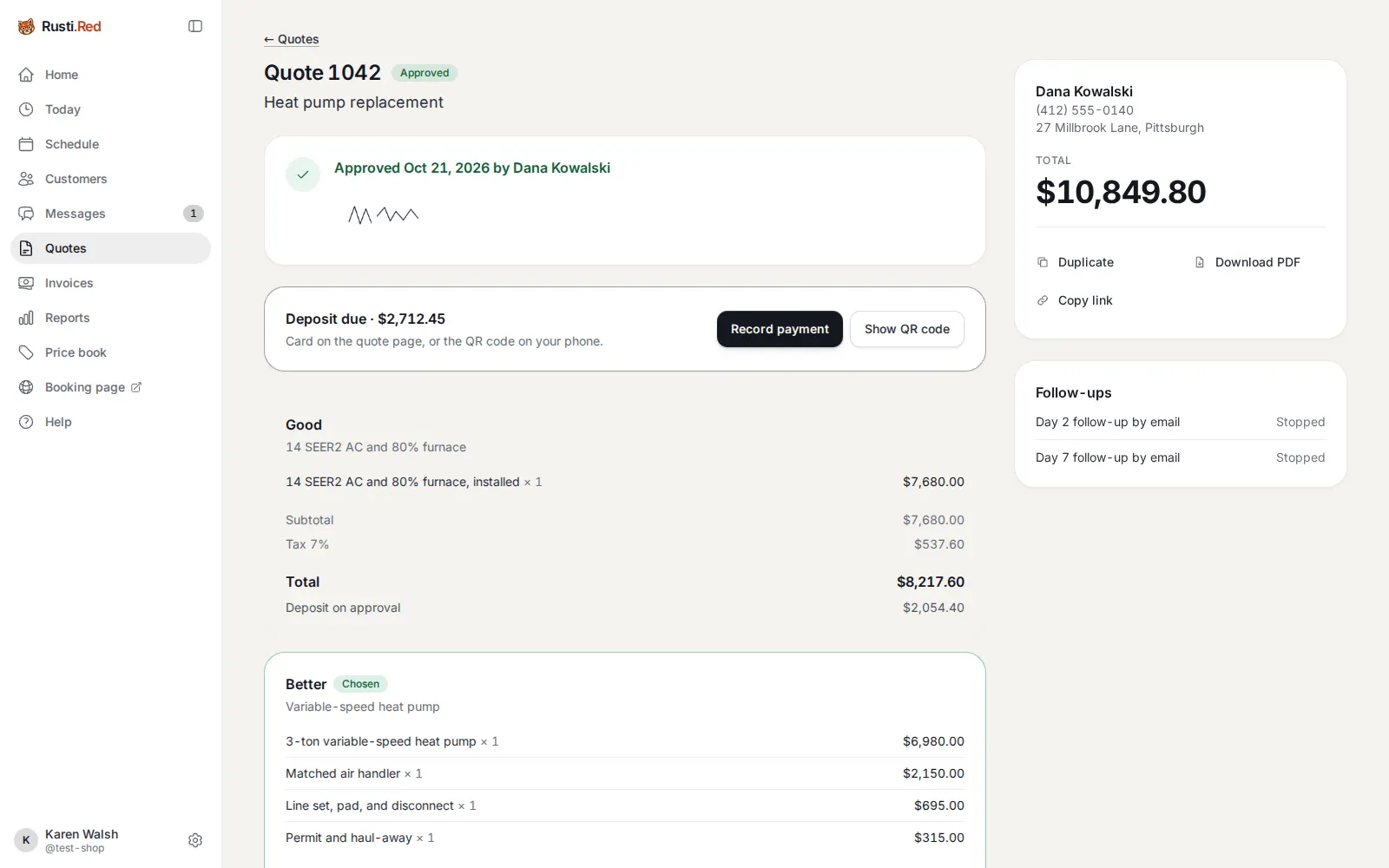
Quote 1042 is approved and signed, with the chosen option marked. The deposit is due, and the follow-ups canceled themselves.
Quotes then Quote 1042 then Record payment
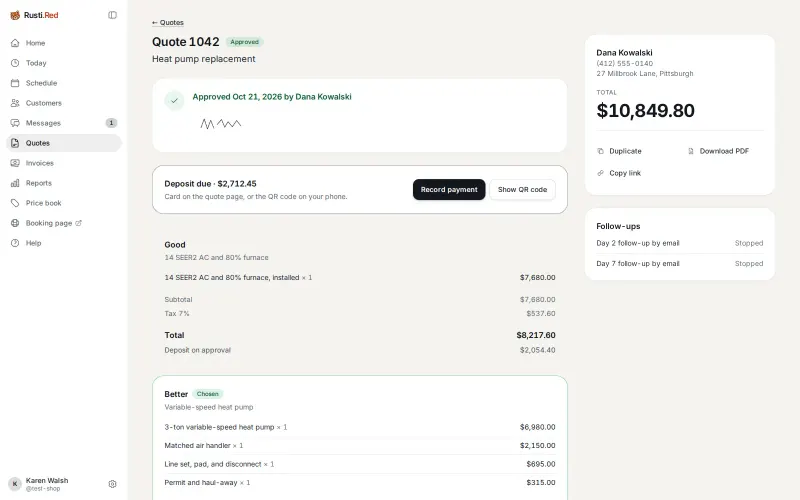
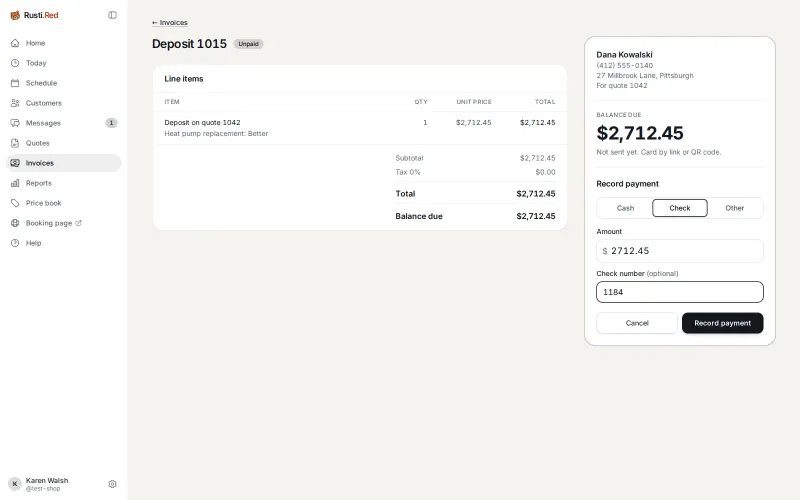
Dana drops off a check
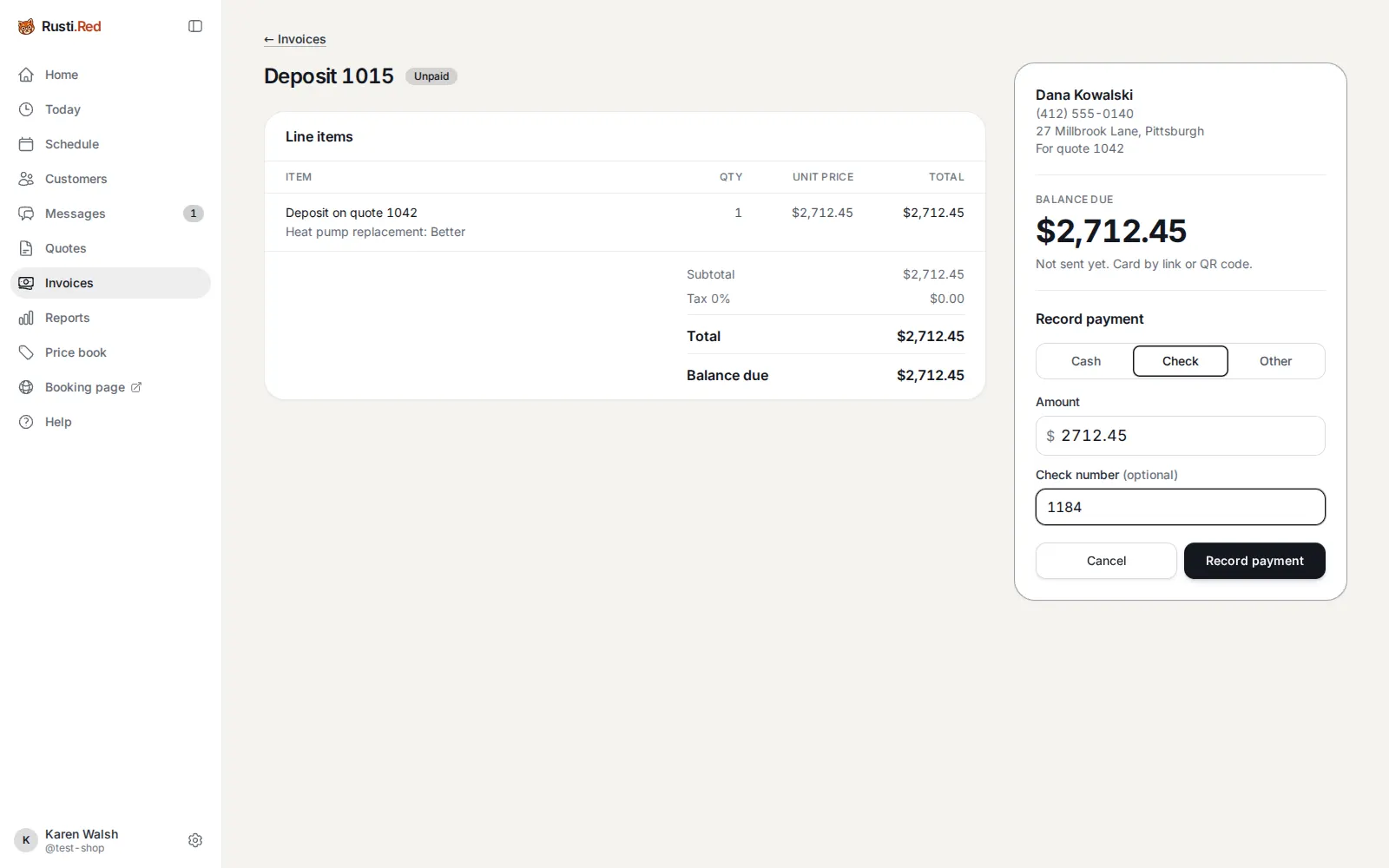
Record payment on the deposit: method, amount, check number.
Check then the check number then Record payment
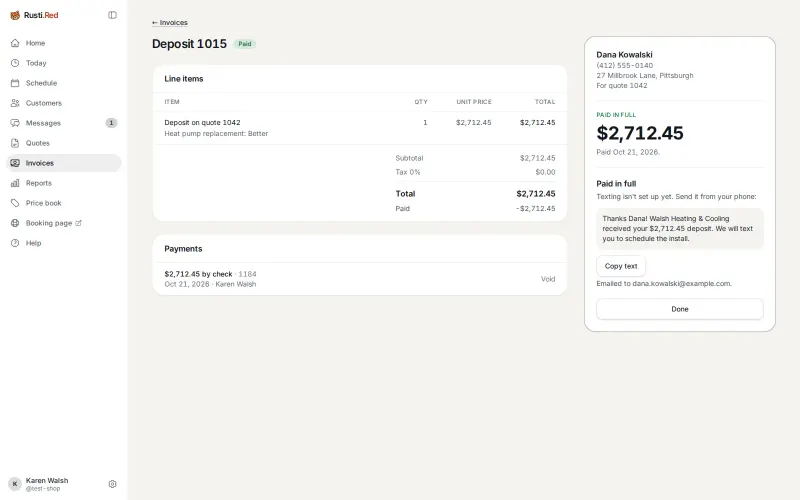
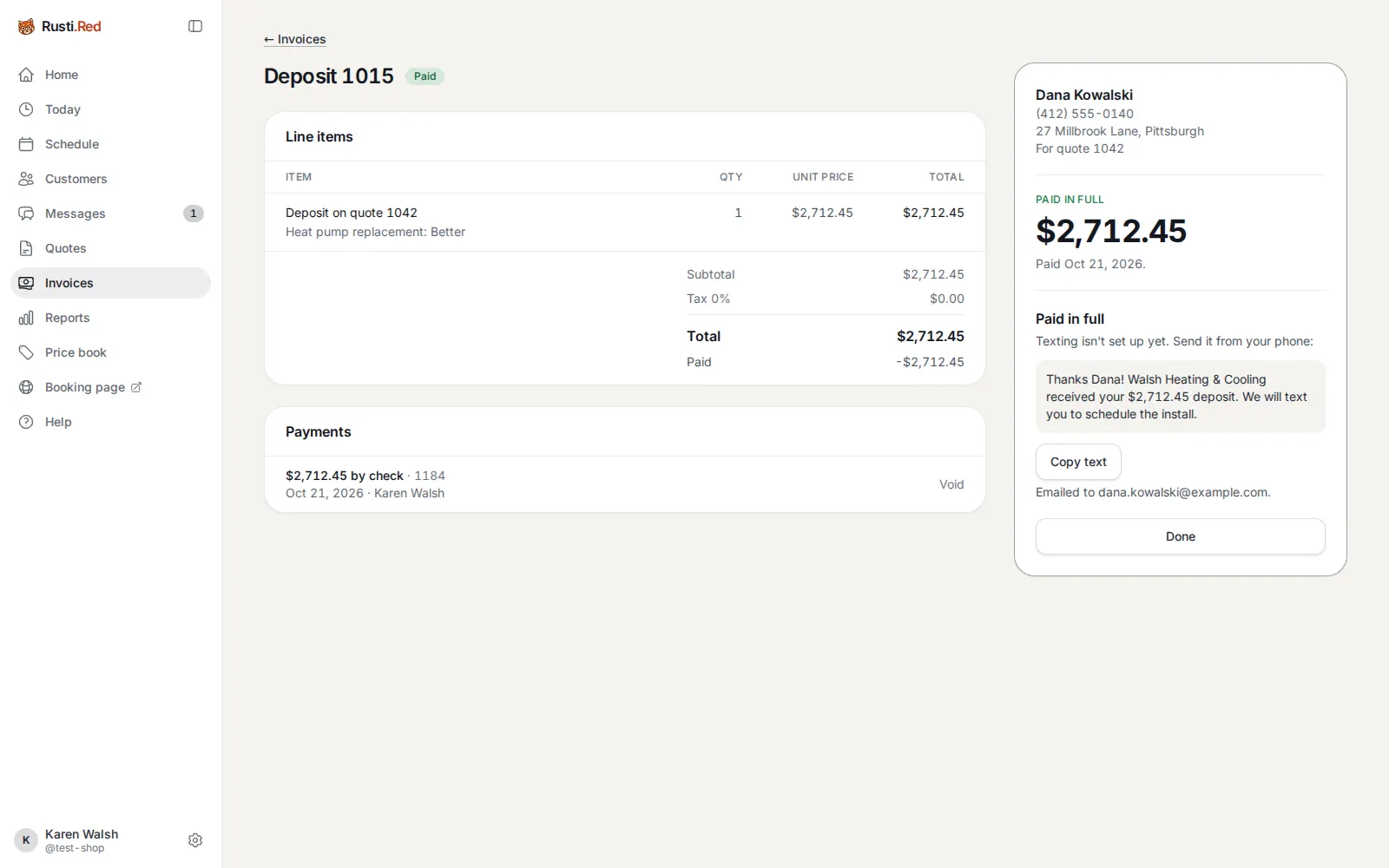
Deposit paid
Paid in full. The install job is created, and the “we got your deposit” message is emailed.
Copy text, to send it from a phone then Done
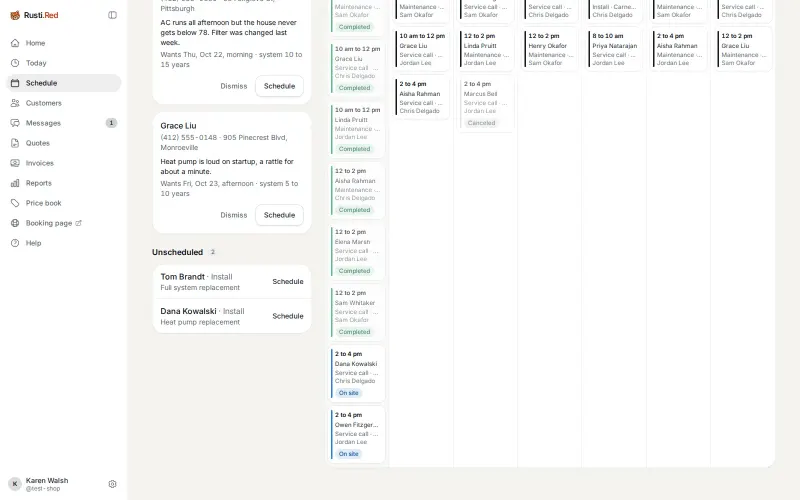
The install needs a slot
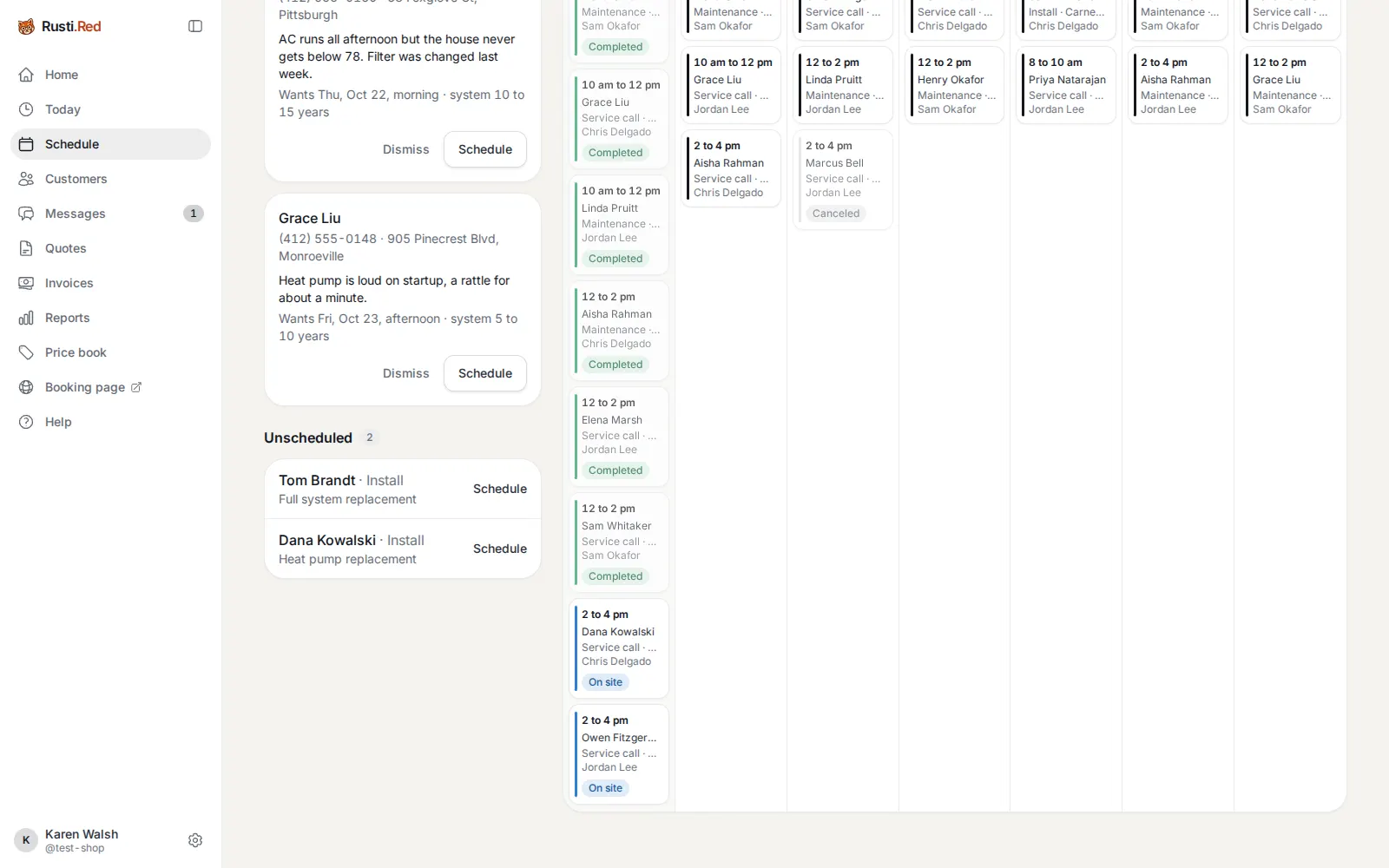
On Schedule, Dana’s install is waiting under Unscheduled, below the requests.
Schedule, in the menu then Schedule, beside Dana’s install
Give it a day
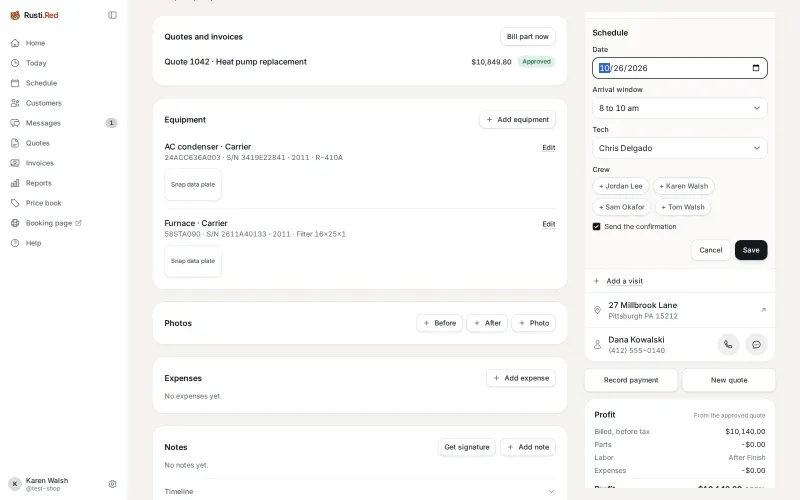
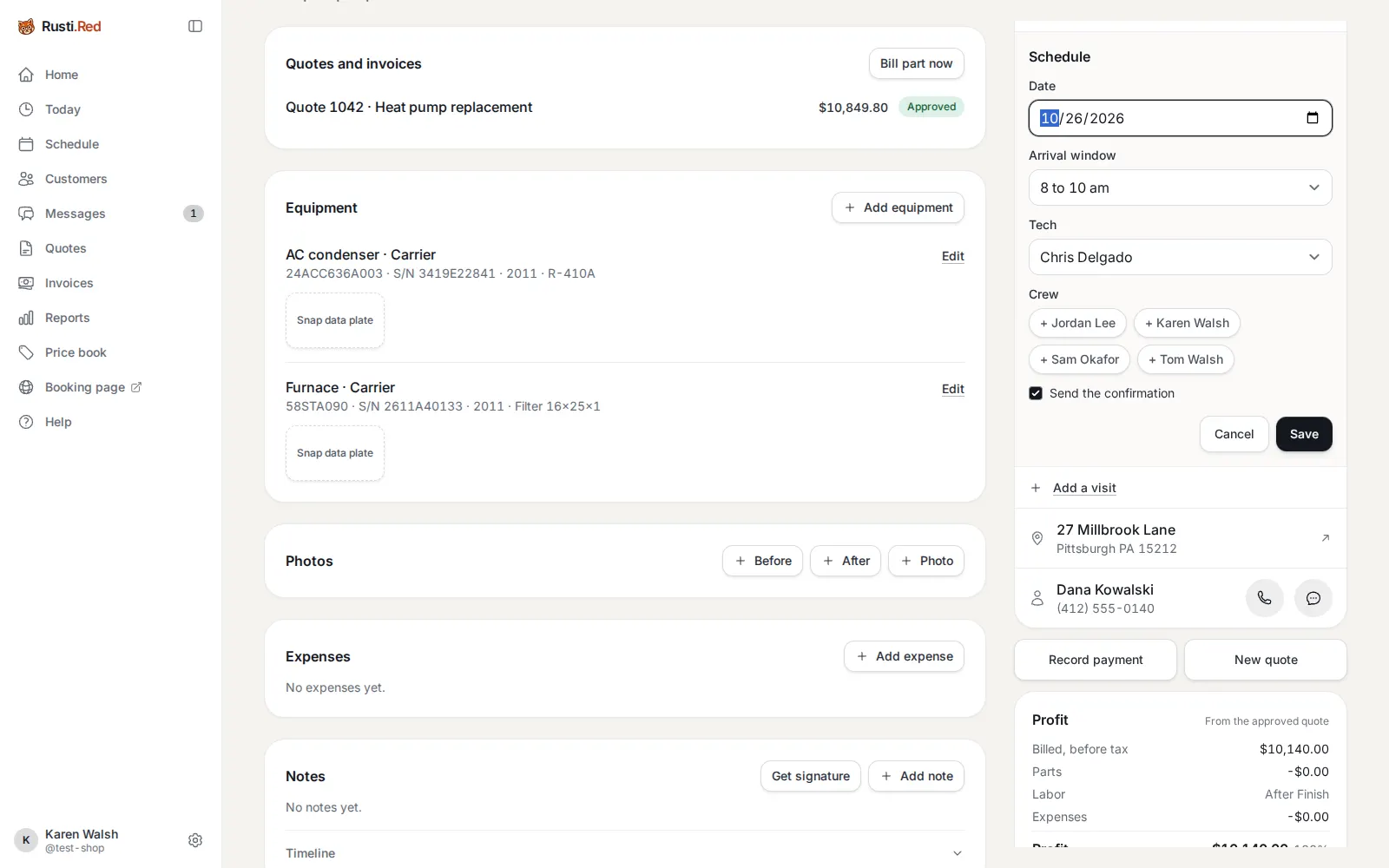
Open the job and tap Schedule: date, arrival window, tech, and whether to send the confirmation.
Pick the day, the window, and the tech then Save
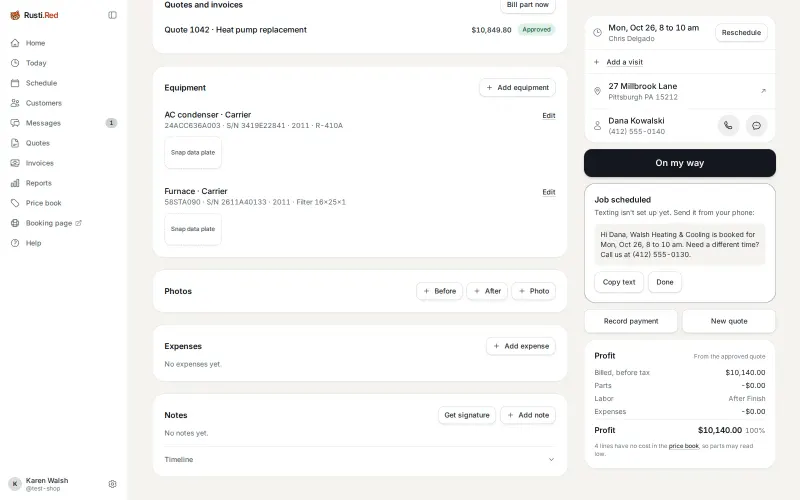
Scheduled
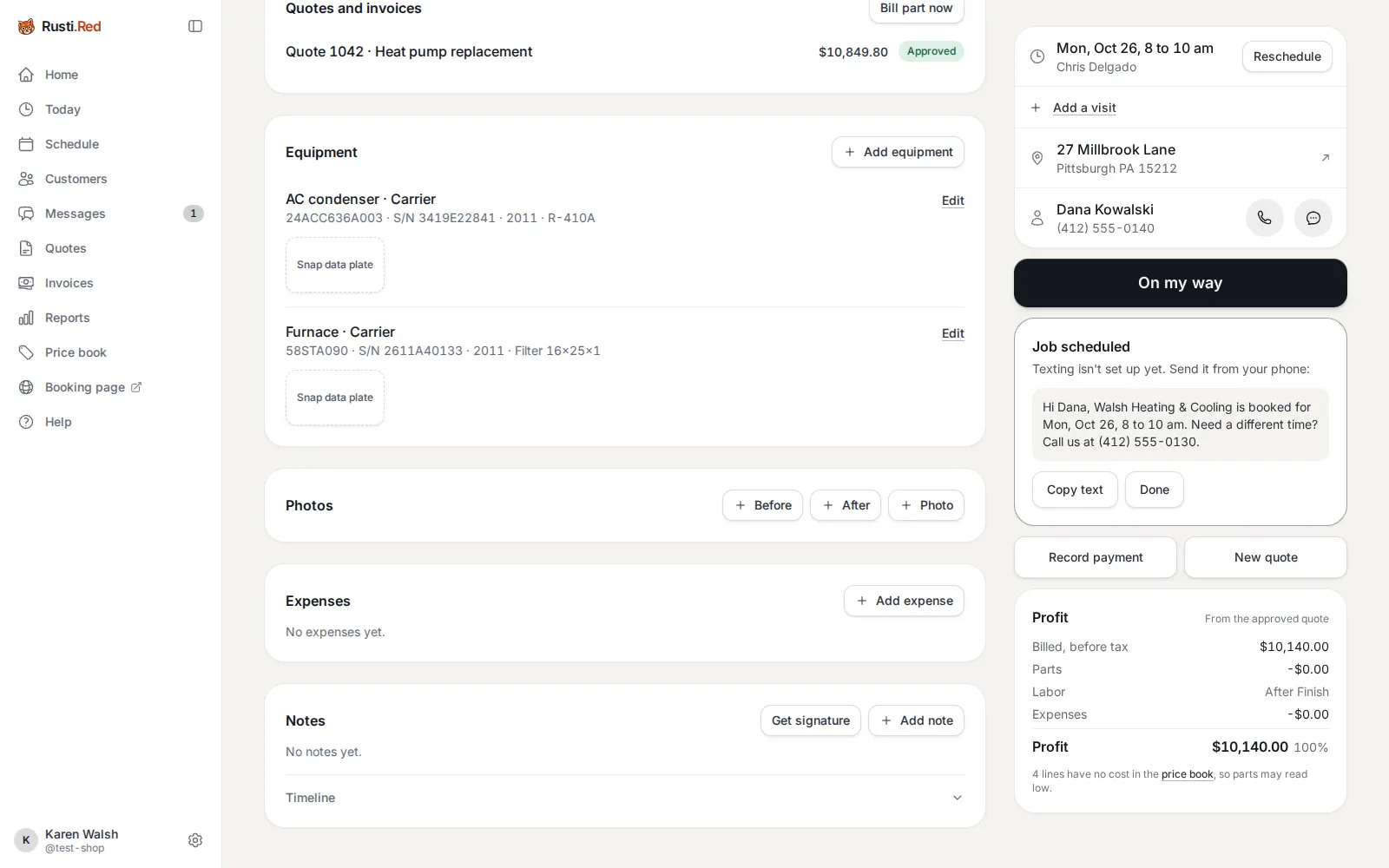
Monday, 8 to 10 am, Chris. The confirmation is written. On install day the job screen works exactly as it did for the service call, and Finish bills the Better price less the deposit.
Copy text, to send it from a phone then Done
Opening the shop and running it
Both jobs ran on settings Tom made once. This starts where a new shop does, with the signup form, then walks his settings.
Signing up
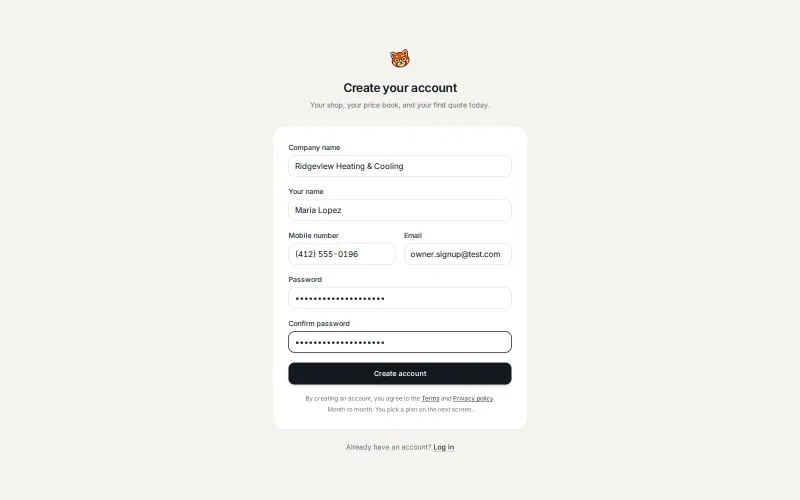
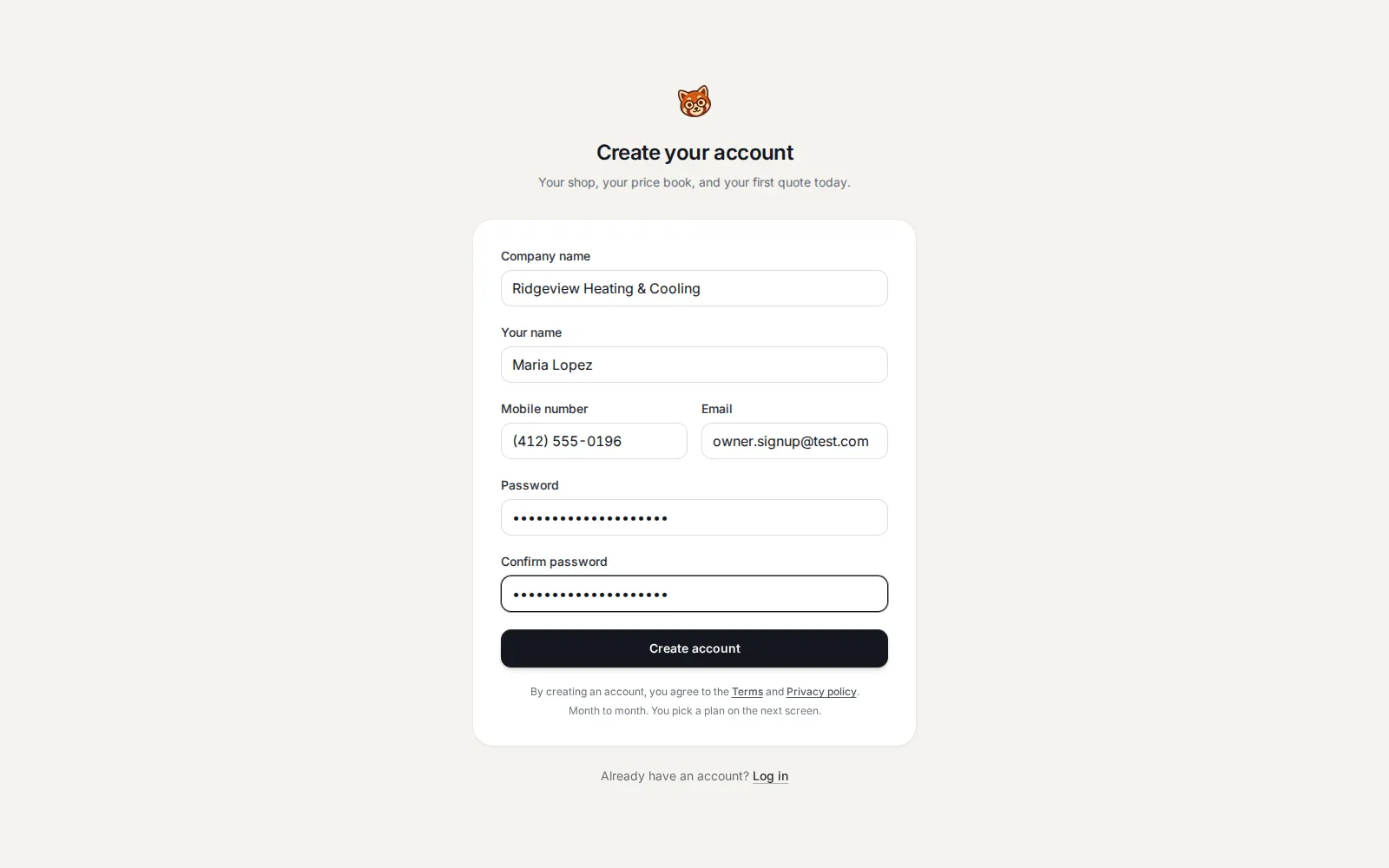
One form: company name, your name, mobile number, email, password. That creates the shop, its owner, and a starter HVAC price book.
Get started on rusti.red then Create account
Pick a plan
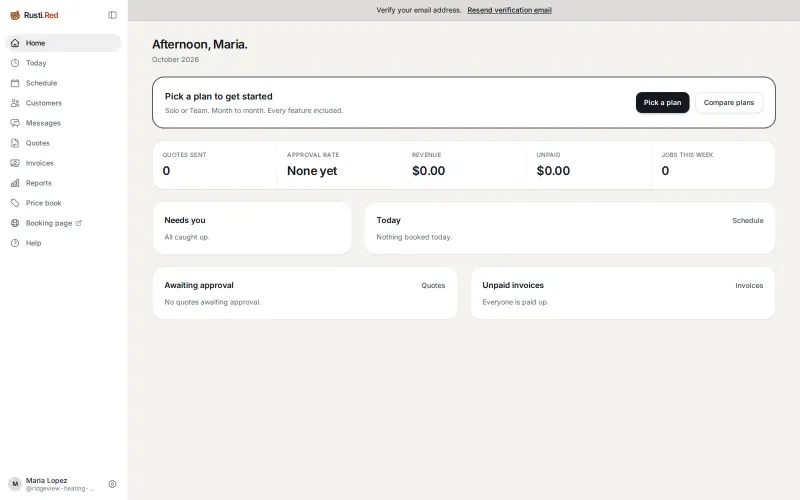
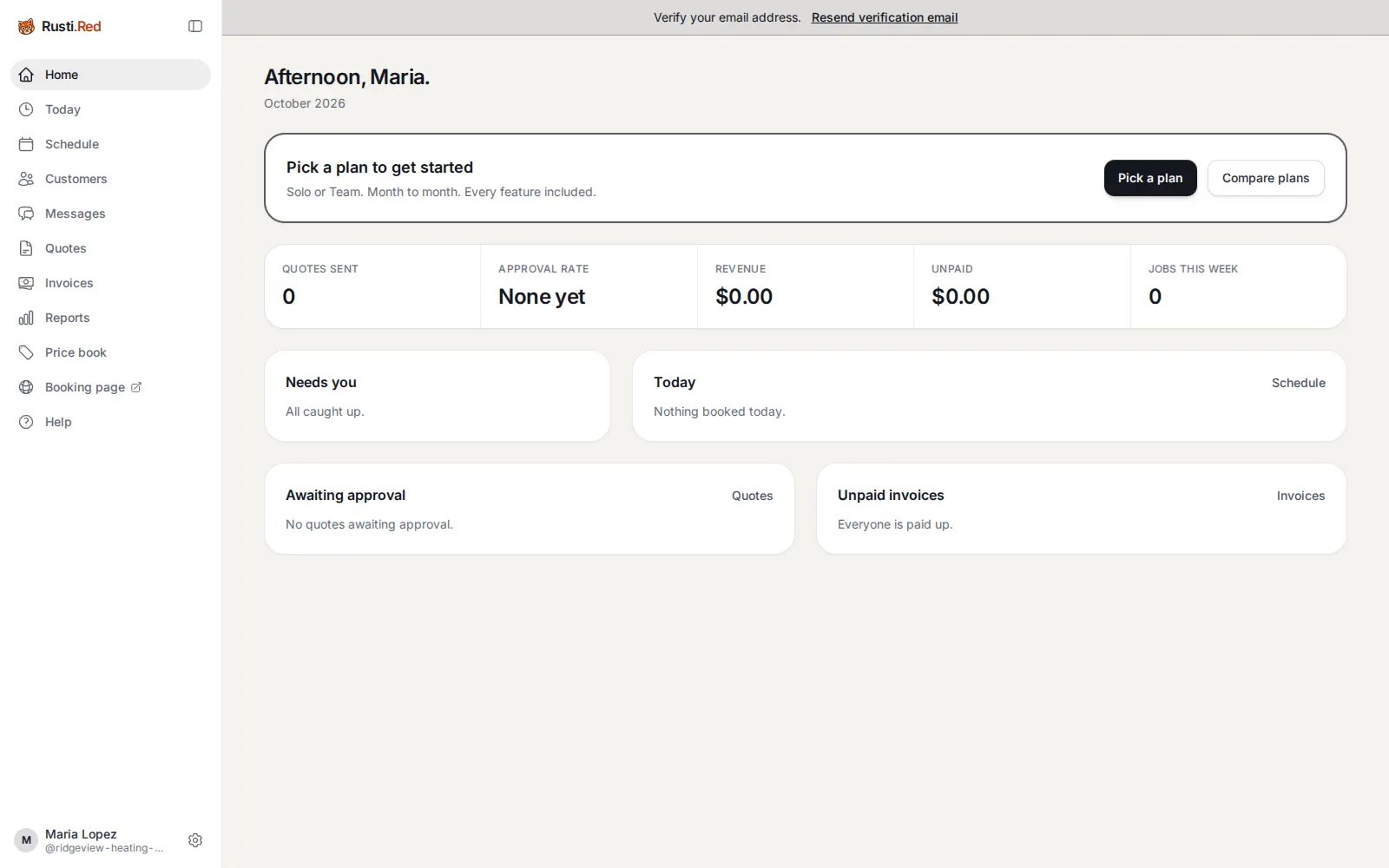
A new shop is read-only until the owner picks a plan: Solo for one person, or Team for a crew (see pricing). No free trial. Then this card becomes a short checklist: logo and phone, texting, Stripe, import.
Pick a plan
Shop settings
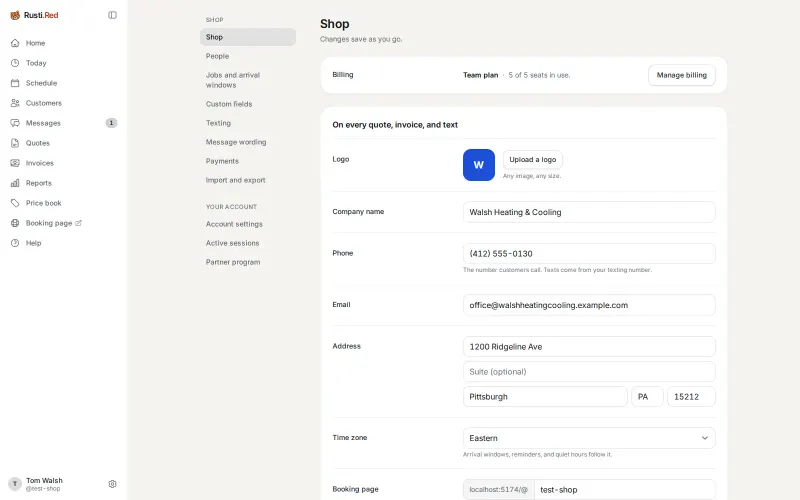
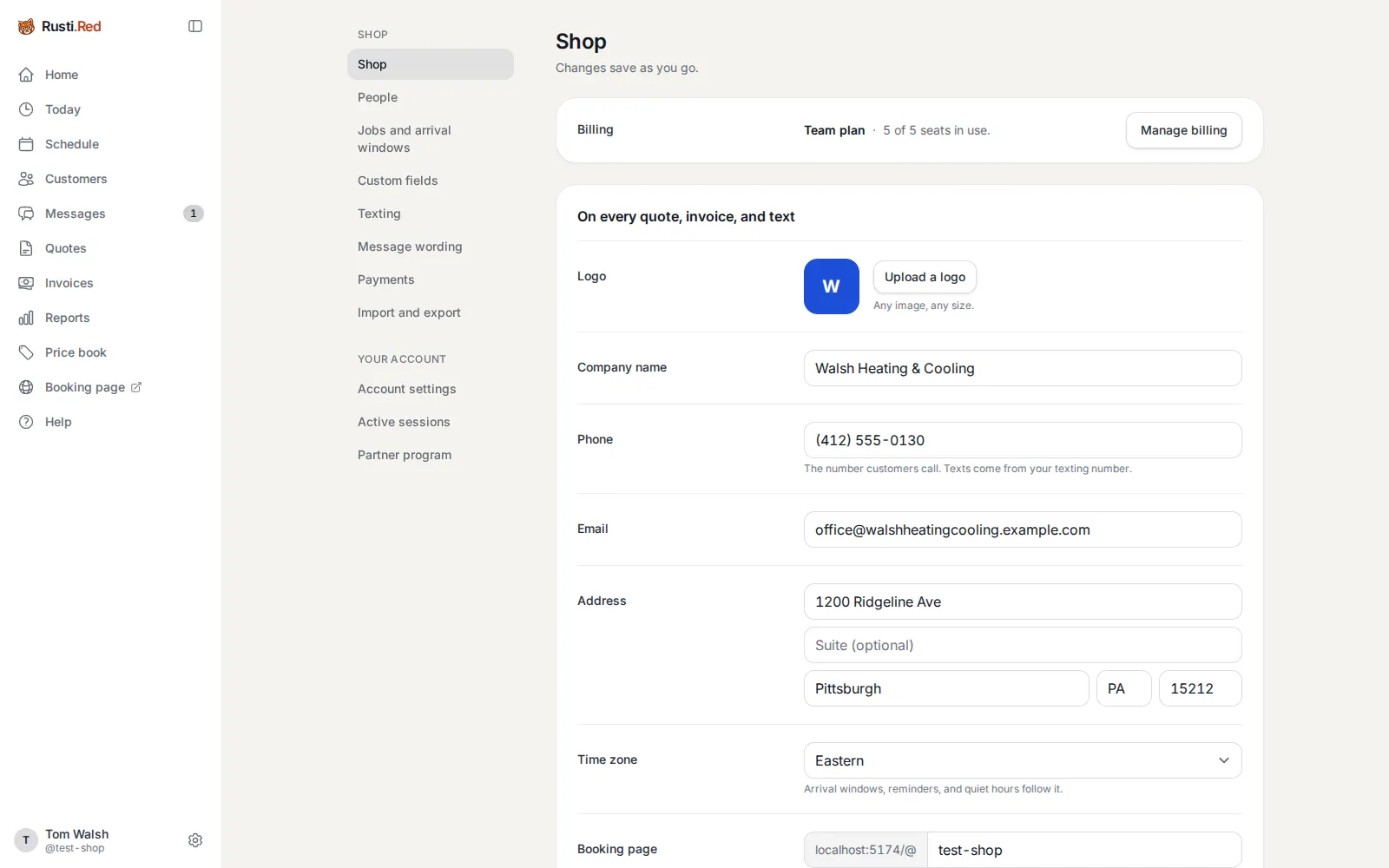
One page and no Save button: a field saves when you leave it. The logo, name, phone, and address here appear on every quote, invoice, and text.
The gear beside your name then Shop
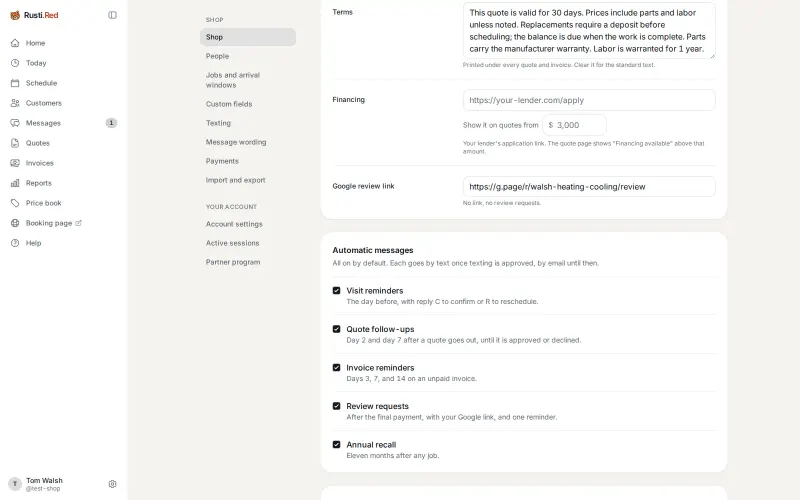
Money defaults and automatic messages
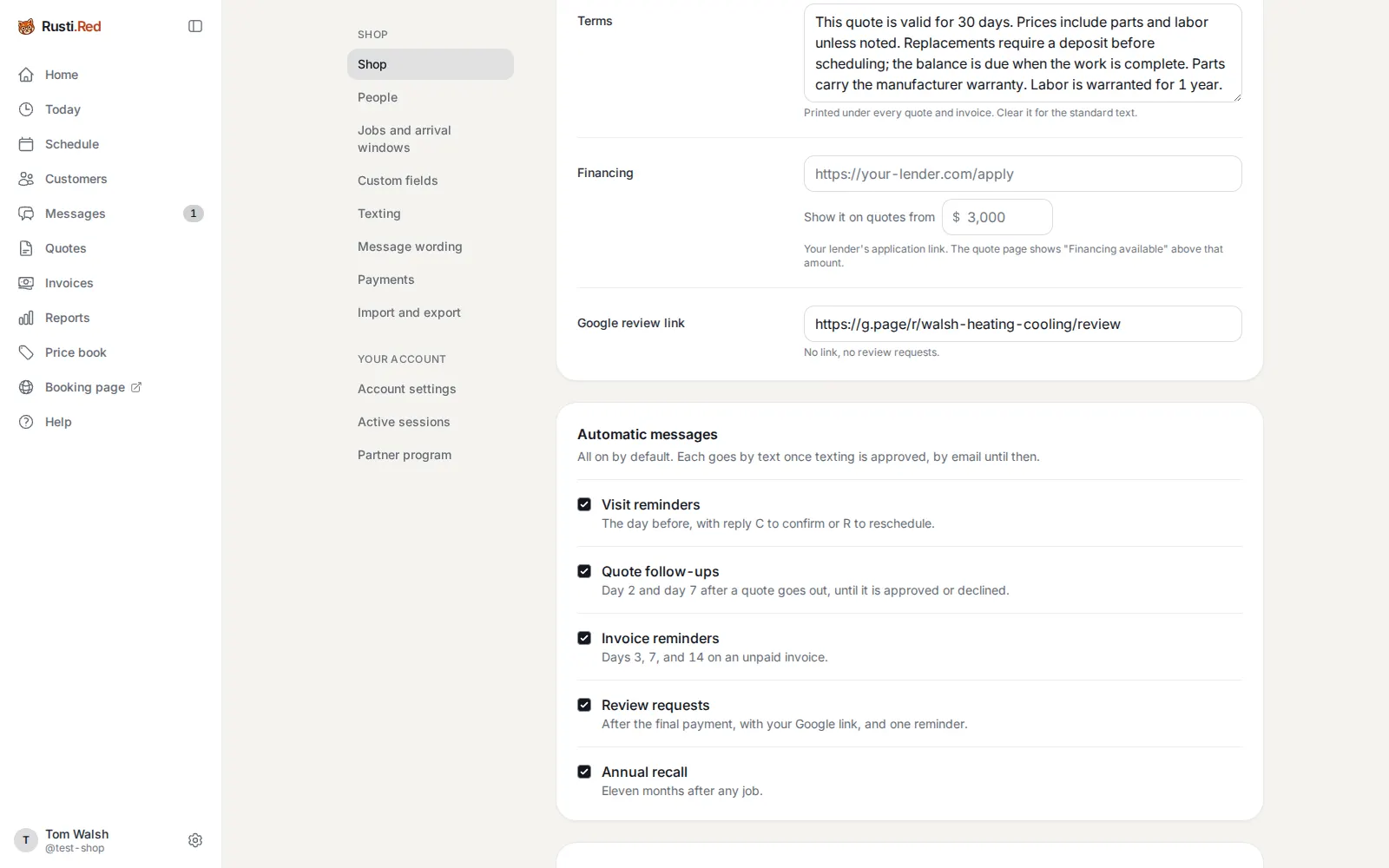
The deposit percent, how long a quote is good, sales tax, the terms, a financing link, and the Google review link. Under them, Automatic messages, all on by default.
Scroll down the same page
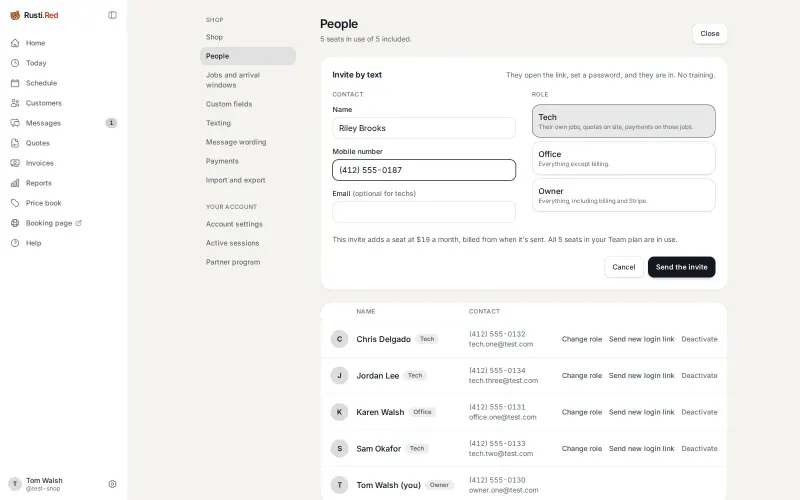
Add a person
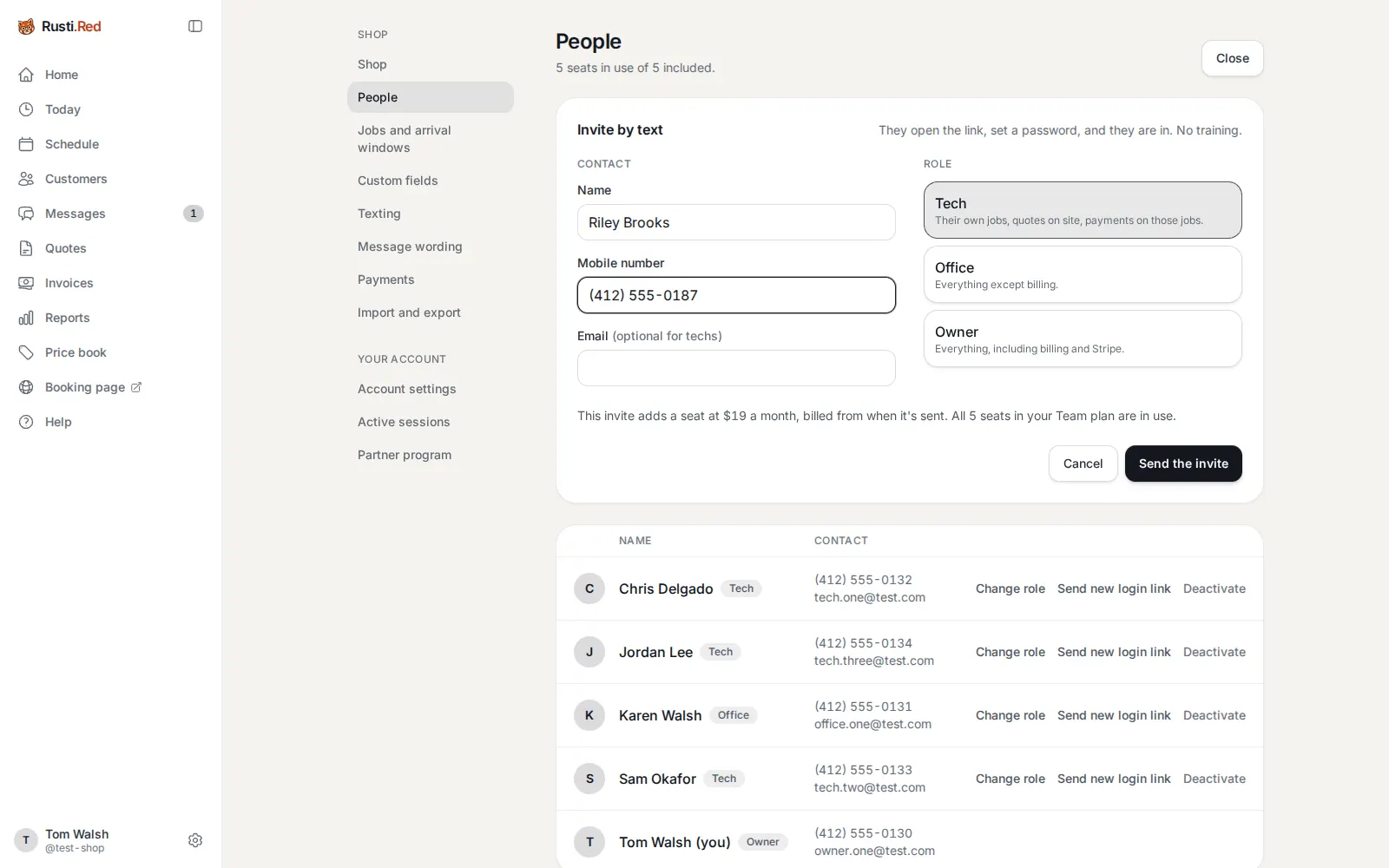
People lists who works here and the seats in use. Invite by text takes a name, a mobile number, and a role: tech, office, or owner.
People, in the settings list then Invite someone then Send the invite
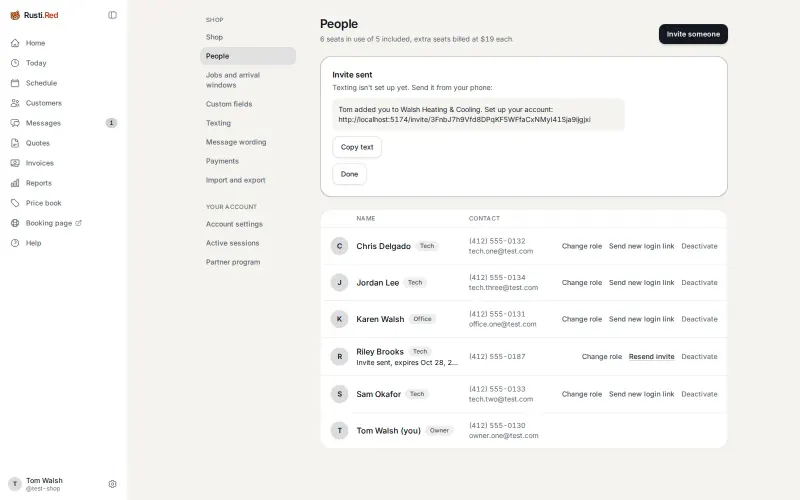
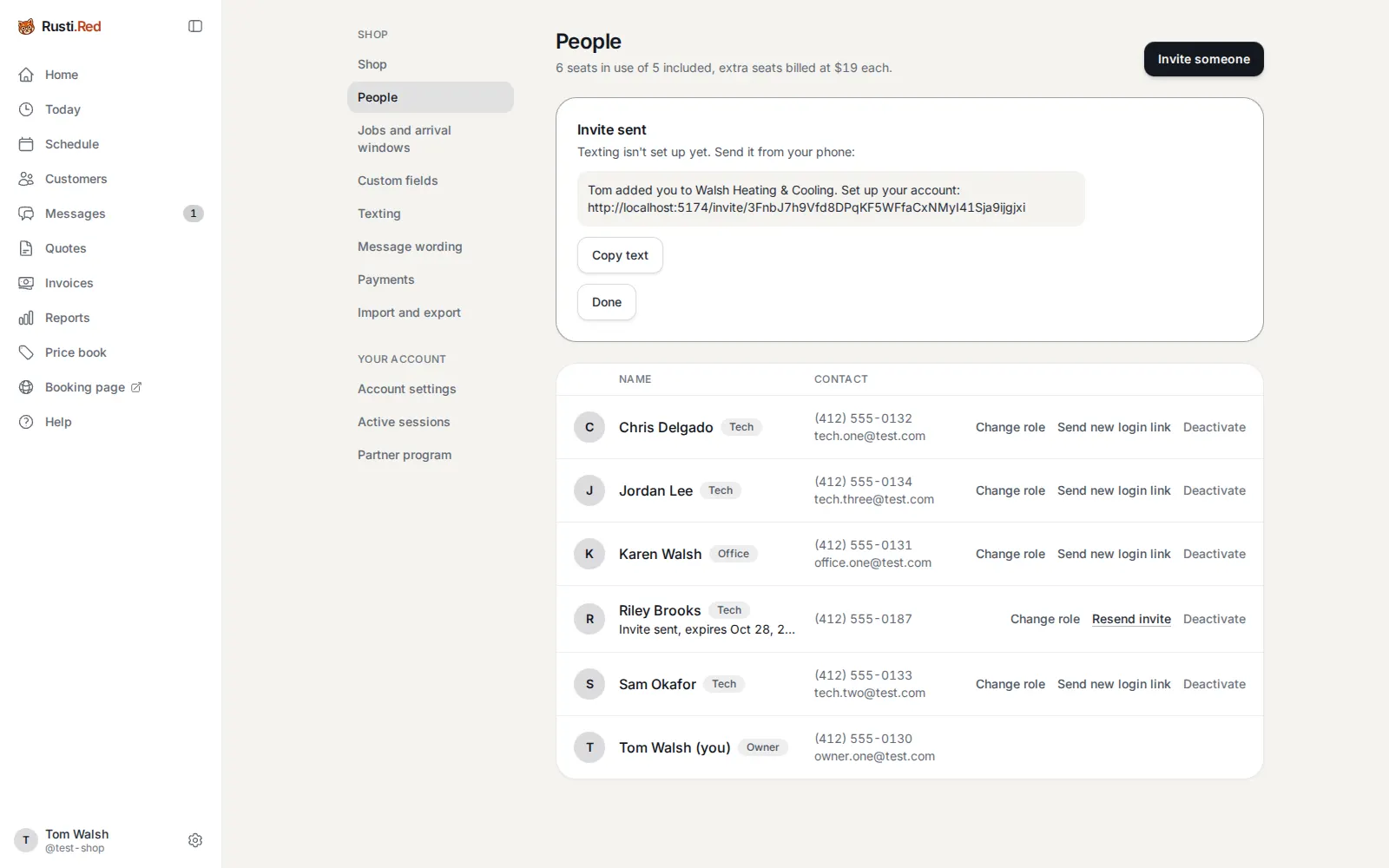
The invite is a text
The app writes the invite with a link that is good for seven days. Until they accept, the row says so and offers Resend invite.
Copy text, to send it from your phone then Done
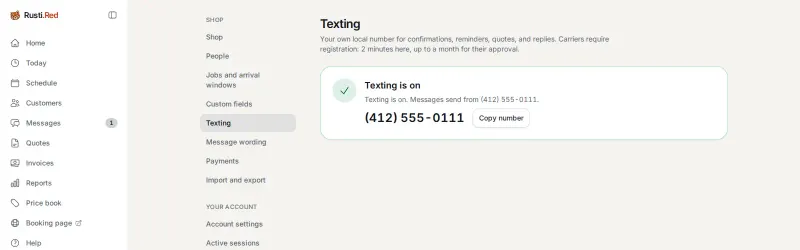
Texting
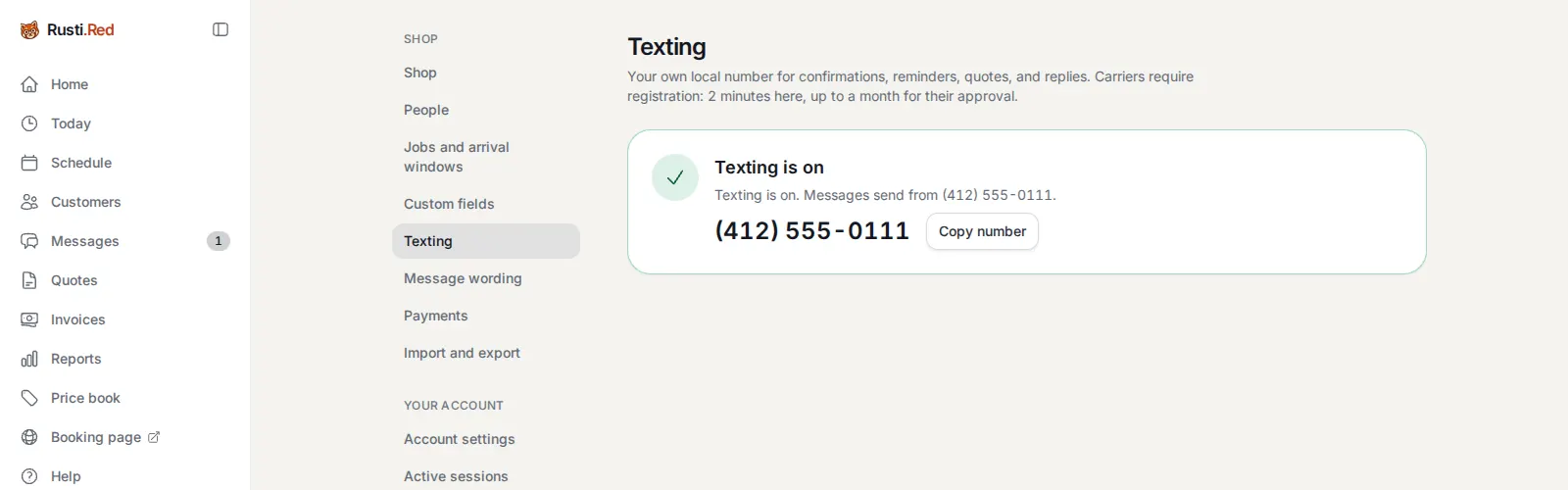
Your shop’s own local number. A two-minute form (legal name, address, EIN), then up to a month for the carriers to approve it. Until then, you send texts from your phone, as in the office and tech steps. This shop is already approved.
Texting, in the settings list
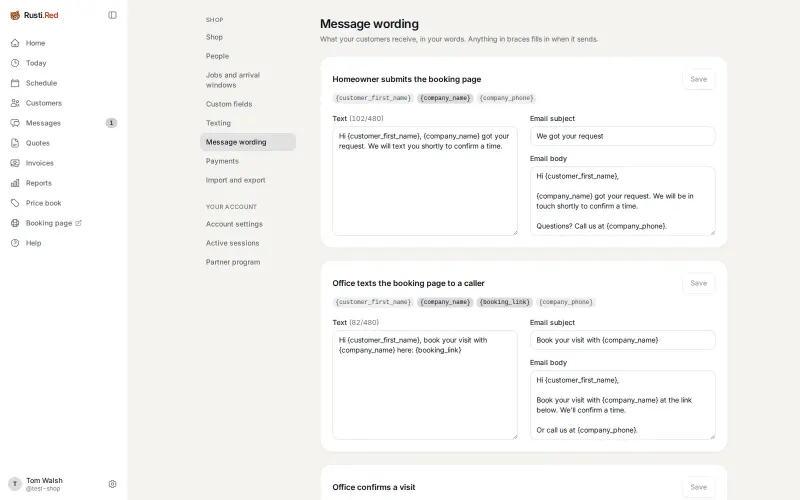
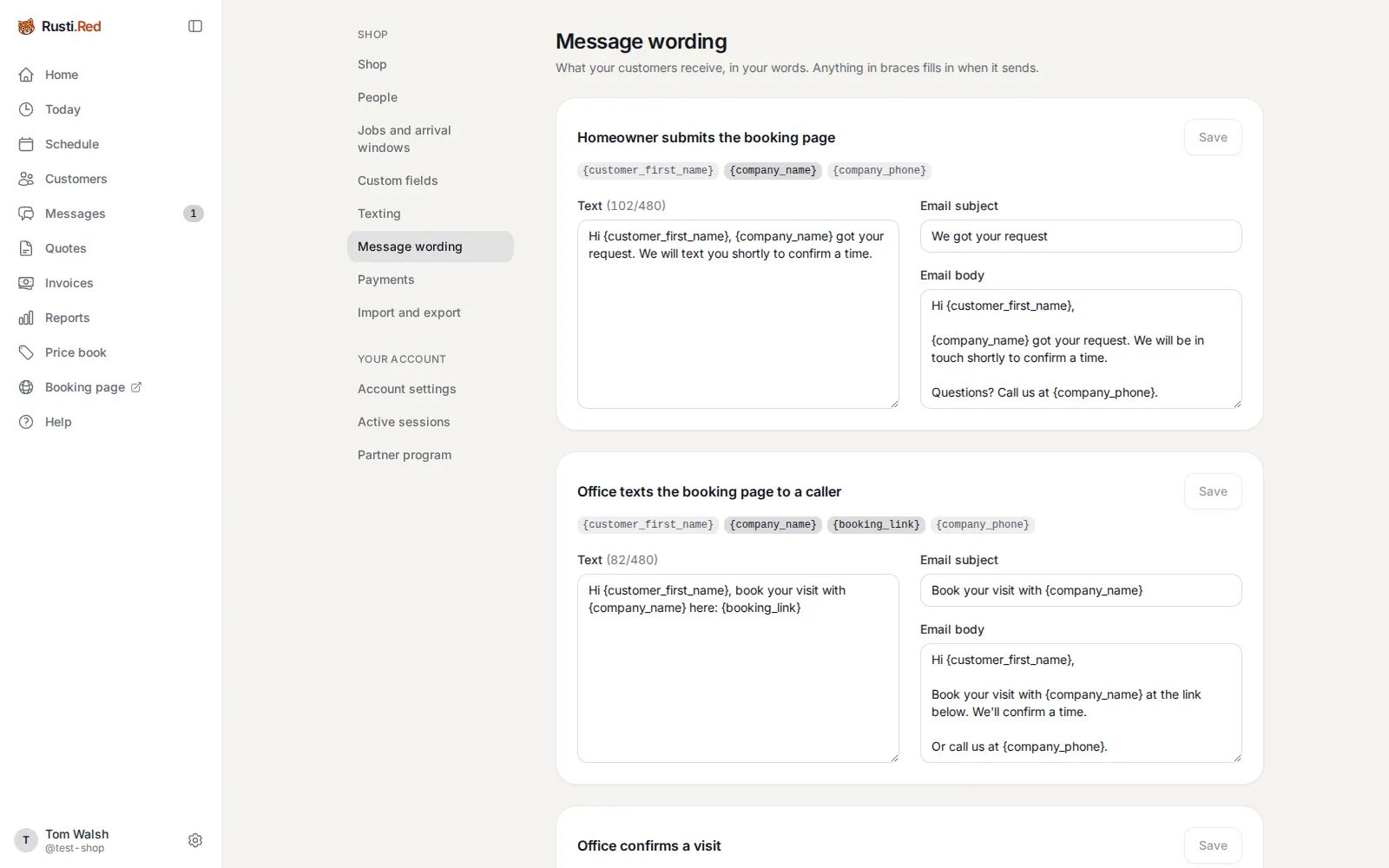
Message wording
Every text and email the shop sends, each one editable. The words in braces fill in when it sends.
Message wording, in the settings list
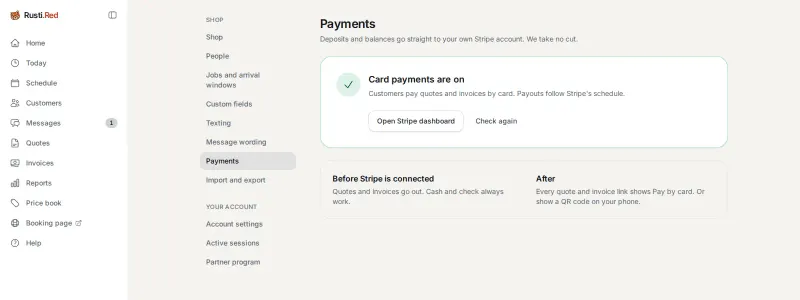
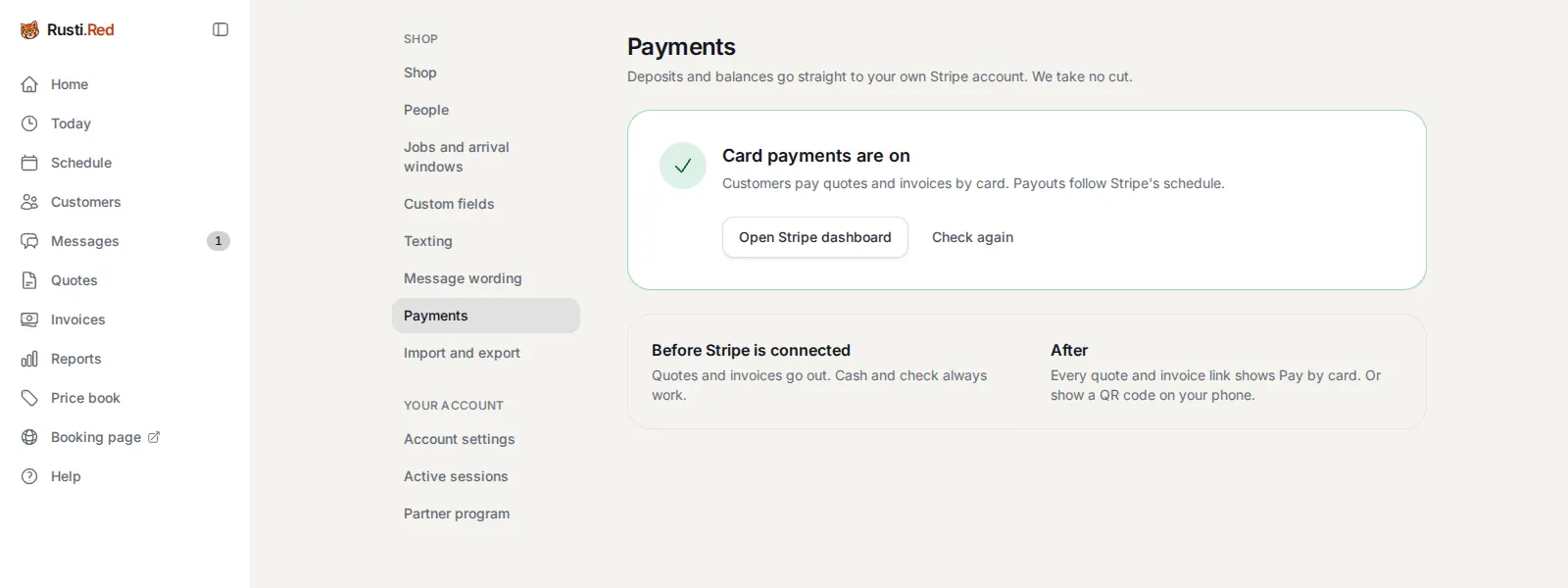
Payments
Connect Stripe and every deposit and invoice takes cards. The money goes to your own Stripe account. Rusti.Red takes no cut. Cash and check always work.
Payments, in the settings list
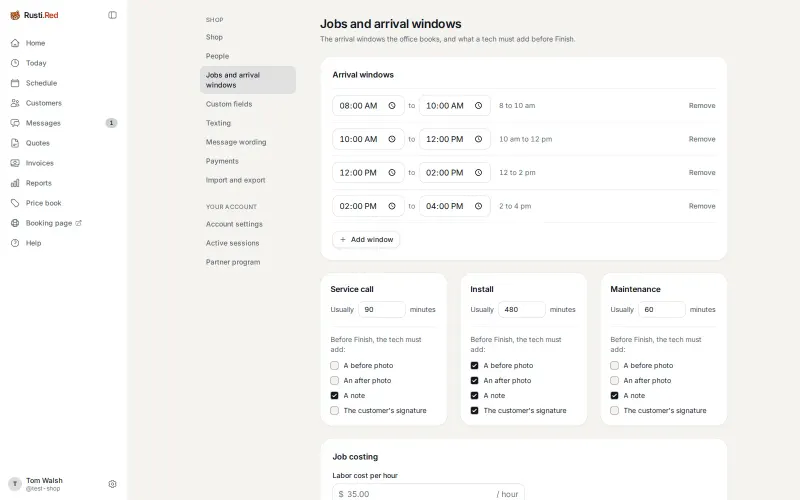
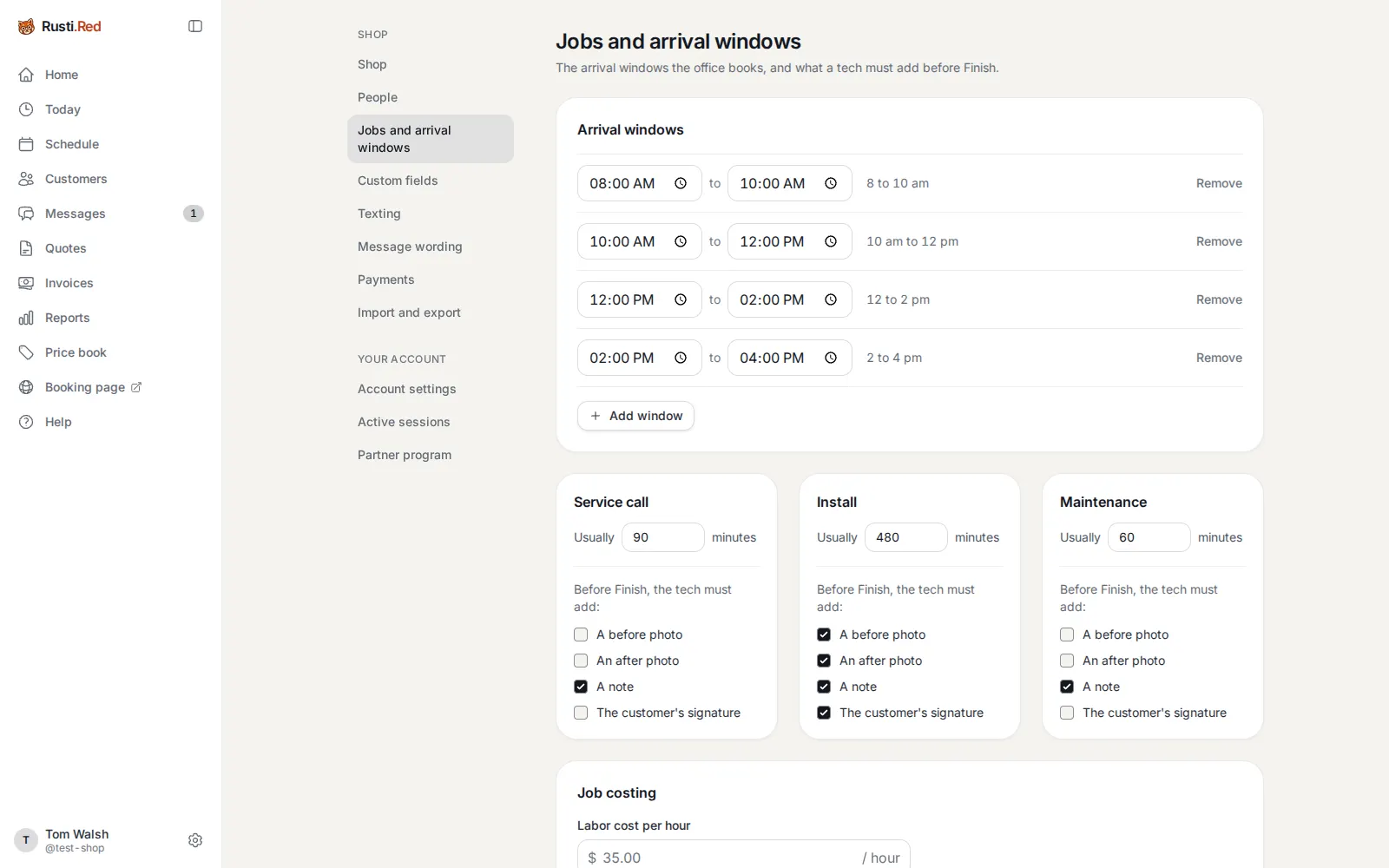
Jobs and arrival windows
The arrival windows the office books from, and for each kind of job, how long it usually takes and what a tech must add before Finish: photos, a note, a signature.
Jobs and arrival windows, in the settings list
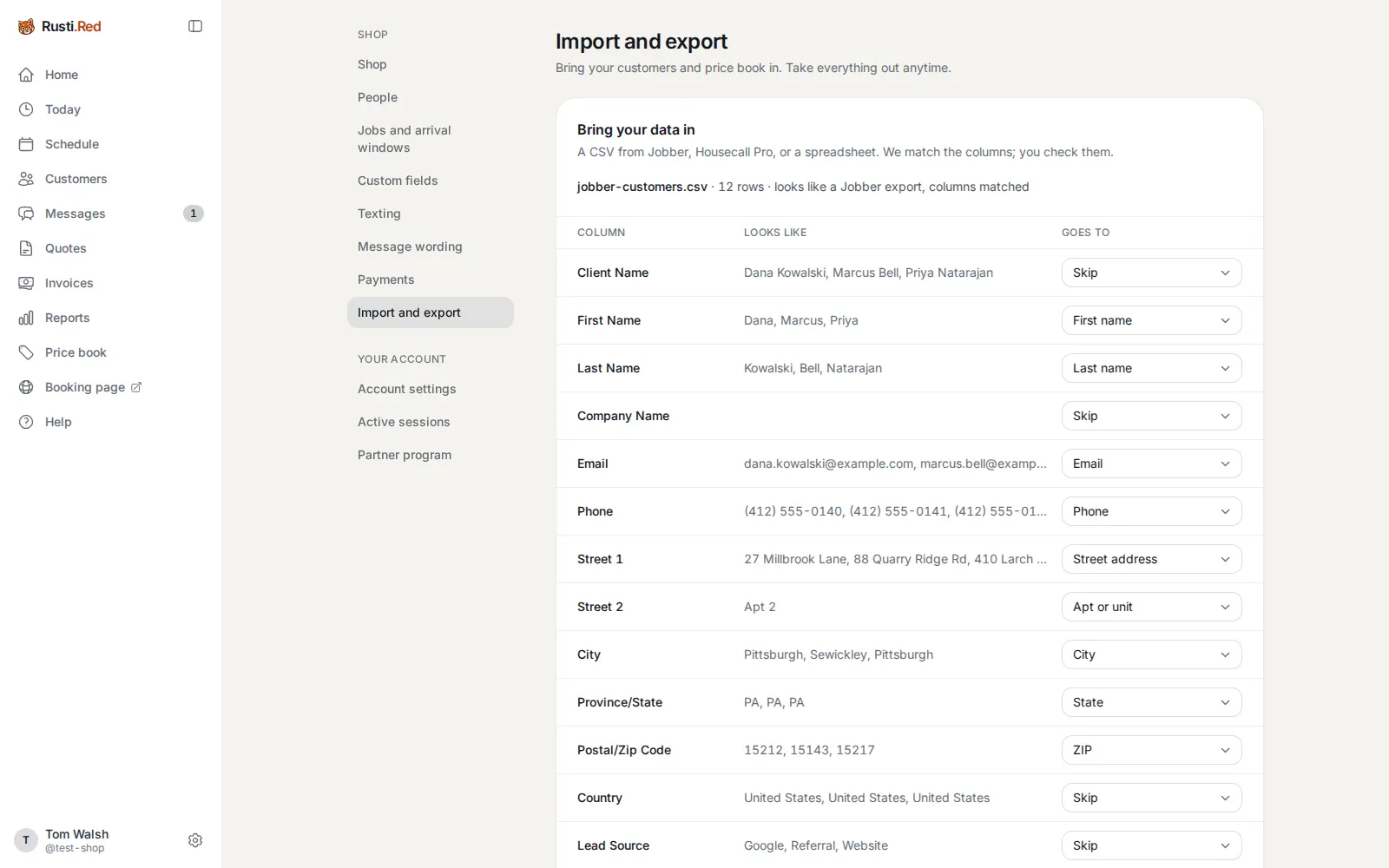
Bring your customers
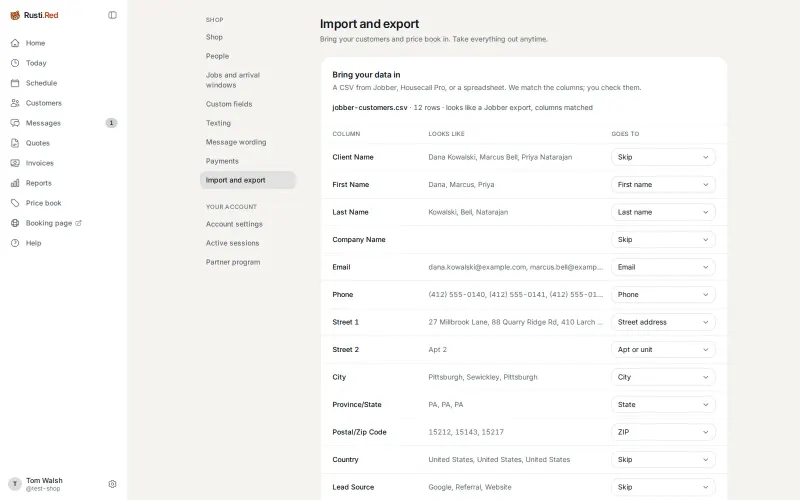
Upload a CSV from Jobber, Housecall Pro, or a spreadsheet. The app recognizes the export and matches the columns; you check them and confirm. Lower on the page are the bookkeeper’s CSVs and a full export of the shop’s data.
Import and export, in the settings list then choose a CSV file
Joining the shop
A tech joins from a texted invite, which the owner sends from People.
What the new tech sees
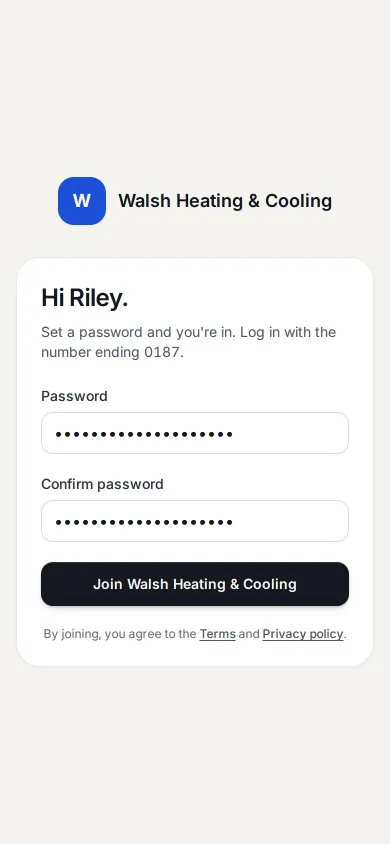
The link opens this page. She sets a password and she’s in. From then on she logs in with her mobile number. Techs land on Today.
Open the link in the invite text then set a password then Join Walsh Heating & Cooling
The lists the office lives in
Four lists hold the rest of the office’s day: the price book, quotes, invoices, and customers.
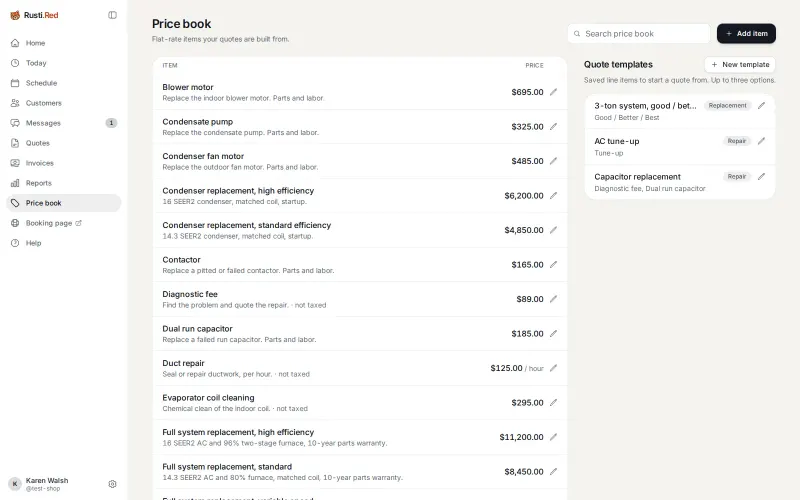
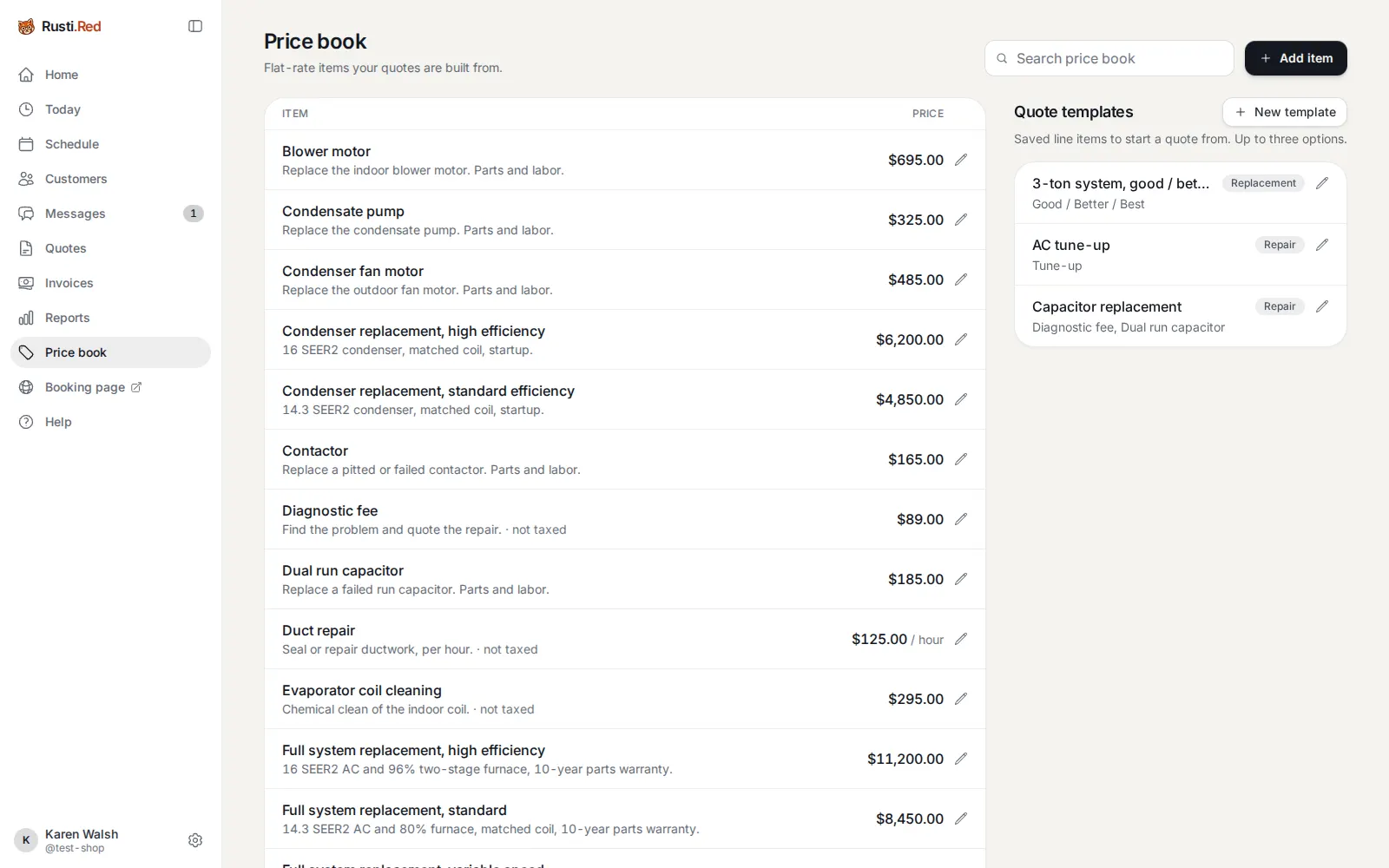
Price book
The flat-rate prices every quote is built from, ready on day one. Quote templates on the right. The pencil opens any item.
Price book
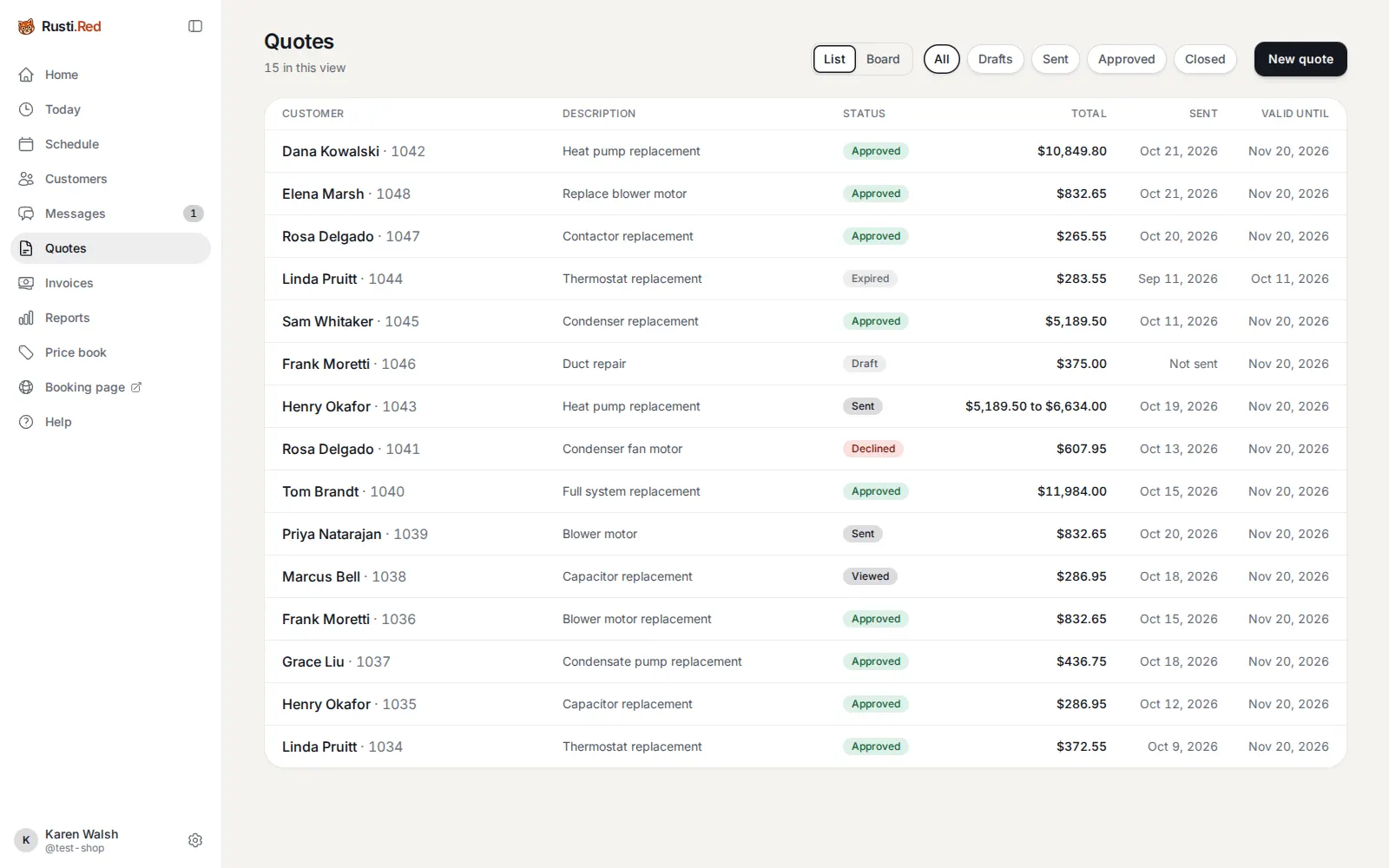
Quotes
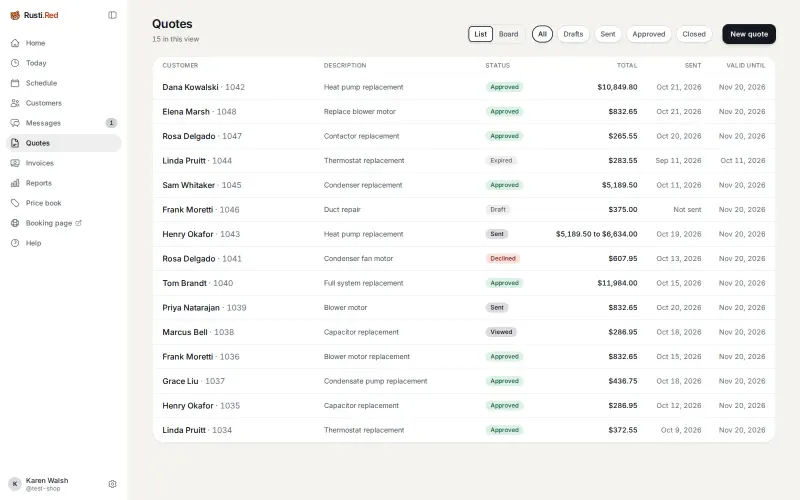
Every quote and where it stands: draft, sent, viewed, approved, declined, expired.
Quotes
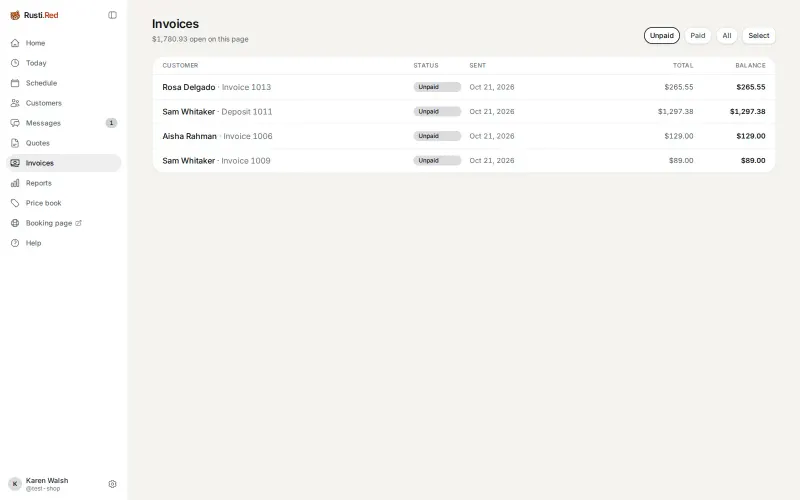
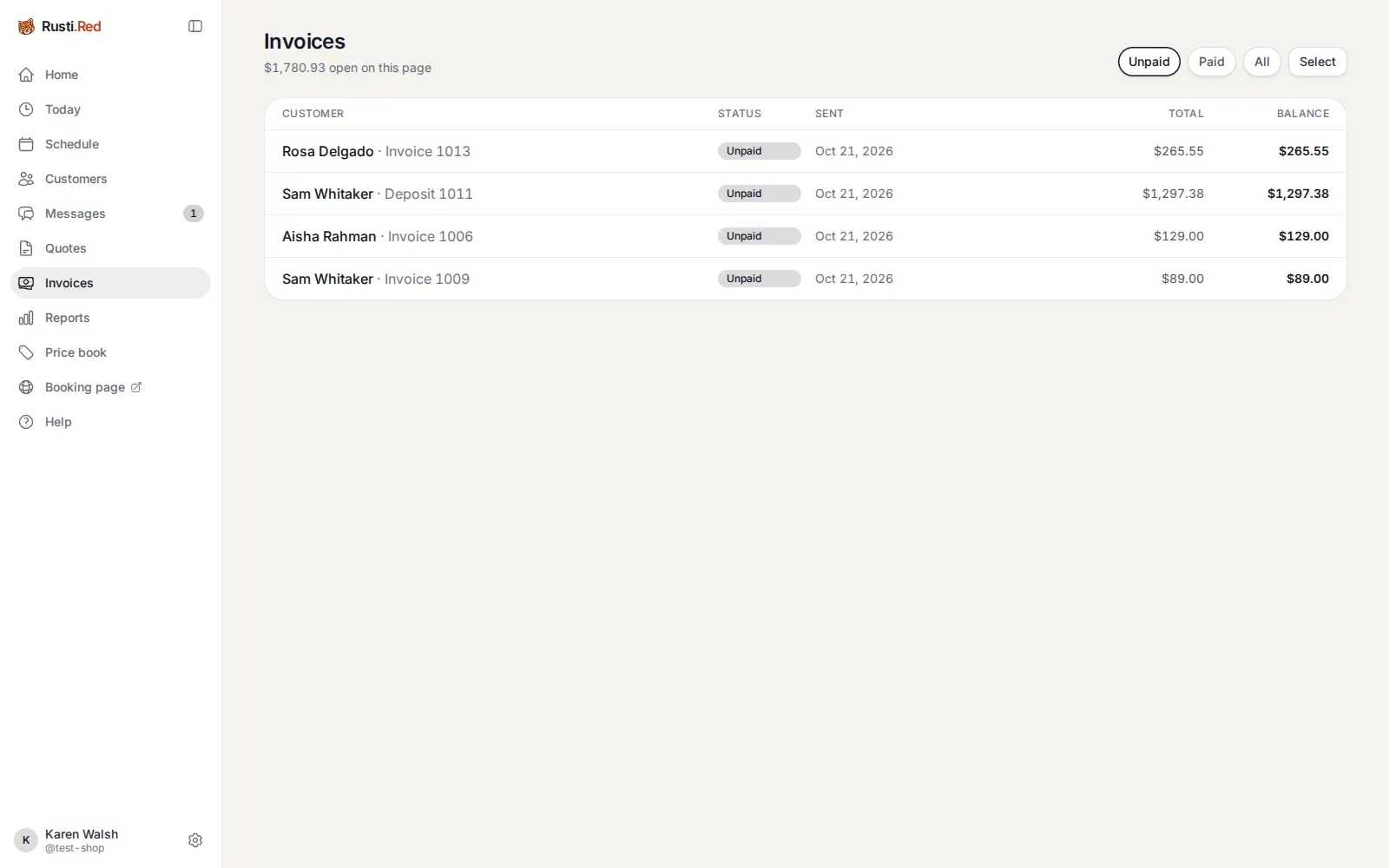
Invoices
Every invoice and what is still owed on it. Unpaid and Paid narrow the list.
Invoices
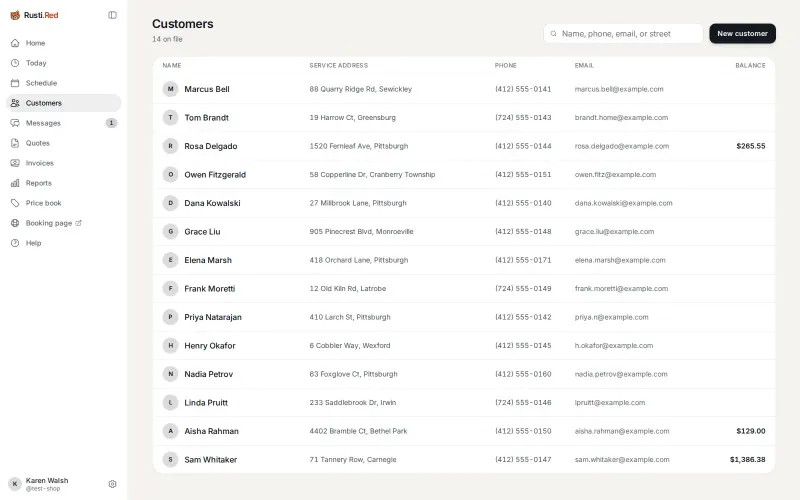
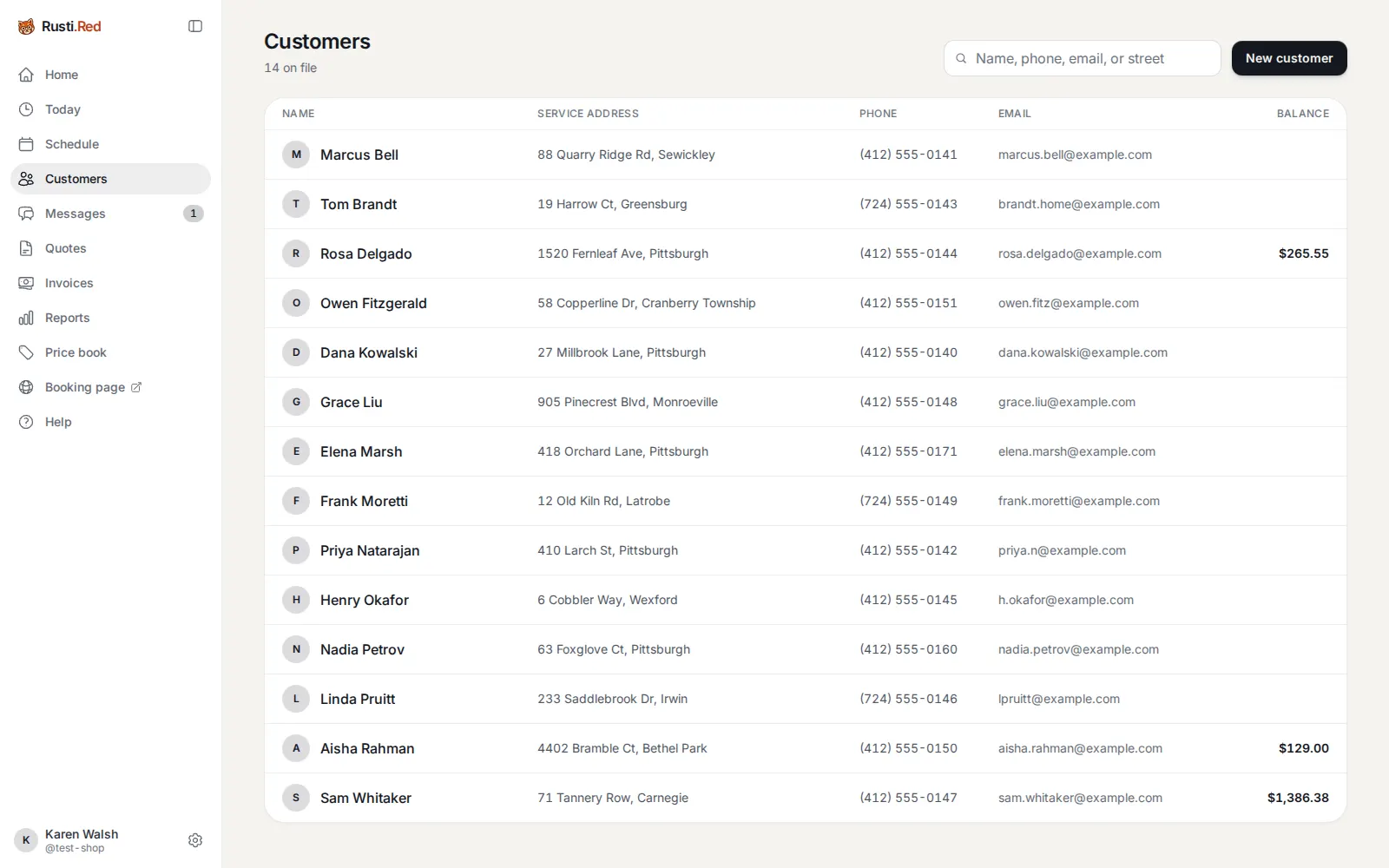
Customers
Everyone on file, searchable by name, phone, email, or street, with any balance owed.
Customers
Words you’ll see in the app Seven terms, from arrival window to recall.
- Arrival window
- “Between 12 and 2.” Homeowners get a window, not a time. You set your windows once.
- Price book
- Your jobs with fixed prices (“Blower motor, $695”). Techs quote from it on site, and a new shop starts with one already filled in.
- Good, better, best
- Up to three options on one quote. The homeowner picks one, and picking is approving.
- Deposit
- A share of a replacement, due on approval. Paying it creates the install job.
- Handoff
- A text the app writes for you to send: copy it, or open it in your phone’s Messages app. Every text is one until your texting is approved.
- Texting registration
- 10DLC, to the carriers. Required to text customers from your own number. A two-minute form with your legal name and EIN, then up to a month for approval.
- Recall
- The “it has been a year, time for a tune-up” message, eleven months after a completed job.
Every message your shop sends Seventeen texts and emails, and when each one goes out.
Each is a text and an email, editable under Message wording. Most go out by themselves, and scheduled ones never between 8 pm and 8 am. Texts go only to customers who said yes; the last three, only to those who ticked the box on the booking page.
- Booking link
- The office texts the page to a caller
- Visit reminder
- 4 pm the day before, reply C to confirm or R to reschedule
- Deposit request
- The office sends the deposit invoice by hand
- Progress invoice
- The office bills part of a job before it is finished
- Statement
- The office sends one bill for several invoices
Send your first quote today
Set up in about ten minutes, starting from an HVAC price book that's already filled in. Month to month.
Get started